You can watch two videos on the screen
simultaneously.
Press the ON/OFF button.
Pressing the button turns the PIP screen on or off.
ΠPress the TV.MENU button. The OSD MENU will
be displayed.
´ Select FUNCTION using the œ/√ button.
ˇ Select PIP using the ▲/▼ button and then press
the
√ button.
¨ The PIP menu will be displayed.
Whenever you press the
œ/√ button, PIP mode is
turned PIP, DW or OFF. Selecting OFF turns off PIP
mode.
ˆ Press the EXIT button to exit the menu.
Note
• Since this product has a single tuner, you cannot watch two TV
channels simultaneously in PIP mode.
•You can only listen to one sound output from either the main
screen or the PIP window.
• Refer to the PIP configuration table (Page 36).
Viewing Picture-in-Picture
You can change the video source of the PIP window
from any externally connected devices.
Œ~¨ STEP1~STEP4 is the same as that of Viewing
Picture-in-Picture.
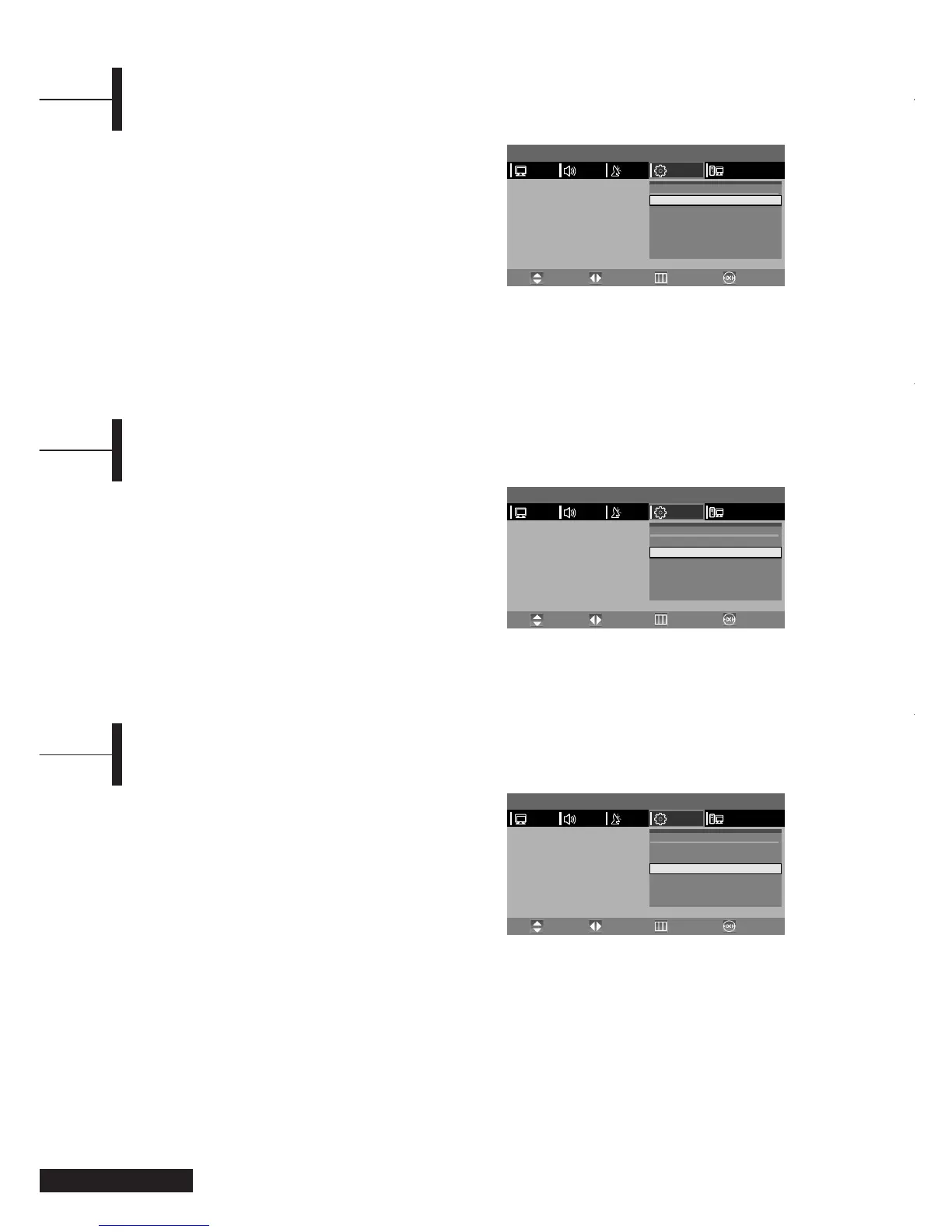
ˆ Select SOURCE using the ▲/▼ button.
Ø Select the desired external input signal using the
œ/√ button. Since this product has a single tuner,
you cannot watch two TV channels
simultaneously when in PIP mode.
∏ Press the EXIT button to exit the menu.
Changing the Source of the PIP Window
When the PIP window shows normal broadcasting
(TV and CATV) channels, you can change the PIP
window channel.
Press the PROG ▲/▼ button.
Whenever you press this button, the channel is
changed.
Œ~¨ STEP1~STEP4 is the same as that of Viewing
Picture-in-Picture.
ˆ Select CHANNEL using the ▲/▼ button.
Ø Select the desired channel using the œ/√ button.
Since this product has a single tuner, you cannot
watch two TV channels simultaneously when in
PIP mode.
∏ Press the EXIT button to exit the menu.
Changing the PIP Window Channel
Eng - 16
MENU
PICTURE
PIP
Source
Channel
Position
Speaker Output
Headphone Output
œ
œ
œ
œ
œ
œ
PIP
COMPONENT
1
RightBottom
Main
Main
PIP
√
√
√
√
√
√
PCFUNCTIONSETUPSOUND
Move PreviousAdjust Exit
MENU
PICTURE
PIP
Source
Channel
Position
Speaker Output
Headphone Output
œ
œ
œ
œ
œ
œ
PIP
COMPONENT
1
RightBottom
Main
Main
PIP
√
√
√
√
√
√
PCFUNCTIONSETUPSOUND
Move PreviousAdjust Exit
MENU
PICTURE
PIP
Source
Channel
Position
Speaker Output
Headphone Output
œ
œ
œ
œ
œ
œ
PIP
COMPONENT
1
RightBottom
Main
Main
PIP
√
√
√
√
√
√
PCFUNCTIONSETUPSOUND
Move PreviousAdjust Exit



 To Next Page