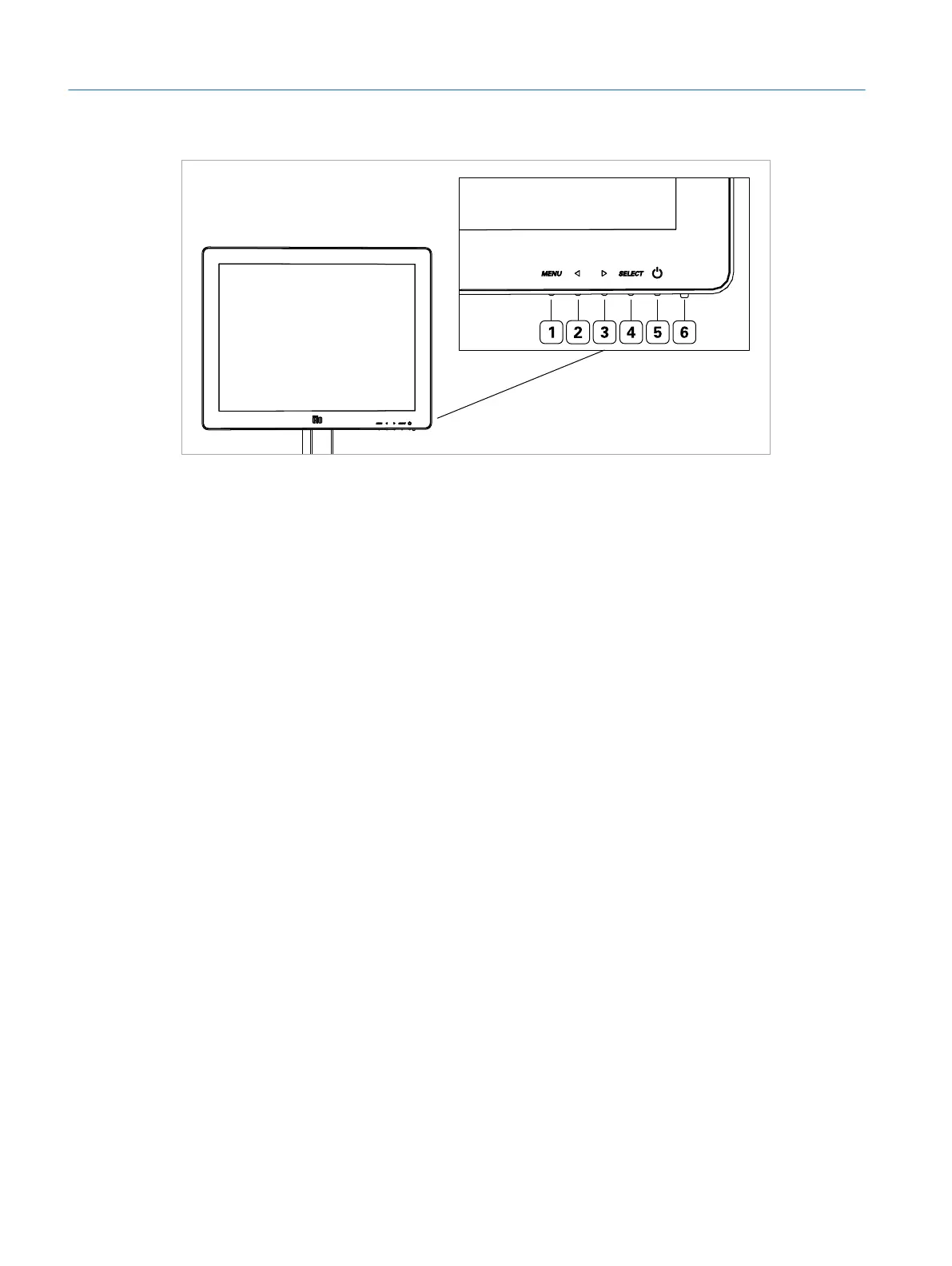
Fig. 40: Buttons on the bottom right side of the touch screen
1 Menu Button Enter/leave the menu
2 Left Button Navigate through menu/change setting
3 Right Button Navigate through menu/change setting
4 Select Button Select a menu item/confirm setting
5 Power Button Power on/off
6 Status LED
Switching the touch screen on and off:
1. To turn the touch screen on or off, press the power button once.
Adjusting the volume of the touch screen (shortcut):
1. Press .
▷ The Audio menu is displayed.
2. Press once to select the Volume setting.
3. Press SELECT to enter the Volume setting.
4. Use and to adjust the volume.
5. Press MENU two times to exit the touch screen menu.
Adjusting other touch screen settings (e.g. contrast or brightness):
1. To enter the touch screen menu, press MENU.
2. Press or to select the desired menu item.
3. Press SELECT to enter the selected menu item.
4. Use or and SELECT to enter submenus and change settings.
5. Press MENU several times to exit the touch screen menu.
Eyesi Surgical Simulator – Installation and Operating Guide
46
Operation


 To Next Page