Info Touch screen does not display anything
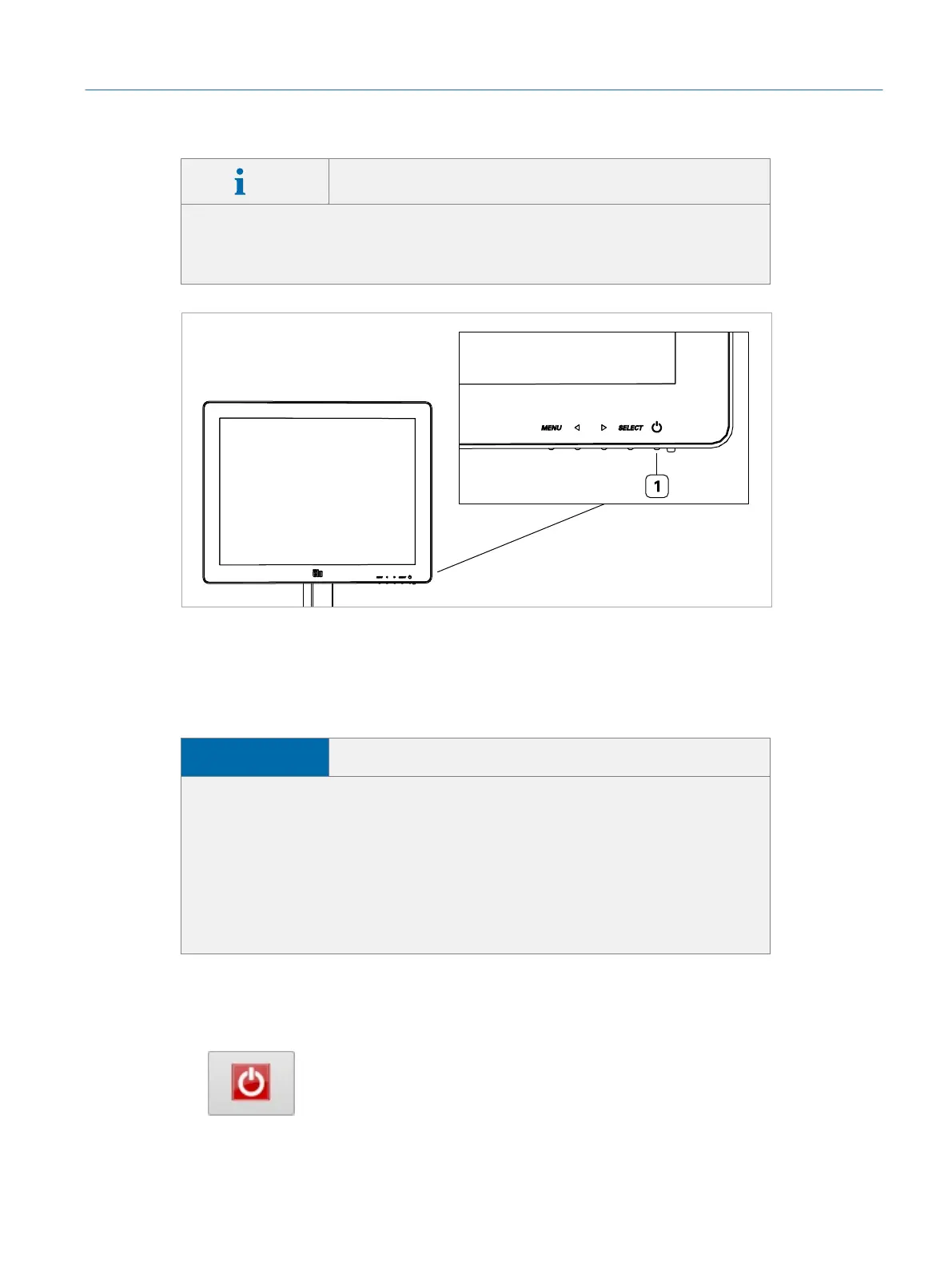
If the touch screen stays black, it is most probably switched off. To switch it
on, press the power button on the bottom right side of the screen (ÂFig. 30
on page39).
Fig. 30: Touch screen power button (1)
5.3 Switching the Simulator Off
NOTICE
Possible software errors through wrong shutdown
Shutting down the simulator by pressing the power button on the front of the
simulator PC may compromise the simulator’s data saving and software updat-
ing routine.
f To switch off the simulator, tap the shutdown button on the login screen
(ÂFig. 31 on page39) and select Shutdown in the drop-down list.
f Only if the software does not run properly, press the power button for a
short time (less than 0.5 seconds).
Switching the simulator off:
1. Tap the shutdown button on the login screen.
Fig. 31: Shutdown button on the login screen
▷ A drop-down list is displayed.
39
Operation
Eyesi Surgical Simulator – Installation and Operating Guide


 To Next Page