Click [Add] icon on the toolbar or execute [Add
Unit] by clicking mouse right button at “My Units”.
1) Select “URL/IP Adress”
2) Enter proper IP address and Port, then click [Find]
button. If the NVR is located inside local network,
you can easily find the NVR by clicking [Auto
Detect] button.
3) Check whether the unit’s information is properly
displayed.
4) Enter NVR’s ID and pasword, then click [OK].
5) NVR will be listed on the unit list of “My Units”.
(NVR’ Default ID/Password is admin/12345)
NVR’s live display
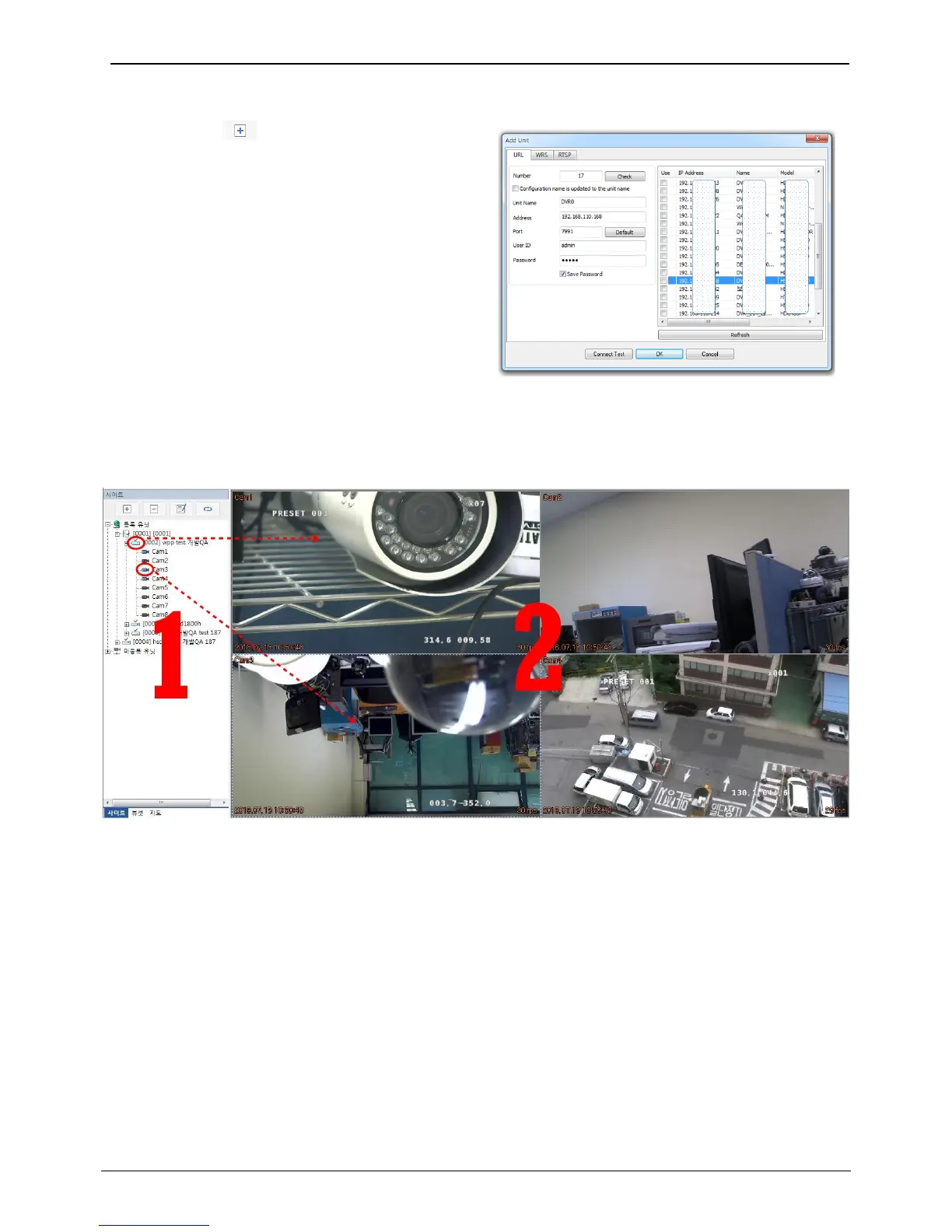
If you click a unit’s icon in the “My Units”, you can get live monitoring display. Split-screen will be displayed to
show all channels of the unit.
All channel display at the same time
If you click a unit’s icon (1), all channels' video will be displayed on the split-screen (2). If you click a unit’s icon
again, then all video on screen (2) will be off.
Display a specific one channel
If you click one channel icon, that channel on screen (2) will be off. If you drag and drop one channel from 1 to
2, that channel will be displayed on that position.



 To Next Page