Playback, Search and Copy
Playback Screen Composition
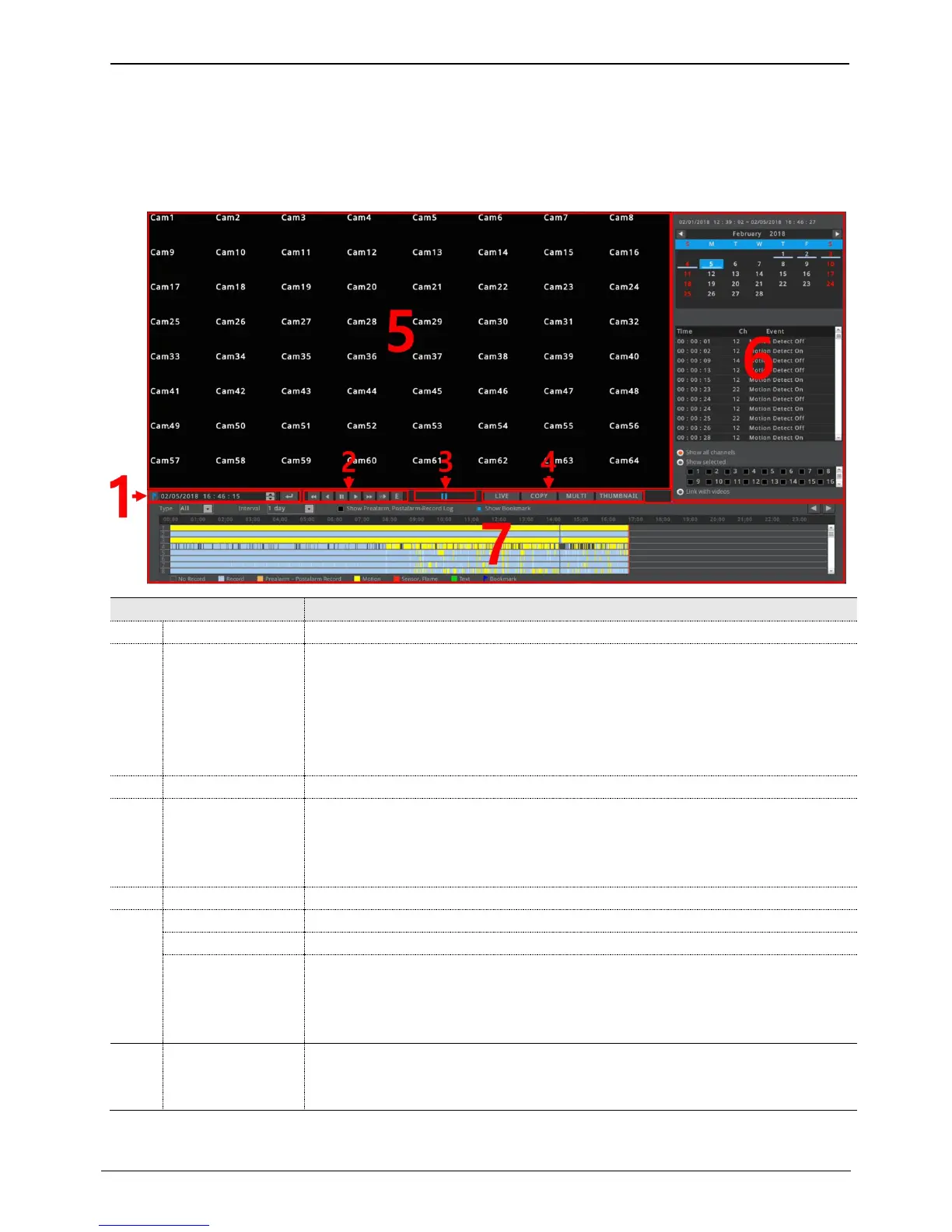
Set the time to want to play.
Use buttons to control the playback.
▶: Forward x1 playback
◀: Backward x1 playback
ll : Pause
▶▶: Step forward during pause state, or playbacak speed changing during playback state.
◀◀: Step reverse during pause state, or reverse playback speed changing during playback state.
Shows the state of playback.
LIVE: Return to live monitoring mode
COPY: Excute backup menu
MULTI: Changing split screen mode
THUMBNAIL: Excute thumbnail search mode
Displays the playback videos.
Show the date of current playback video. Also, user can select the date to playback.
Display the log that occurred within the time displayed on the timeline.
Set the configuration of time line and log viewer.
⊙ Show all channels: Display timeline and log for all channels
⊙ Show selected: Display timeline and log for selected channels
⊙ Link with videos: Display timeline and log for channels displayed on the playback screen
Displays whether there is recording data. Normal, pre-post alarm, motion, sensor/flame, text,
bookmark are displayed with different colors and user can select the type of recorded data to be
displayed on the timeline



 To Next Page