Monitoring
Basic screen
The basic screen will be maximum multi screen NVR supports and if rebooted after multi-screen mode has
been modified, previous multi-screen mode will be shown. (NVR default account admin / 12345)
<Note>
The default password is very weak for security. It is highly recommended that user must change the password
periodically. The responsibility for security problems by using default password is to user.
Single screen
click the channel number you want to view or Double
click the left mouse button.
Click [MULTI] button or Double click the left mouse
button again to o return to multi-screen
.
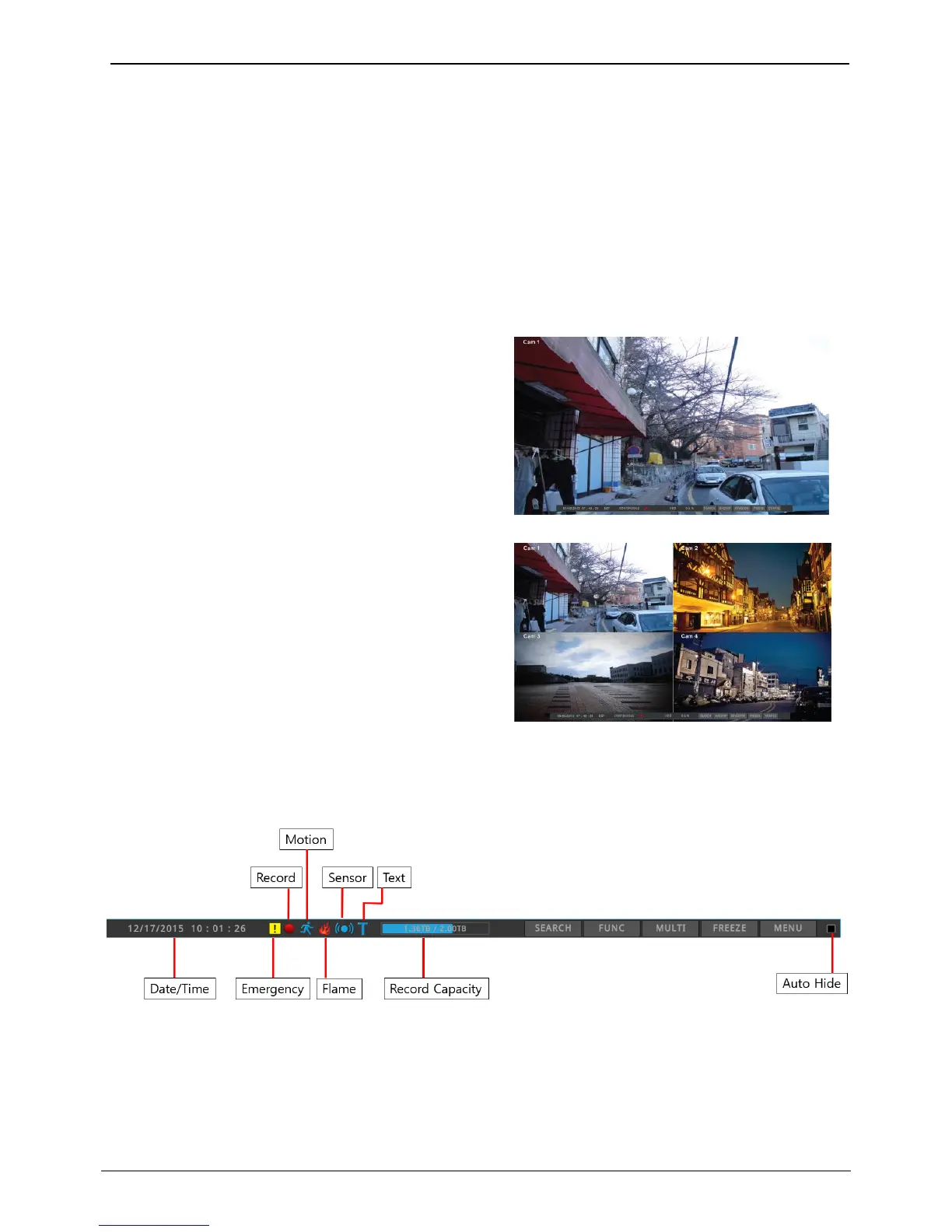
Screen description
Status bar represents status of NVR.
Status bar shows current date/time, emergency record, record, motion detection, fire, sensor, text, disk capacity,
status bar auto hide.
Auto switch mode (Sequence)
Auto switch screen mode is a feature in which the selected channel or multi screen division switches in sequence
with the time interval of 1 – 60 seconds.
(Please refer to “Monitor setup” for further configuration method).
Auto Switch mode can be set in every division mode by pressing the [SEQ] button.
Press [SEQ] button once more to leave from Auto Switch mode.



 To Next Page