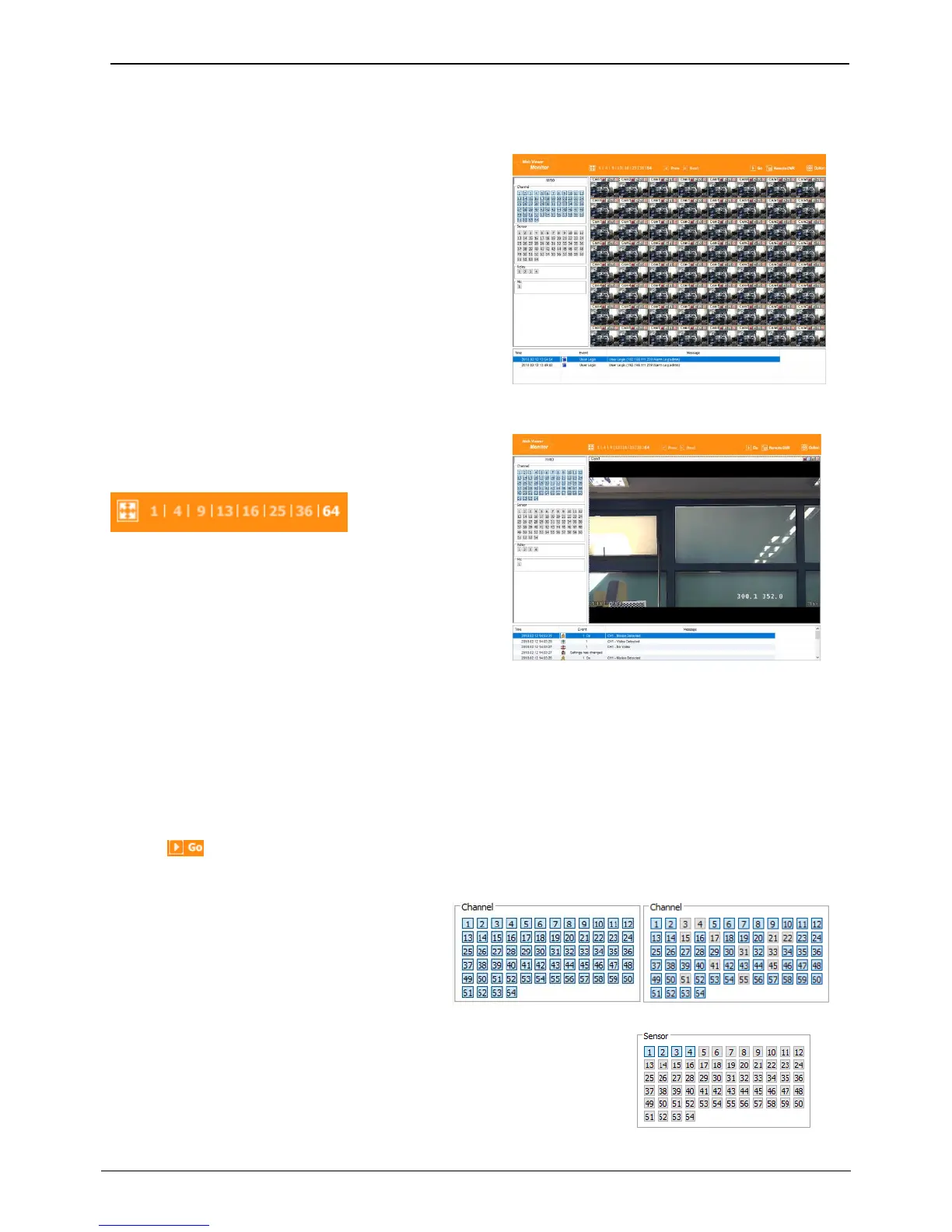
When it is authorized with User ID & Password input at
Login page, it moves to monitor page. At Monitor page, it
is possible to monitor real time image of cameras
connected to NVR, or it can control PTZ camera, Relay, and
use Microphone function according to user’s
authorization.
Screen division and changing video position
The first monitor page will display the maximum screens
of the connected model.
It can to change to 1, 4, 9, 13, 16, 25, 36, 64 divisions by
clicking the number on top of page.
Also, it can change to 1 channel mode by double click
any one of channel image. Double click again, it is
restored to previous screen division.
At division screen, it can change screen location using mouse drag.
If Ch3 image moves to Ch1, drag Ch3 image and drop on Ch1 location so as to exchange between 3ch and 1ch
image.
Press the very front icon on the upper screen on multi screen mode to switch to a full screen mode.
To go back to normal screen mode from full screen mode, press ESC key
Move to Playback
Click the on the upper right to move to playback page.
Channel On/Off
It is On/Off button for the Channel located to left
in page. Click the channel wanted to On or Off.
And Default is “On”.
The icon indicates when sensor occurs in system
When it sensors, relevant sensor icon comes to Red, and indicates sensor
number of video. When sensor is not triggered, icon keep as blue.



 To Next Page