CMP100 User Guide
12
3.2 Device Status Overview
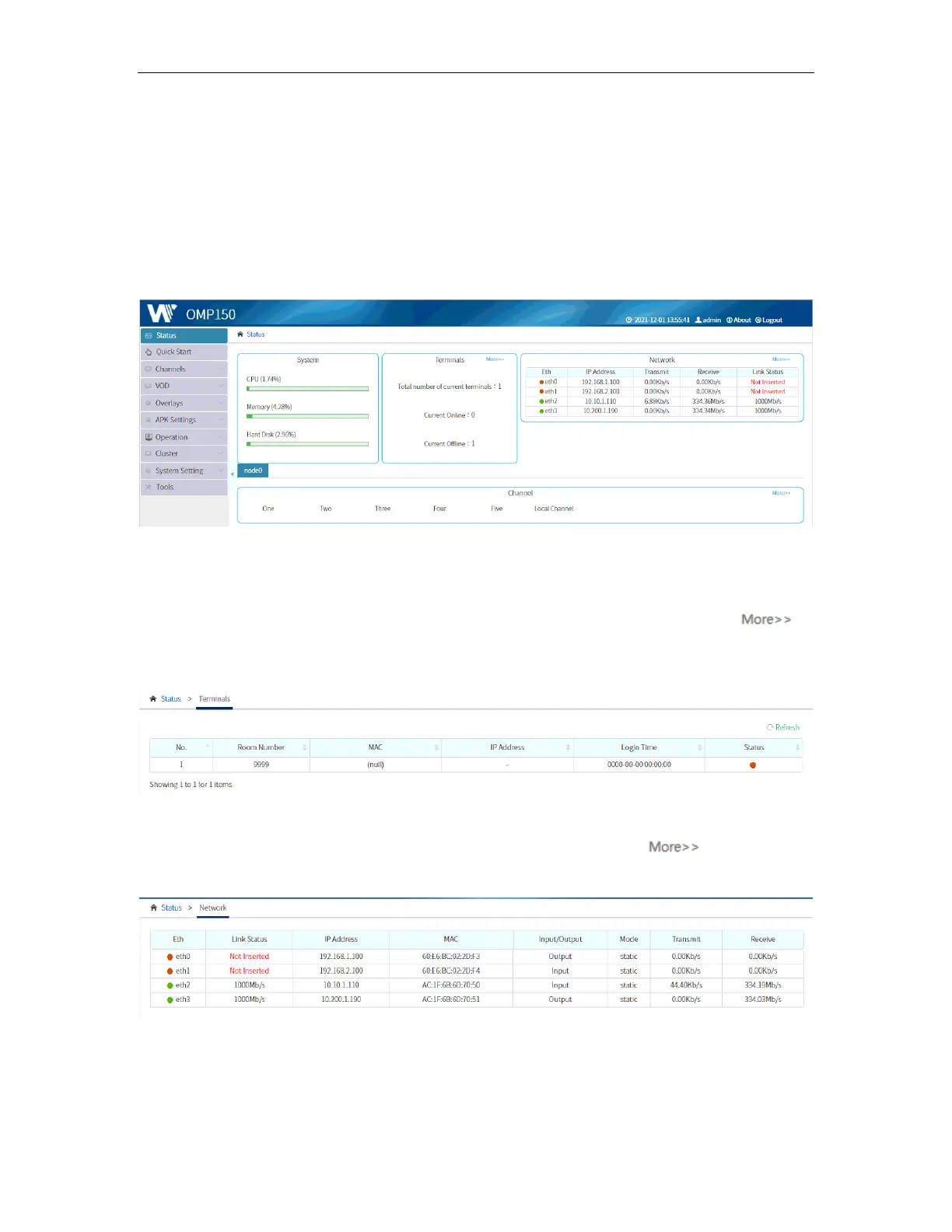
After a successful login, the Status will be displayed. It will show you the following:
• System status
• Terminal status
• Network status
• Channels status
System status will display the real-time status of CPU, Memory and Hard Disk usage of
the device, aiming to avoid system crash caused by excessive resource usage.
Terminal status will display the number of terminals connected. You can click to
see details about the terminal like Room Number, MAC Address, IP Address, Login Time
and Status (online or offline).
Network status will display the Ethernet port status. You can click to see detailed
information on the network as shown in the picture below.
• ETH: this will show GREEN if the port is connected to a device and RED if no
connection.
• Status: this shows the speed (100Mb/s or 1000Mb/s) of the network where the
port connects. All 6 ports on OMP150 are adaptively set to 100Mb/s or 1000Mb/s,
depending on the network they connect to.



 To Next Page