M101H Series User Guide 17
You have three choices:
1. Use recommended settings(automatically downloads and installs all updates provided by
Microsoft)
2. Install important updates only(only downloads and installs critical updates)
3. Ask me later.
Click the option you wish to use.
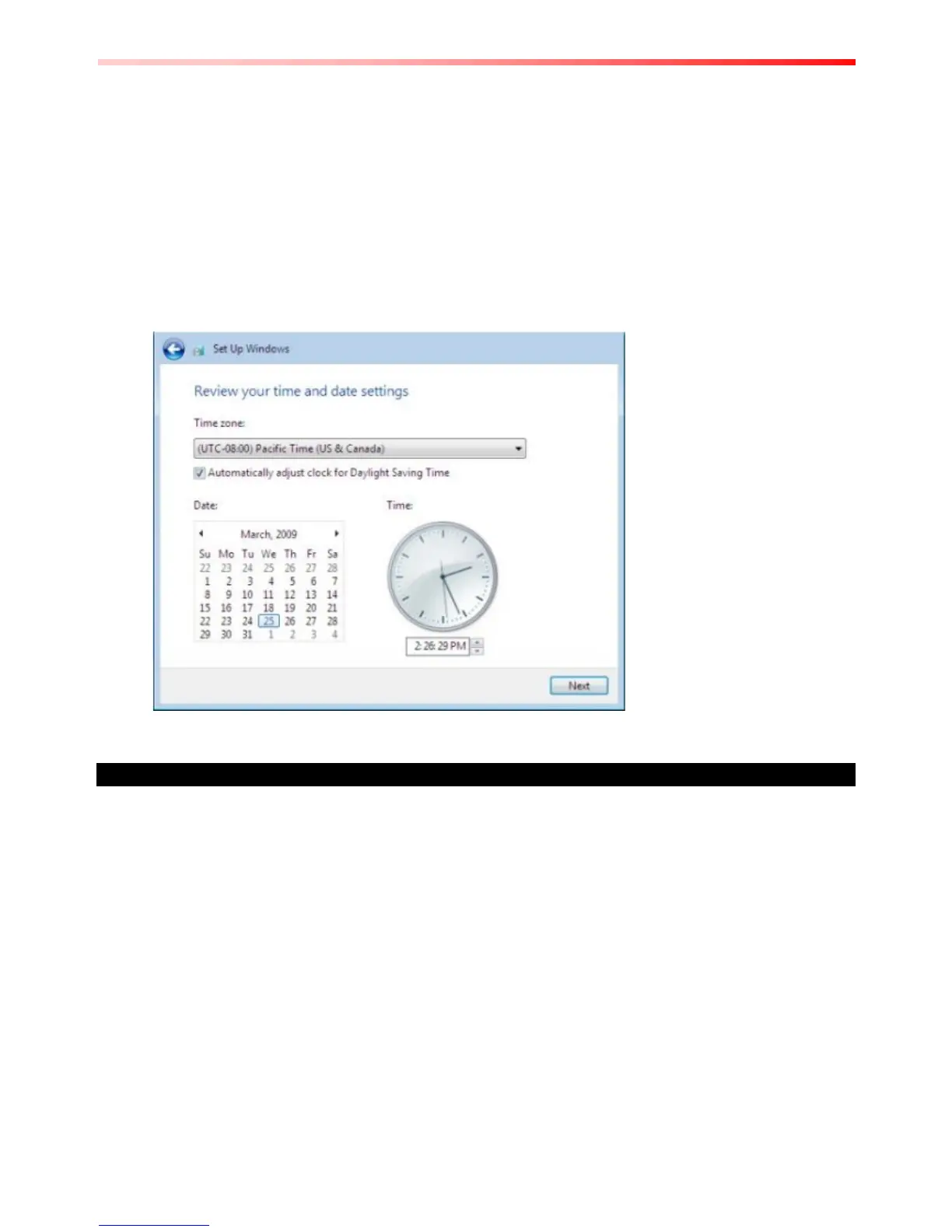
Reviewing your time and date settings
The next screen contains options for changing the date and time settings.
Verify your time zone, time, and date. Make any necessary changes. Then click Next to continue.
Choosing your computer's network
If you have a home network, connect with an Ethernet cable or activate the Wireless feature
before continuing.
Use the following steps to setup your computer network:
1. Choose a wireless network from the list.
2. If you do not see your network, click Connect to a hidden wireless network, enter the
network name, and select the security type and encryption type. Or, click Skip to continue
without a wireless connection and set it up later.
3. From the next screen, select one of the following locations for your computer:
• Home network: Select this location if all the computers on this network are at your home
and you recognize them. This is a trusted home network.
• Work network: Select this location if all the computers on this network are at your
workplace and you recognize them. This is a trusted work network.



 To Next Page