58 M101H Series User Guide
Settings
This Hottab menu option provides users information such as PC Information, Battery status, and
also device settings such as power management setting, and function key mappings. Perform
the following procedure to access the Hottab Setting menu:
1. Open the Hottab utility by press the (Menu) Button located on the front panel, OR
launching the Hottab Utility application.
2. Tap on the Settings button.
3. Below shows the items listed in Settings Menu.
PC Information
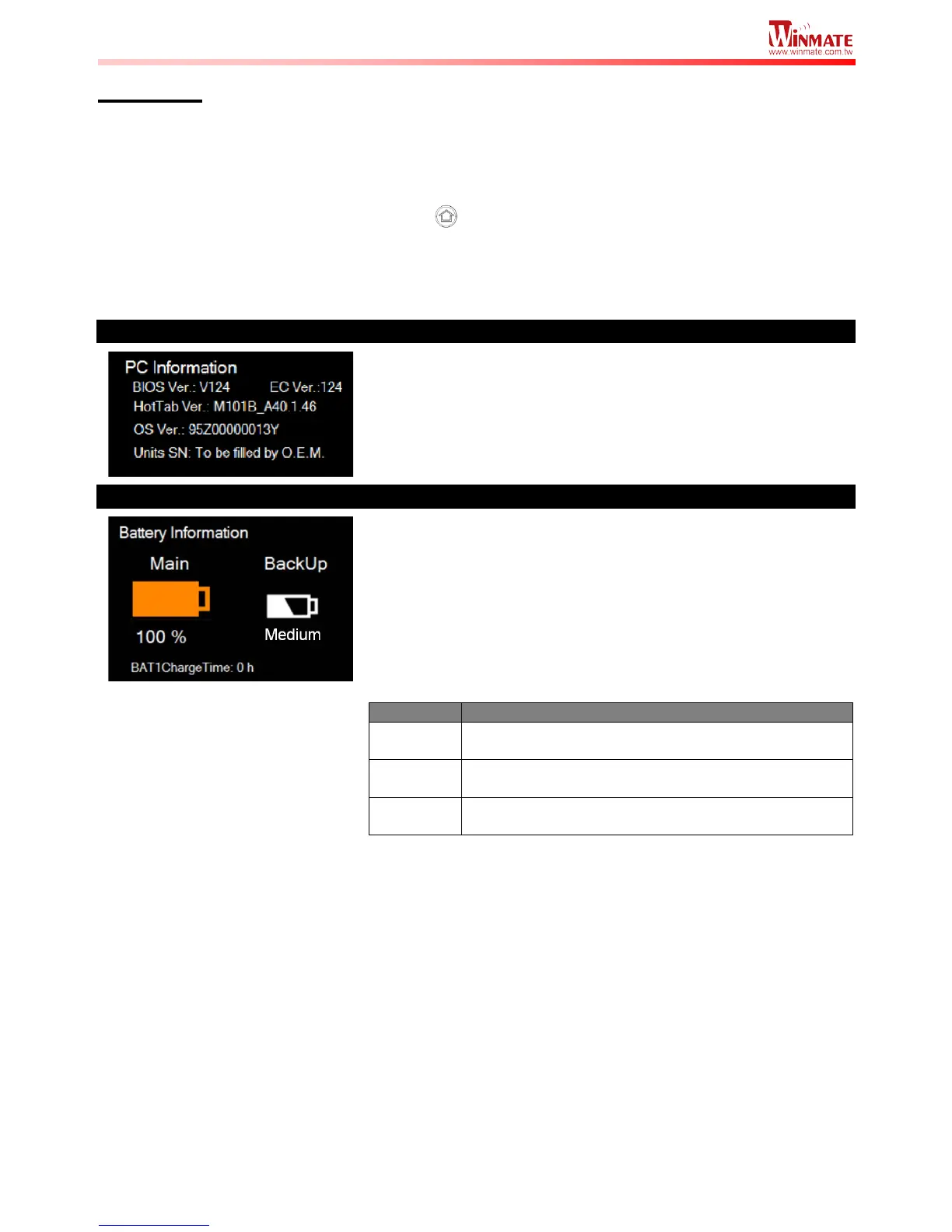
This section provides user device information in regards to BIOS
Version, EC Versions, Hottab Versions, OS Versions, as well as
Unit Serial Number, shown in the picture sample.
Battery Information
This section provides user battery Information.
Main Battery:
The main battery Icon displays the battery level in percentages (0 to
100%).
Backup Battery:
The backup battery used for battery hot swapping displays its state
in text with the following meanings.
Backup battery is fully charged, and can be used for
hot swapping
Backup battery level is intermediate, but can be
used for hot swapping
Backup battery level is low, and hot swapping is not
recommended.
Battery Charge Time:
The Battery Information also displays estimated time needed to fully
charge the main battery when AC adapter is plugged in. Meanwhile,
the backup battery is charged by the main battery.



 To Next Page