70 M101H Series User Guide
Pairing with a Wireless Bluetooth Barcode Scanner with
Bluetooth Serial Port Profile
The computer is affixed with a Bluetooth MAC (Media Access Control) address barcode label
that enables wireless Bluetooth Barcode Scanner to quickly establish Bluetooth connection with
the computer. It is encoded with leading characters to instruct the wireless Bluetooth barcode
scanner to initial Bluetooth Serial Port Profile pairing request.
Setup Computer for Bluetooth Pairing
To start the pairing process, first perform the following steps to ensure the computer is properly
setup for pairing:
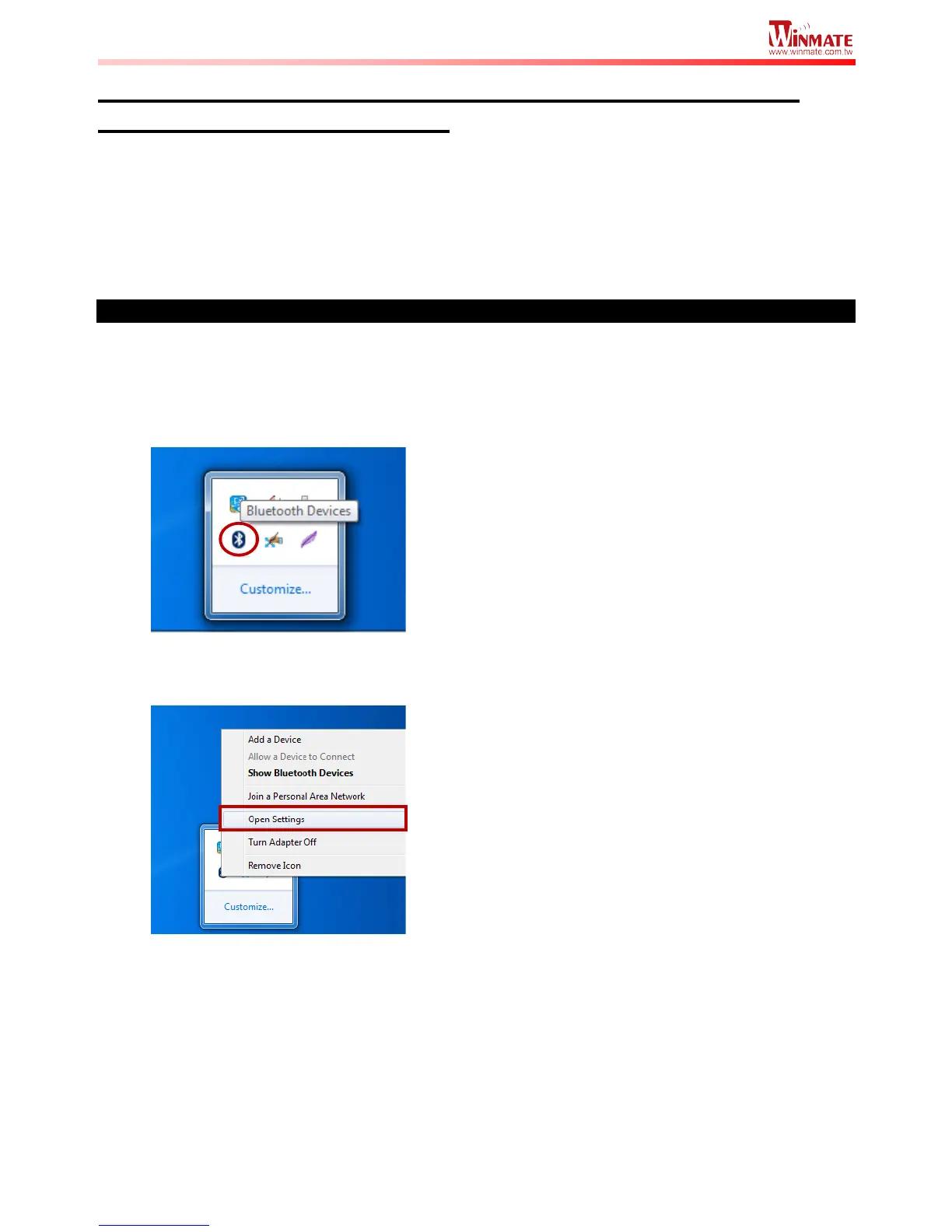
1. Locate the Bluetooth icon in the Notification Area
2. Bring up the Contextual Menu by performing long press on the icon with touchscreen or
right-click on the icon with a mouse, and select Open Settings.
3. Once the Bluetooth Settings Menu appears, go to “Options” tab, and make sure that in
the Discovery section, the computer is set to “Allow Bluetooth devices to find this
computer”, as shown below:



 To Next Page