52 M101H Series User Guide
Turn on/off the GPS Ext. Antenna
The vehicle dock of M101H Tablet PC supports external GPS antenna
through standard SMA connector. To work with external GPS antenna,
please make sure the tablet PC is well installed to vehicle dock, and the
vehicle dock has connected with external GPS antenna.
When working with vehicle dock connecting to external antenna, user can switch GPS antenna
from the internal one to the external one from Hottab menu. To enable/disable the GPS Ext.
Antenna, perform the following procedure:
1. Open the Hottab utility by press the (Menu) Button located on the front panel, OR
launching the Hottab Utility application.
2. Tap on the Device ON/OFF button.
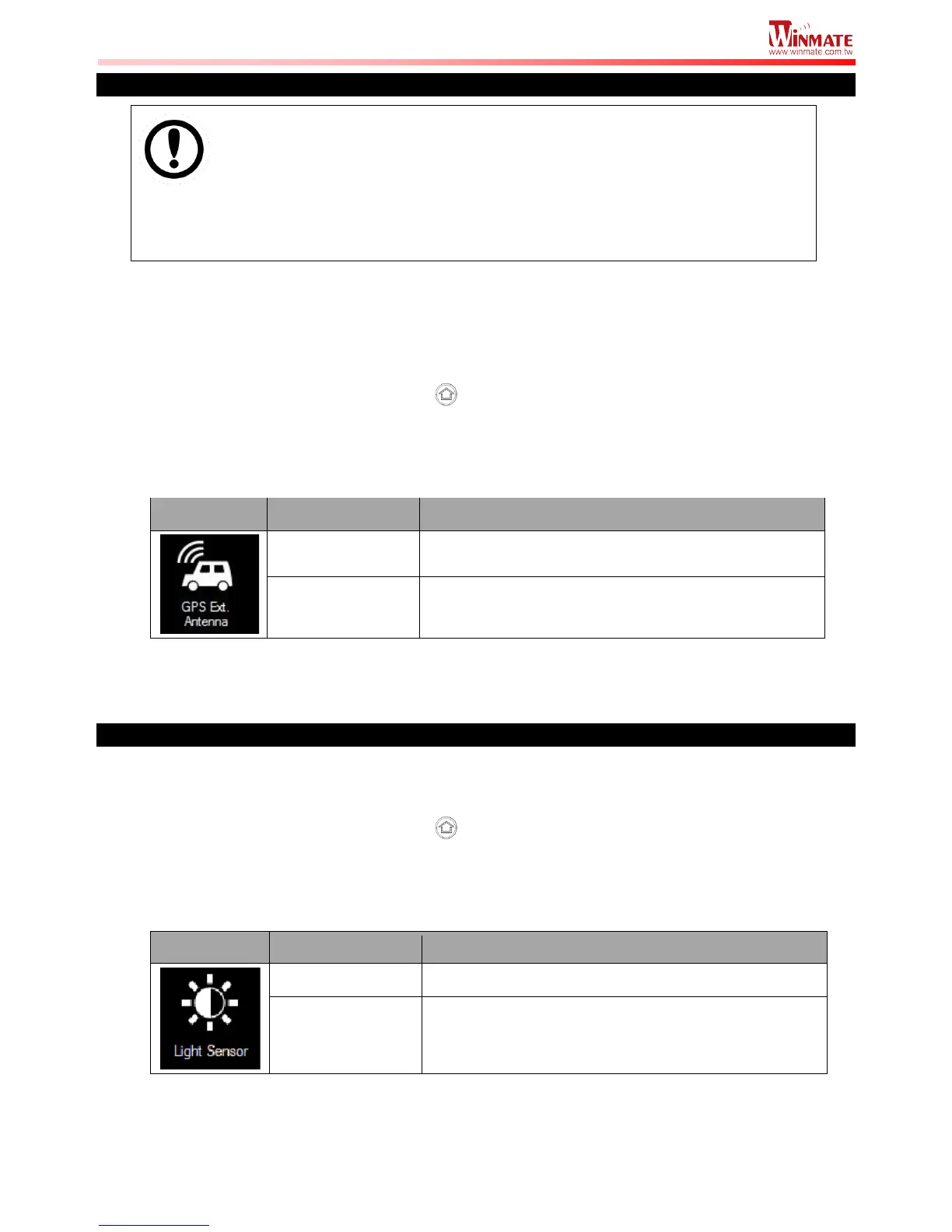
3. Check the status color of the GPS Ext. Antenna icon:
GPS Ext. Antenna is enabled, and using external
antenna if available
GPS Ext. Antenna is disabled, and using built-in
antenna
4. If the GPS Ext. Antenna is disabled (white), tap on the GPS Ext. Antenna icon to enable it
(orange).
Turn on/off the Light Sensor
The Light Sensor can be turned on/off from Hottab menu. To enable/disable the Light Sensor,
perform the following procedure:
1. Open the Hottab utility by press the (Menu) Button located on the front panel, OR
launching the Hottab Utility application.
2. Tap on the Device ON/OFF button.
3. Check the status color of the Light Sensor icon:
Light Sensor is disabled.



 To Next Page