36 M101H Series User Guide
Chapter 4: Operating The Device
Hottab Introduction
Hottab provides quick access to the tablet’s functions and features, such as setting up
shortcuts, using camera, powering on/off built-in devices, programming function key, and
changing power management.
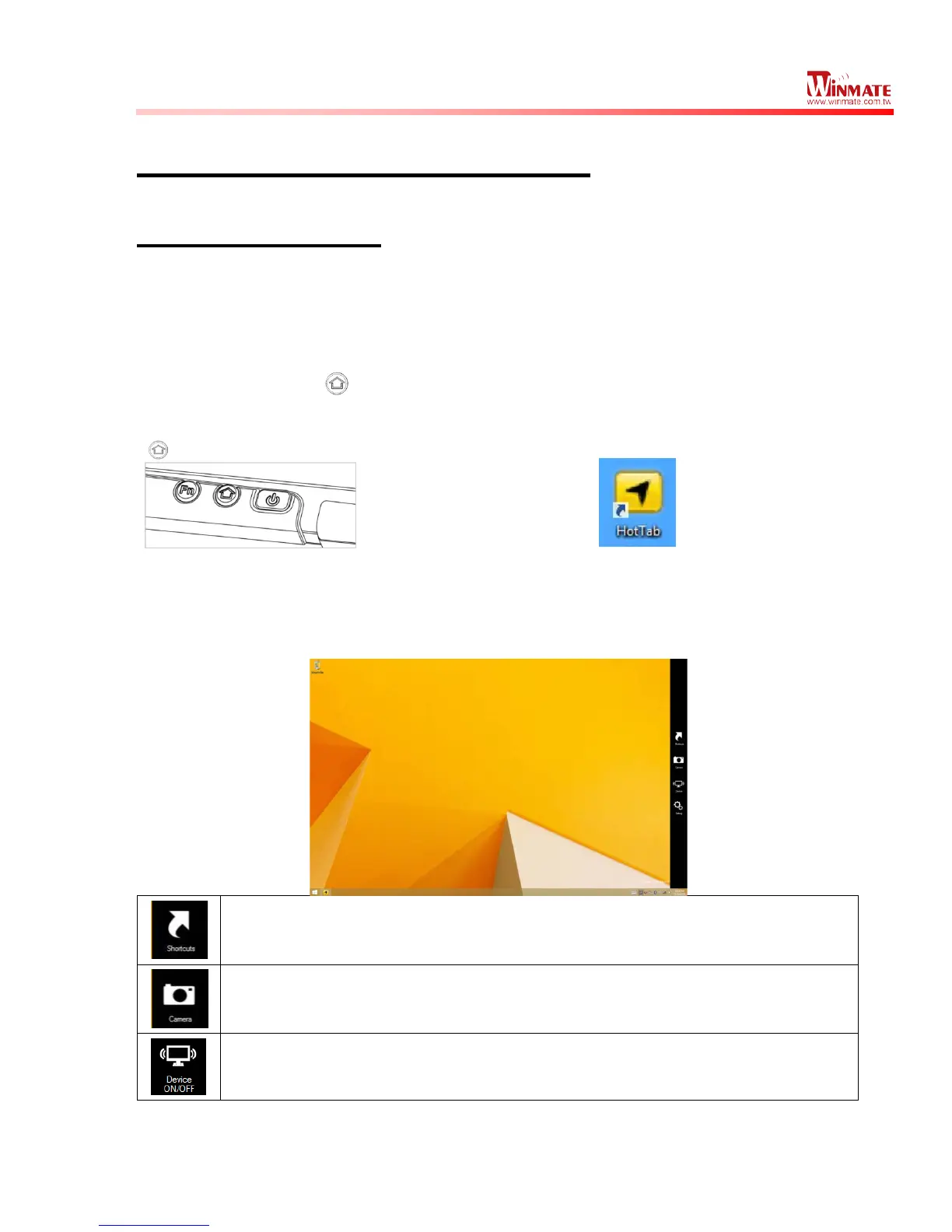
As Windows starts up, Hottab starts and runs in the background. To display the Hottab
control utility, press the (Menu) Button located on the front panel, OR launching the
Hottab Utility application.
(Menu) Button on the Front Panel:
The main user interface is located on the right side of the screen. There are 4 main menu
options: Shortcuts, Camera, Device ON/OFF, and Settings. Operations and functions on
each menu options is explained in detail in the coming section.
Shortcuts button allows users to configure short cut to quickly access programs with a
few tabs.
Camera button allows users take a picture or record a video. User can also adjust
setting related to camera in this menu option.
Device button enables/disables tablet computer’s hardware functions. The configurable
functions are Wi-Fi, WWAN(3G/4G/LTE), GPS, Bluetooth, Camera, LED indicators,
Barcode Reader, RFID Reader, Expansion Port, and GPS Antenna routing options.



 To Next Page