M101H Series User Guide 43
Using the Bluetooth feature
To enable the wireless Bluetooth feature, perform the following procedure:
1. Open the Hottab utility by press the (Menu) Button located on the front panel,
OR launching the Hottab Utility application.
2. Tap on the Device ON/OFF button.
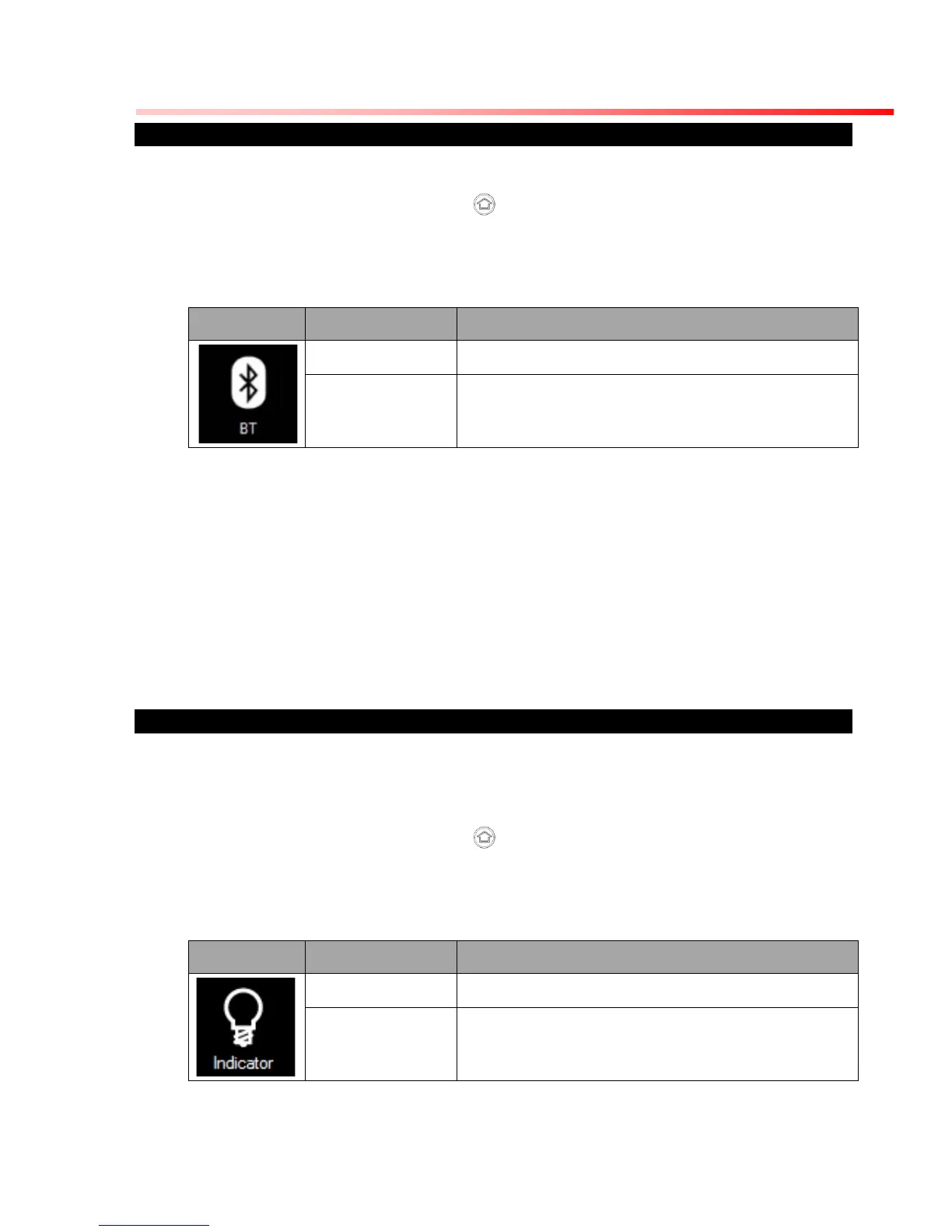
3. Check the status color of the Bluetooth icon:
4. If the Bluetooth feature is disabled (white), tap on the Bluetooth icon to enable it
(orange).
5. Click the Bluetooth icon in the Windows notification area. A contextual menu for
Bluetooth is displayed.
6. To add a device, tap on Add a Bluetooth Device. Windows will search any Bluetooth
device automatically
7. Choose the Bluetooth device that user wants to connect and follow onscreen prompt
to continue the pair procedure and use the Bluetooth device.
Turn on/off the LED Indicators
The LED Indicators for Power Status, Battery Status, and RF Communication can be turned
on/off from Hottab menu. To enable/disable the LED indicators, perform the following
procedure:
1. Open the Hottab utility by press the (Menu) Button located on the front panel,
OR launching the Hottab Utility application.
2. Tap on the Device ON/OFF button.
3. Check the status color of the Indicator icon:



 To Next Page