Setting button provides users information such as PC Information, Battery status, and
also device settings such as power management setting, and function key mappings.
Shortcuts
Set up On-screen Software Shortcuts
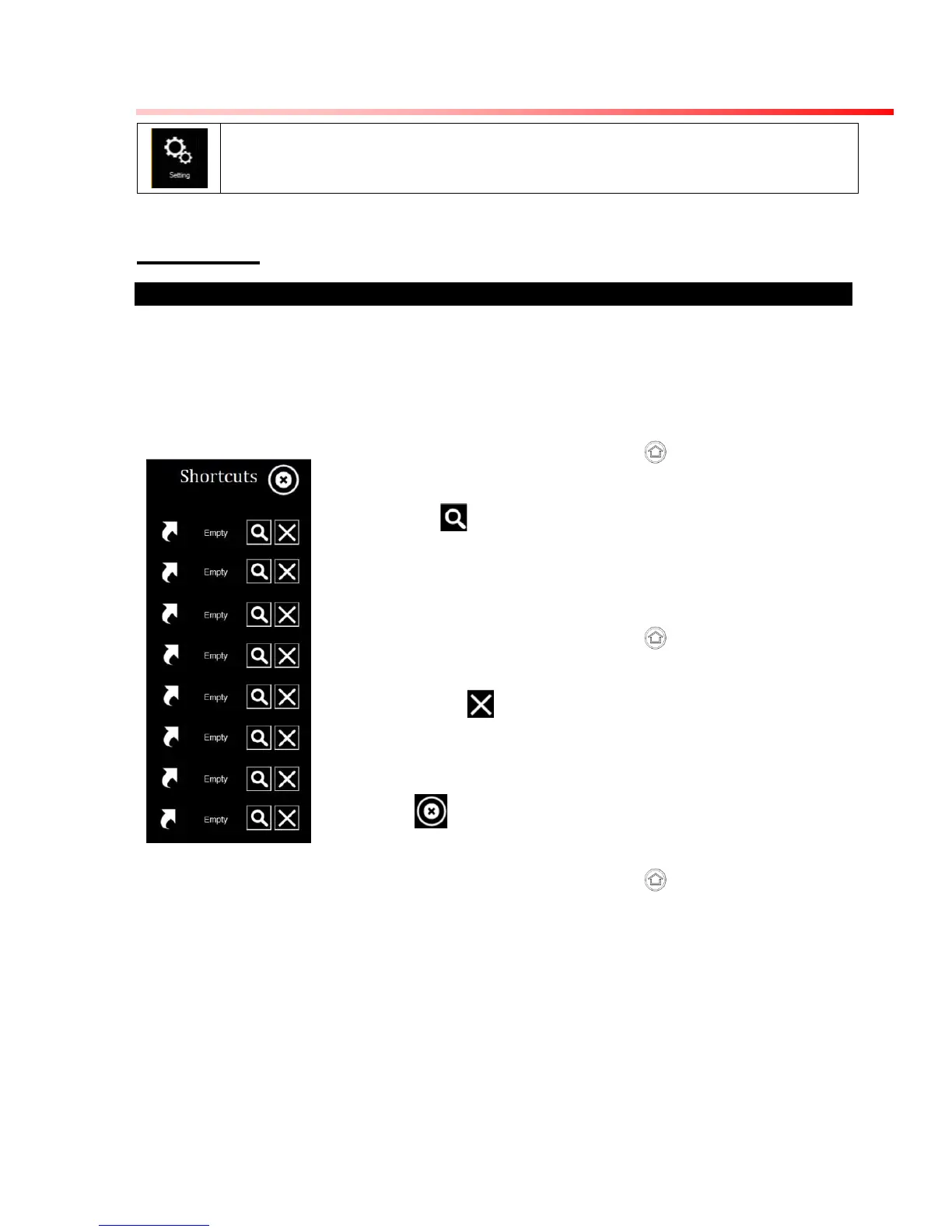
Hottab Shortcuts Menu provides an user-friendly interface to configure on-screen software
short cuts and allow users to quickly access programs with a few tabs. The Shortcuts menu
offers 8 empty slots to store user’s desired quick access. Shortcuts can be mapped to any
of the executable files (.exe) installed on the tablet.
1. Open the Hottab utility by press the (Menu) Button located
on the front panel, OR launching the Hottab Utility application.
2. Tap on the Shortcuts button.
3. Tap on button of any empty slot.
4. An on screen file browser will appear.
5. Browse to find the desired application to have shortcut.
6. Click “Open” to save the shortcut.
To remove an saved shortcut:
7. Open the Hottab utility by press the (Menu) Button located
on the front panel, OR launching the Hottab Utility application.
8. Tap on the Shortcuts button.
9. Tap on the button of any saved slot to remove
10. Shortcut will be removed, and once again show “Empty” to
indicate slot is empty.
Tap on the button will hide the Hottab Utility Menu.
Using the Hottab shortcuts:
1. Open the Hottab utility by press the (Menu) Button located
on the front panel, OR launching the Hottab Utility application.
2. Tap on the Shortcuts button.



 To Next Page