1. Open the Hottab utility by press the (Menu) Button located on
the front panel, OR launching the Hottab Utility application.
2. Tap on the Setting button.
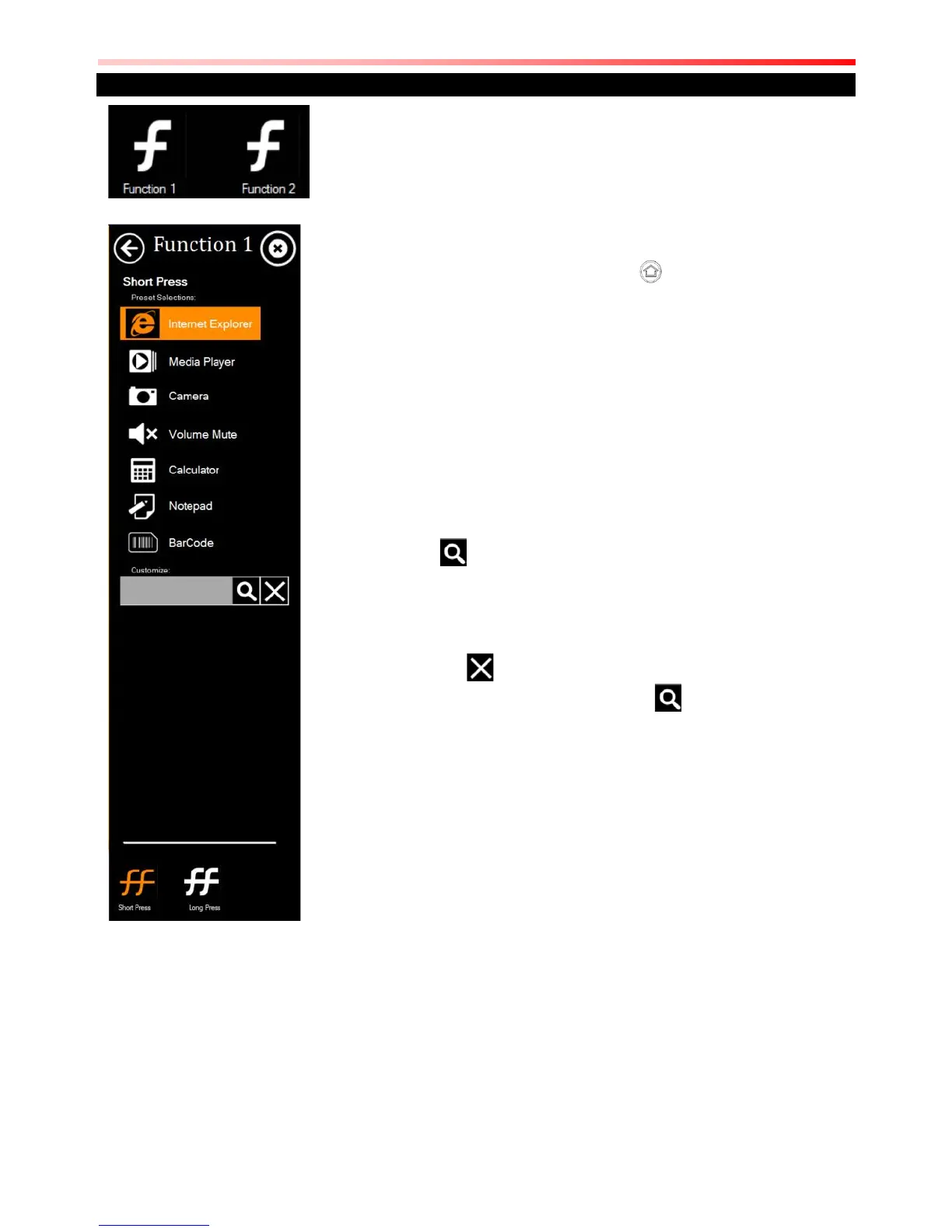
3. Tap on function key icon for the corresponding key that you want
to change.
4. At top of utility, it will say “Short Press” or “Long Press” to indicate
what type of press is being configured
5. You can switch what type of press you want to configure by
tapping on the “Short Press” or “Long Press” icon at the bottom of
the utility window.
6. Pick from list of preset applications by tapping on the application
icons OR customize which application to execute using the picker.
Using the Custom picker:
1. Tap the icon to reveal browser window
2. Navigate to the desired executable to map to function key
3. Tap on “Done” to save selection.
To map the function key to another application:
1. Tap on the icon to remove connection to the original
application, and pick again tapping on icon.
Using the physical function keys:
1. While operating the tablet, click on the physical function keys to
activate functions mapped via the setup in this section.


 To Next Page
 Loading...




