72 M101H Series User Guide
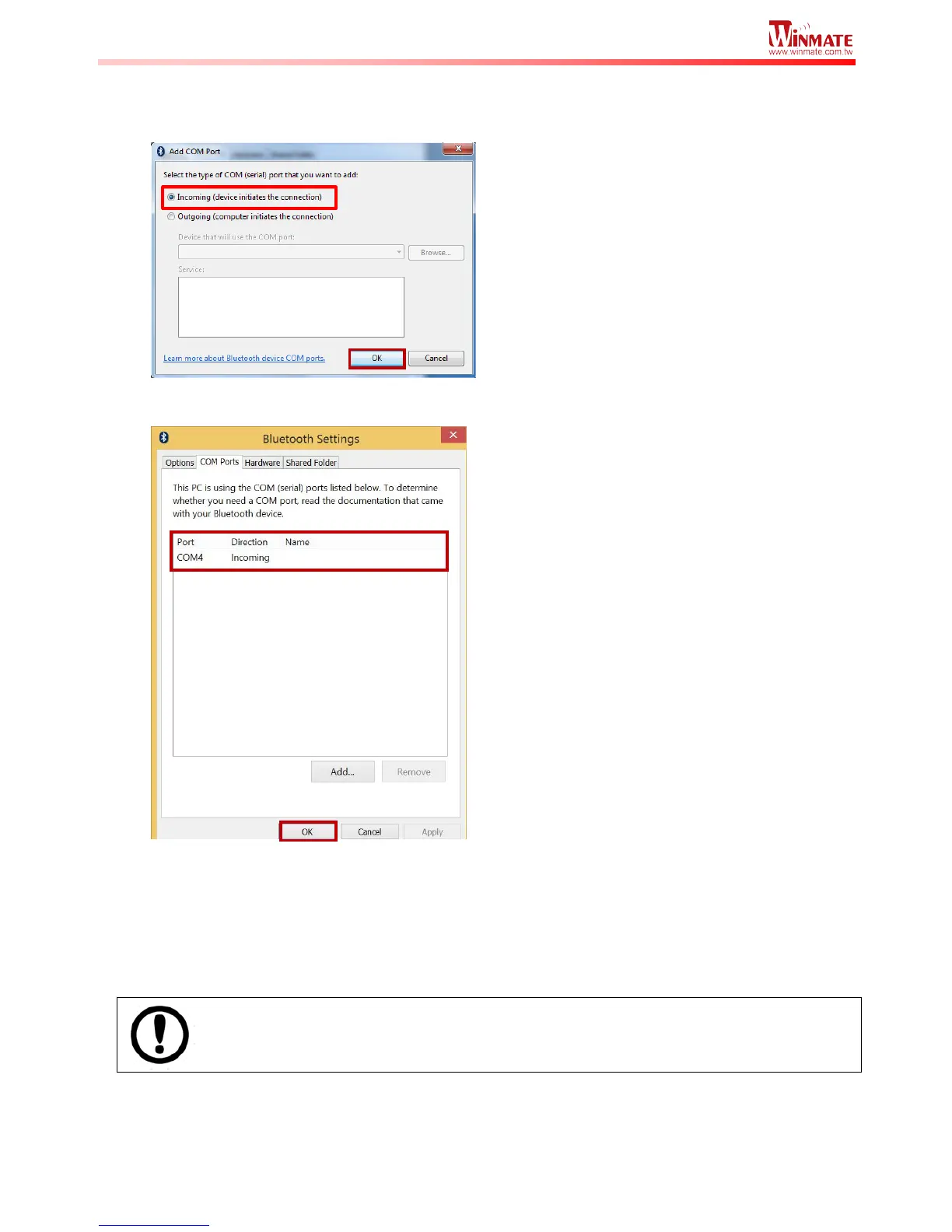
5. You are in “Add COM Port” window. Choose “Incoming (device initiates the
connection)”, and click “OK”.
6. The computer will automatically assign COM Port to the Bluetooth connection. In the
screenshot below, COM4 is allocated.
Click OK to continue.
7. Next, the user has to configure the application that is used to accept the scanned data
from the wireless Bluetooth Barcode Scanner. The application has to be configured to
accept the same COM Port that has been assigned for the Bluetooth Serial Port Profile in
the previous step.
Make sure the application stays open while pairing.
8. Now the computer is ready for pairing process to start.



 To Next Page