26
Wizard™ International, Inc., 4600 116th St. SW, PO Box 66, Mukilteo, WA 98275 888/855-3335 Fax: 425/551-4350 wizardint.com
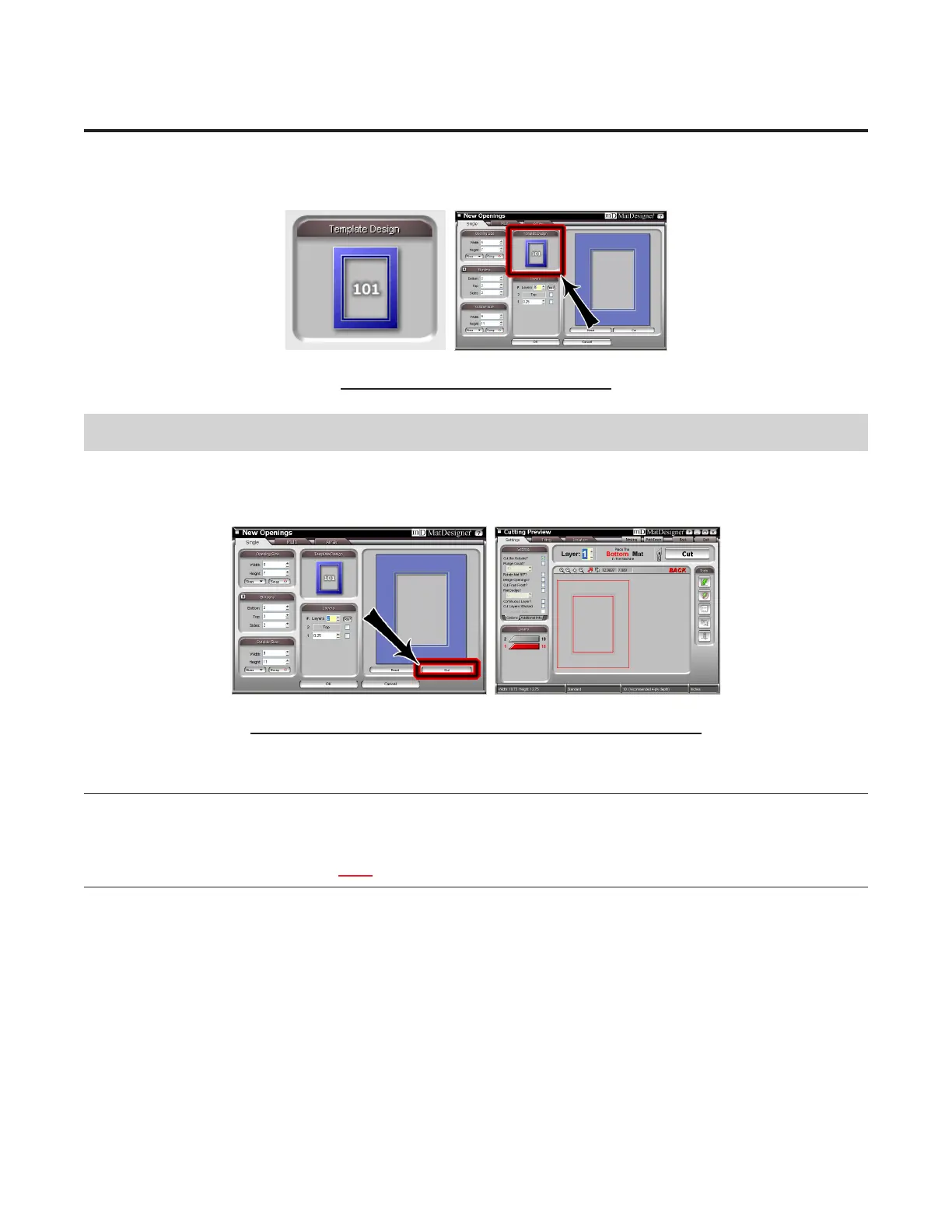
Select Template
Forourrstmat,we'regoingtoleavetheTemplateasarectangle.
Fig G.
Fig G. Leave the Template as a Rectangle.
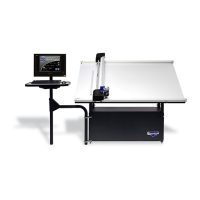
Go to Cut Preview to Cut Your First Mat
Click Cut (Fig A) to go to the Cut Preview (Fig B). Clicking Back on the Cut Preview will return you to the New Openings
Screen where you can change the dimensions for the next mat. Click Reset on the New Openings Screen to clear the current
numbers if desired.
Fig A. Fig B.
Fig A. Click Cut to go to Cut Preview. Fig B: The Cut Preview screen.
Put Matboard on the CMC
*Make sure that you have one layer of disposable matboard of adequate
size underneath the mat to be cut. The CMC has a black Sintra protec-
tive covering, but this is not considered a slip sheet. *
Makesurethatyouhaveonelayerofdisposablematboardofadequatesizeunderneaththemattobecut.
The Cut Preview will indicate if the current layer to be cut will cut from the front or from the back of the mat (Fig C). This is
important in order to determine how to place the matboard into the CMC. Most mats are cut from the back.


 To Next Page