\Manuals\GettingStartedManual8500eRev2
10/02/08
31
MatDesigner™ - Getting Started Manual - Model 8500e
Aborting a Cut
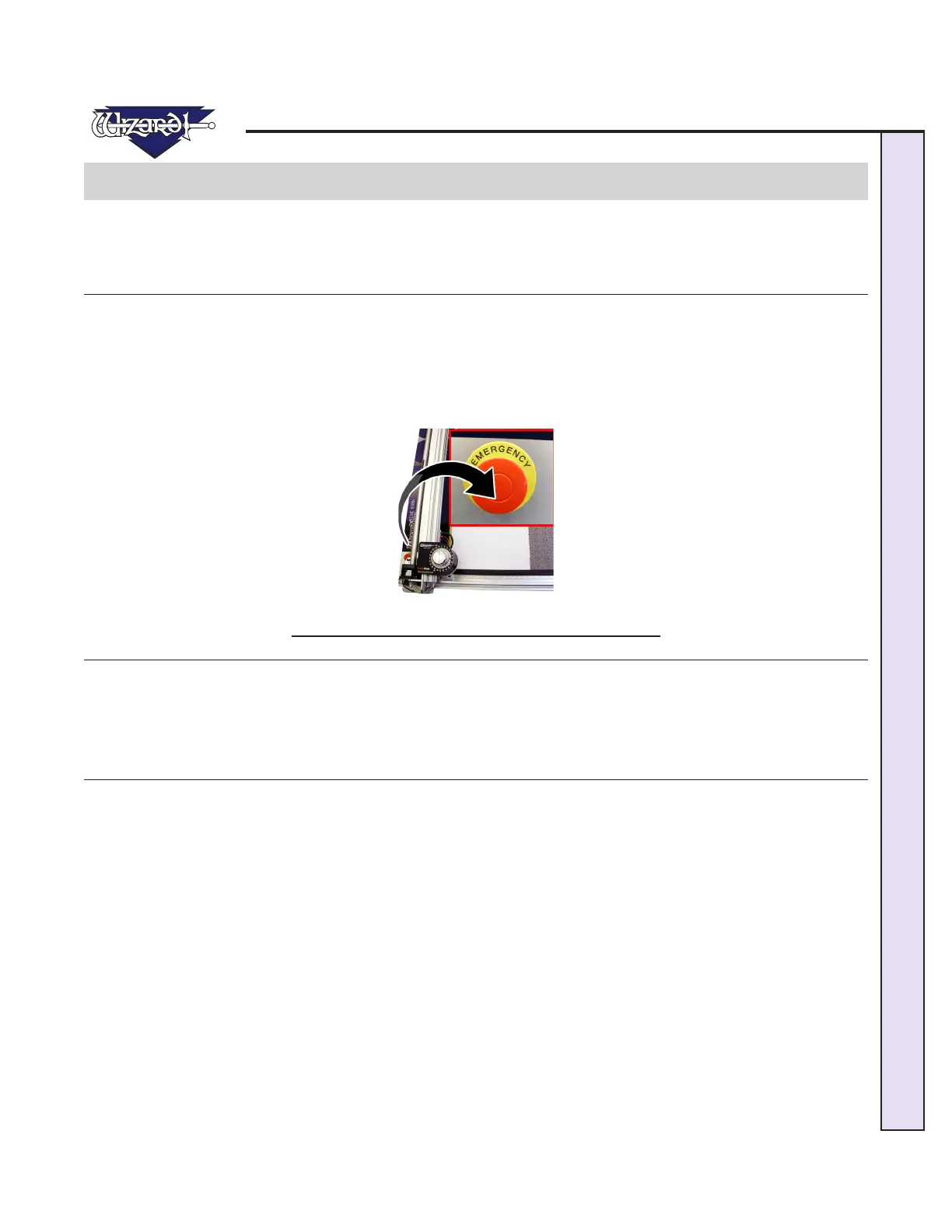
If for any reason you need to Abort a cut, hit the Emergency Stop Button located in the lower left portion of the Board (Fig A).
The CMC will immediately stop cutting.
Restarting after an Abort
Wait for the Cut Preview Screen to stop displaying the "Press Spacebar to PAUSE" and the "Press Any Other Key to ABORT"
screens before pulling out the Emergency Stop Button.
Pull out the Emergency Stop Button.
YouwillnowneedtoClosetheMatDesignersoftwareandrestartit.Ifyouwanttosavethecurrentmatrst,seeUserGuide:
Editor: Editor Menu Bar for more information. After MatDesigner has been closed, restart it by Clicking on the MatDesigner
logo on the bottom Task bar.
Fig A.
Fig A: Push in the Emergency Stop Button to abort a cut.
*The ECU Power Cord must plug into the back of the Emergency Stop
Button, and the Emergency Stop Button Power Plug must plug into a
surge protector, otherwise the Emergency Stop Button will be non-
functional.*


 To Next Page