\Manuals\GettingStartedManual8500eRev2
10/02/08
33
MatDesigner™ - Getting Started Manual - Model 8500e
Put Matboard on the CMC
Makesurethatyouhave2layersofdisposablematboardofadequatesizeunderneaththemattobecut.
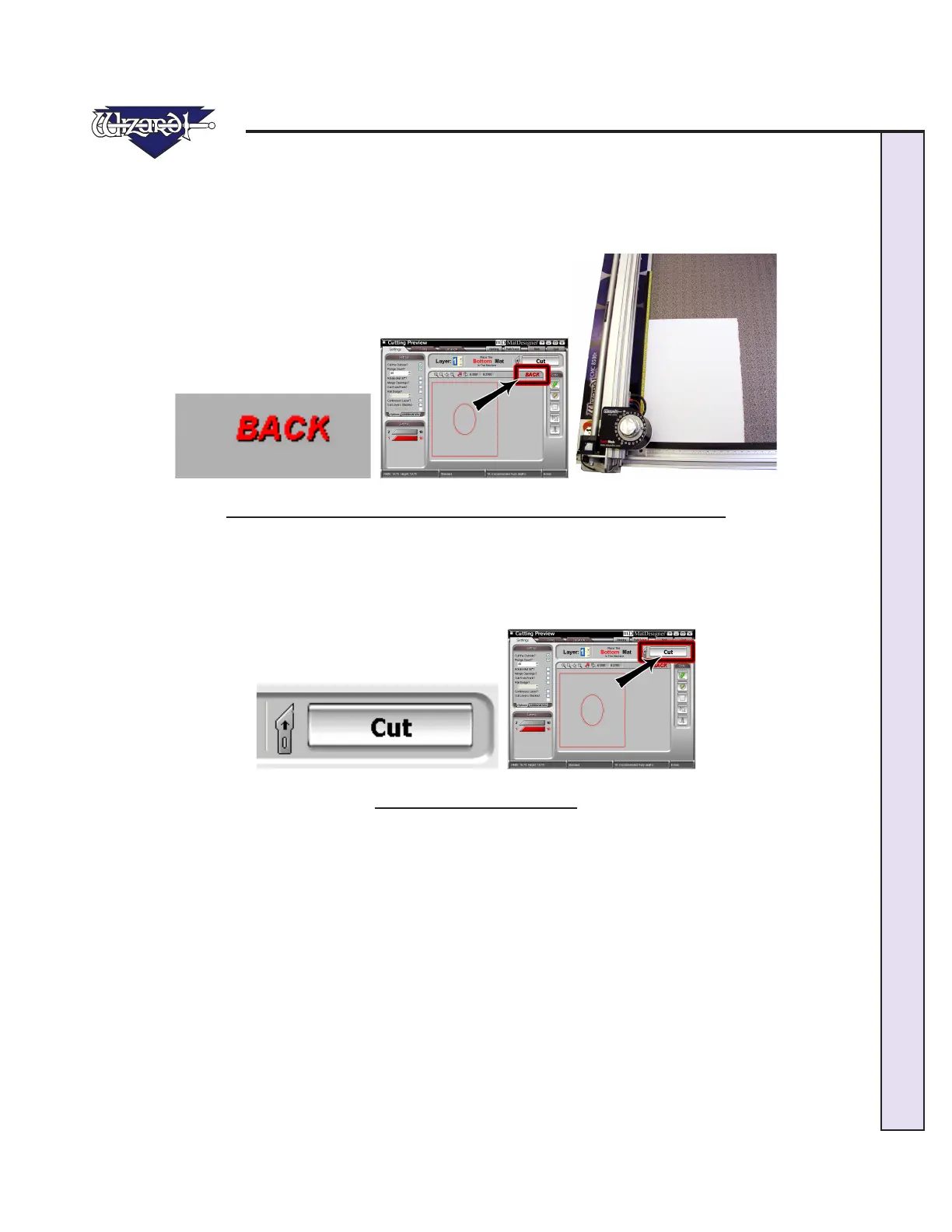
Since this mat will be cut from the back (Fig C), place the matboard face down on the CMC (facing away from you) (Fig D).
Make sure the matboard nestles tightly under the Horizontal Clamp and the Vertical Clamp of the CMC.
Fig C. Fig D.
Fig C: Cut from Front/Back Indicator. Fig D: Place matboard into the CMC.
Click Cut
Click Cut to cut the mat (Fig E).
Because the motors are still engaged, the Wizard will automatically begin to cut. You will not need to Align the Head again
untilthesoftwarerequestsyouto(i.e.,aftermotorsidleforalongperiodorafteranAbort).
Fig E.
Fig E: Click Cut to cut the mat.
Remove the matboard from the CMC. You have cut your second mat! Click Back to return to the New Openings Screen or
Quit to return to the Main Screen.


 To Next Page