40 | Page
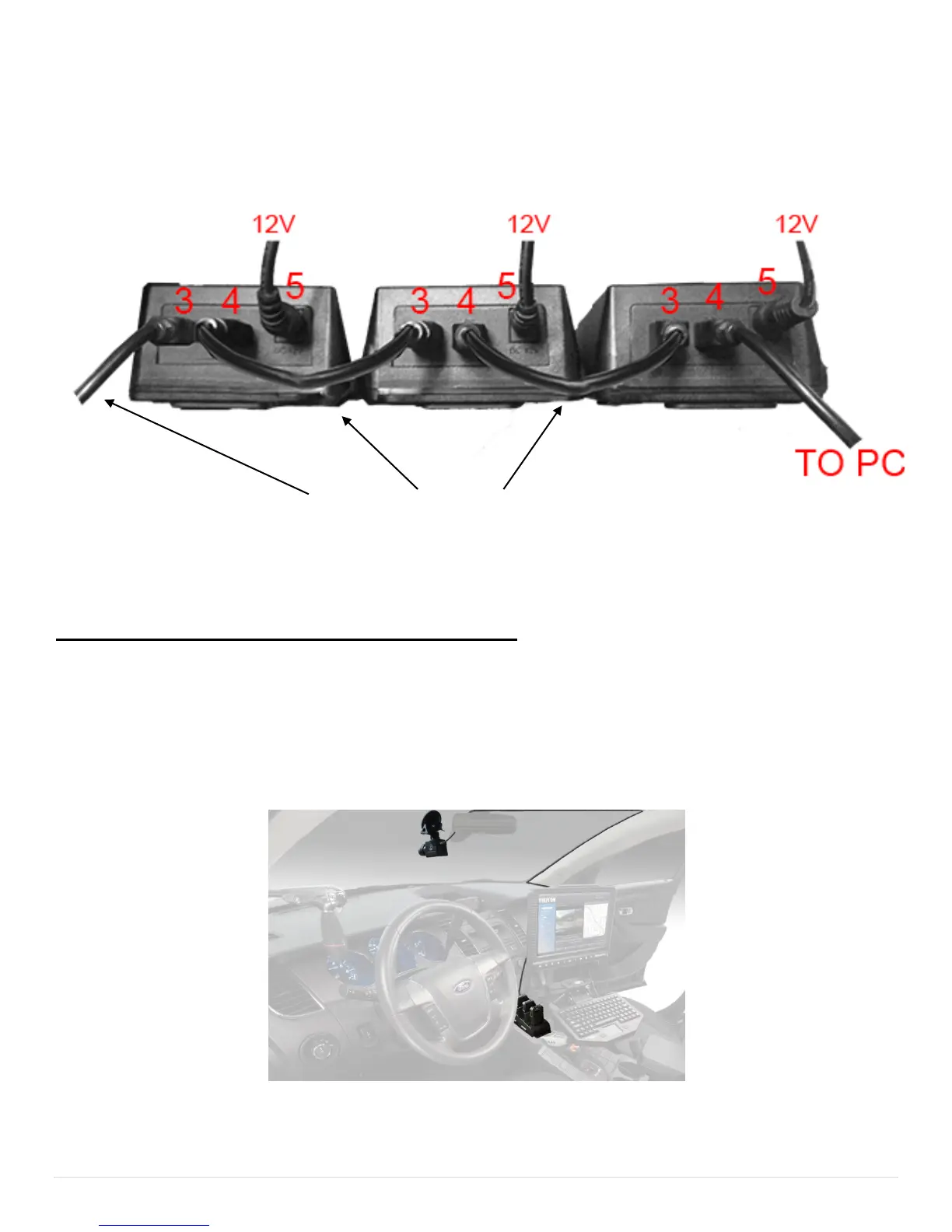
3. Plug the Supplied 12v ac wall adapter into the wall and the other side into the power socket (#5) of the
docking station. Do this to each of the docking station in the series.
4. On the main docking station Plug the Supplied USB to USB docking station linking cable into the USB
link socket (#3) Then plug the other end into the USB PC socket (#4) on the next docking station that is linked
to it. (See photo below)
(USB to USB docking station linking cable)
5. Power on all of the docking stations by using the On/Off switch located at the front of each station(#2).
How to use the docking station as an in car dash camera
The Car Mode on the Wolfcom Vision™ function enables the unit to be used as an in-car camera
system. The Wolfcom Vision will begin recording video when the vehicle ignition is activated and will
stop recording video when the vehicle ignition is de-activated. If desired, the Wolfcom Vision™ can
begin recording when a siren is activated (Additional Installation and parts will be needed for Siren
Activation). When docked, the Wolfcom Vision™ and all of its accessories will also be charging. This
would allow an officer to always have a fully charged body camera.
If you are planning to use the docking station in your patrol car as a in car dash camera. you will need the
following items:


 To Next Page