4 - 12 Workabout Pro4 (Windows Embedded Hand-Held 6.5) User Manual
Show Popup UI on Device-Resume
The drop-down menu attached to Show Popup UI on Device-Resume allows you to determine when the
battery status pop-up user interface (UI) will appear based on the battery health.
Edit – Changing Ratings Text
You can customize the ratings text with the Edit button. By enclosing your text within the html tag used for Bold
<b> (or removing the tag to unbold the text), you can change the text that will appear in the pop-up battery
status screen. For example, the default text Excellent might be changed to: Battery is excellent, and will last
one day shift.
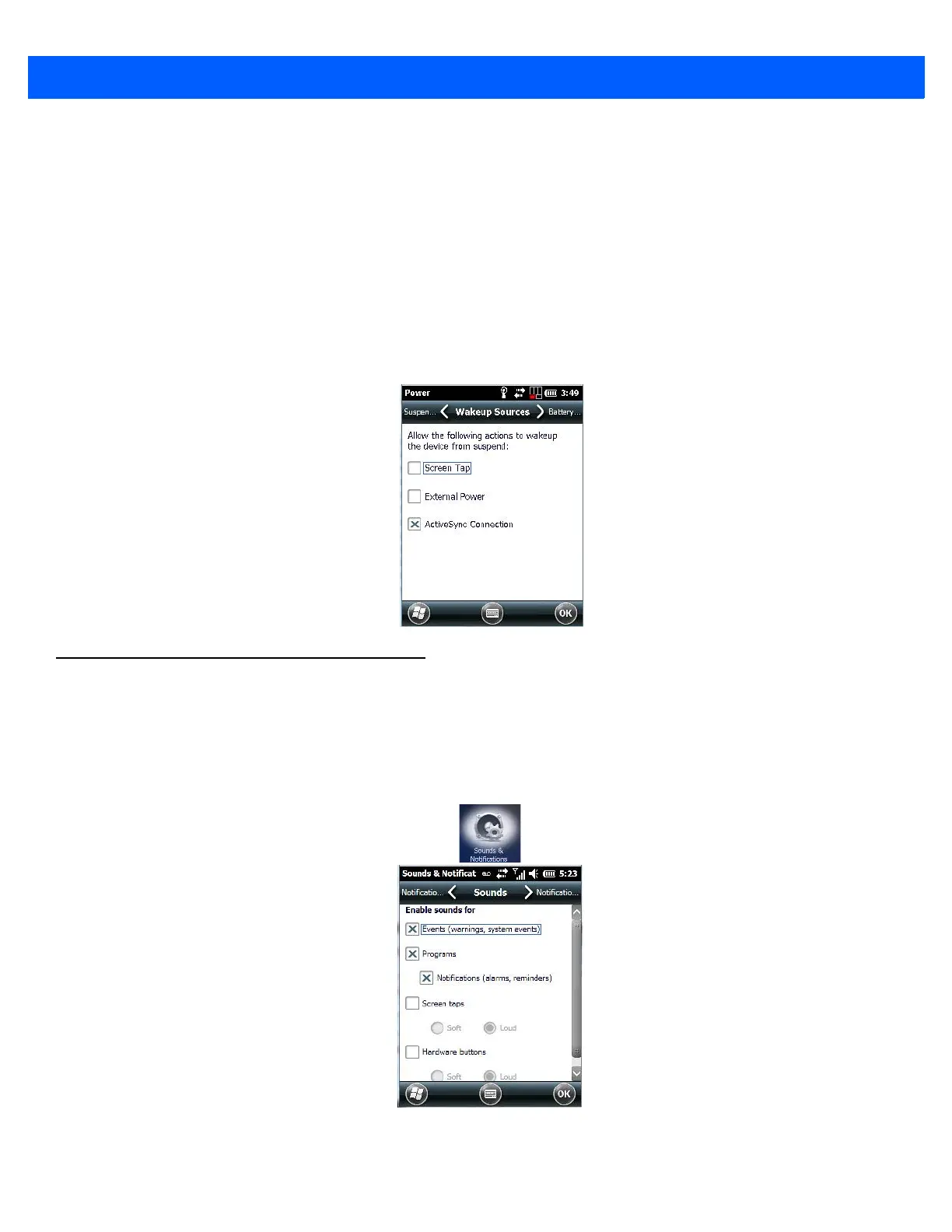
Wakeup Sources
This dialog box allows you to choose the actions that will wake your unit from a suspend state.
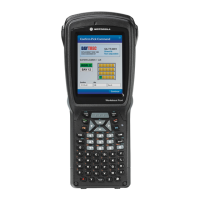
Sound & Notifications
The Sounds & Notifications icon allows you to specify when your Workabout Pro4 will emit sounds.
Sounds Tab
•Tap on Start>Settings, and then tap on the Sounds & Notifications icon to display this dialog box.
• Tap on the checkboxes and radio buttons to enable the event(s) that will cause your unit to emit a sound.


 To Next Page