3 - 10 Workabout Pro4 (Windows Embedded Hand-Held 6.5) User Manual
• Make certain that a check mark is displayed in the checkbox next to E-mail. Tap on OK.
Once you check E-mail for synchronization, Outlook e-mail messages are synchronized as part of the general
synchronization process. The next time you synchronize with ActiveSync, the e-mail in Outlook on your PC will
be transferred to the Messaging program on your Workabout Pro4.
Changing Synchronization Settings
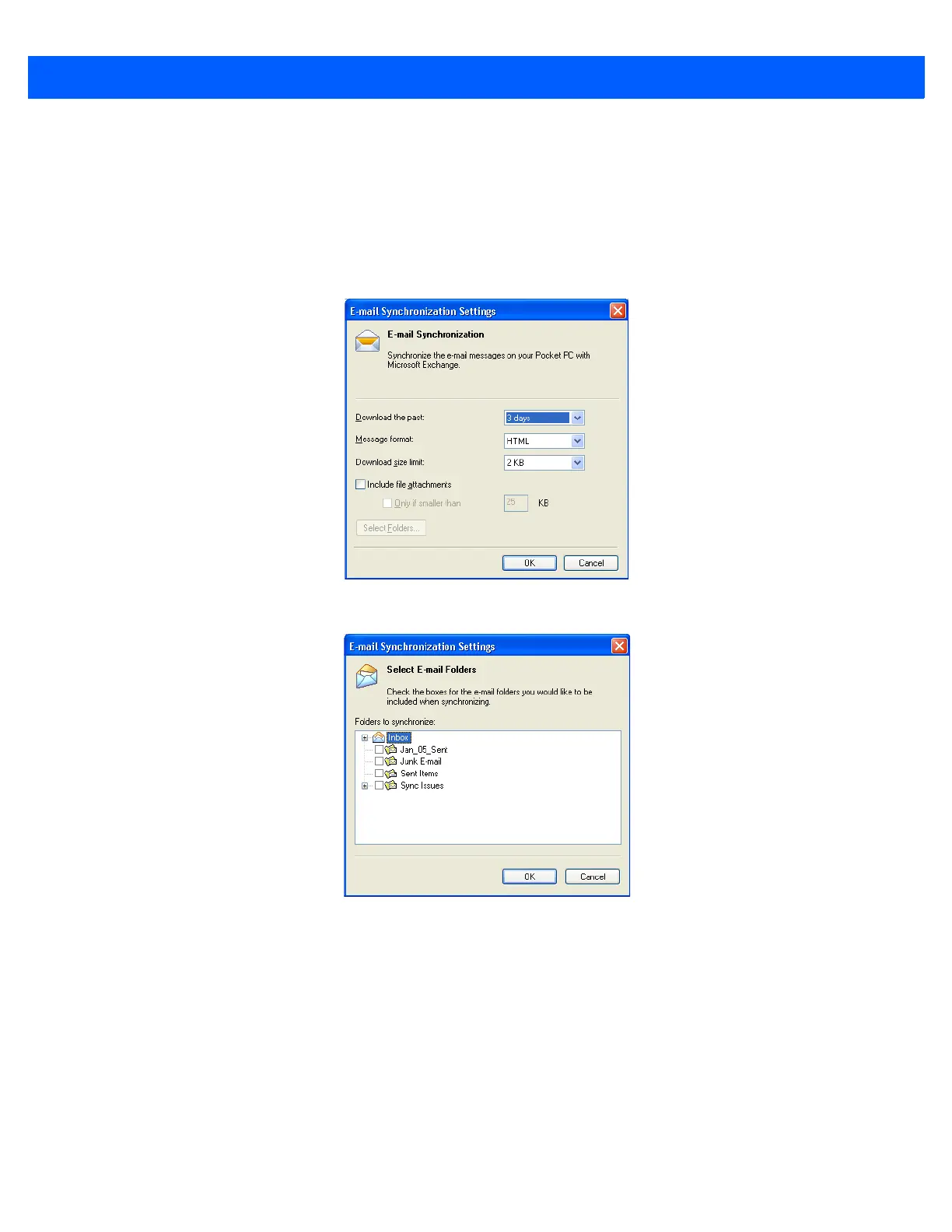
•In ActiveSync on your PC, double-tap the E-mail item in the Sync Options tab.
• Tap on the Select Folder button.
• Add a check mark next to the folders in this screen that you want to synchronize with your Workabout
Pro4, and tap on OK.
The E-mail Synchronization screen is displayed again.
• If you want to accept file attachments, add a check mark next to Include file attachments. To limit the size,
tap on Only if smaller than, and specify a size in the KB box.
•Tap on OK.
Synchronizing E-mail with Outlook (PC with Windows Vista or Windows 7)
PCs running Windows Vista or Windows 7 use Windows Mobile Device Center in place of ActiveSync.


 To Next Page