Programs 3 - 11
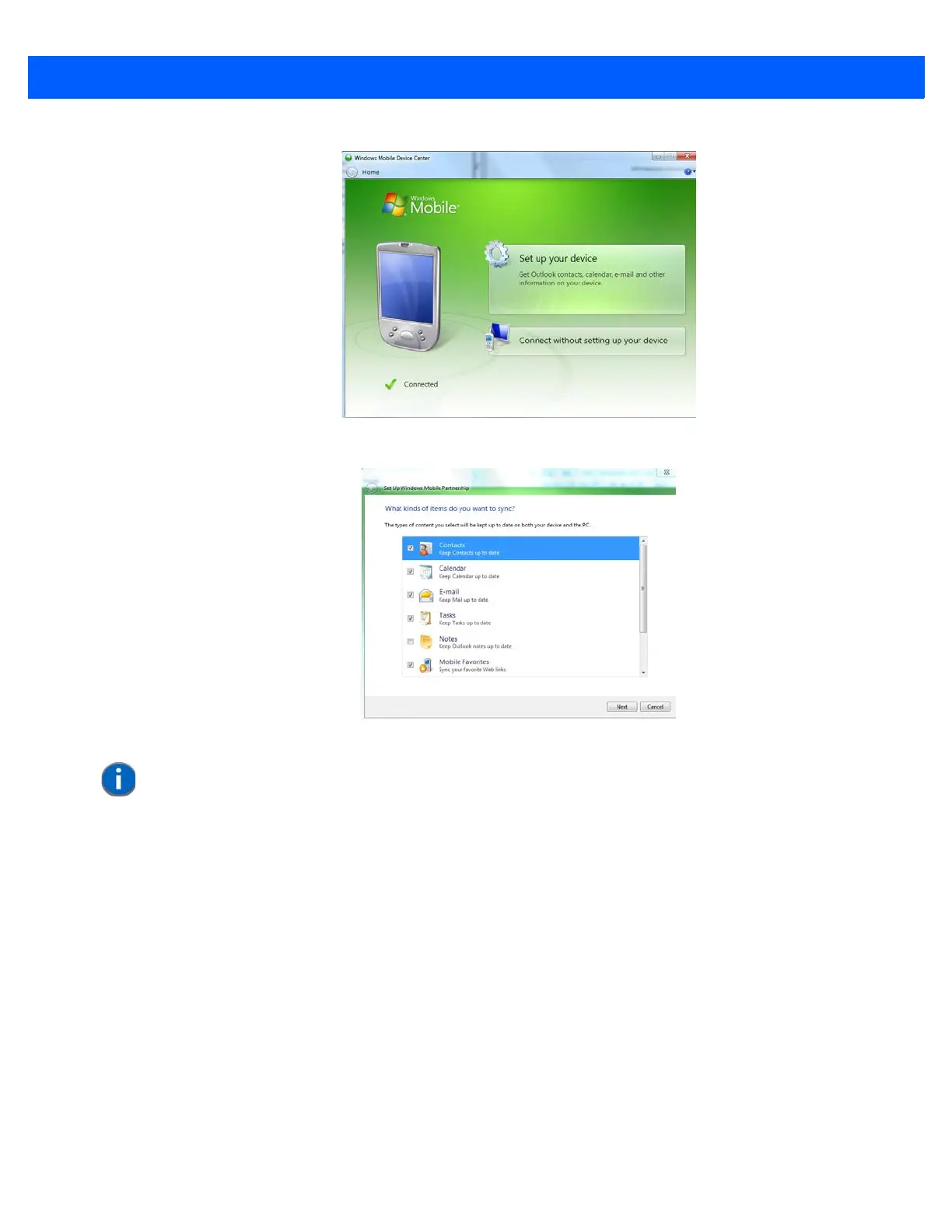
• In the Windows Mobile Device Center, tap on Set up your device.
• Make certain that a check mark is displayed in the checkbox next to E-mail. Tap on Next.
•Tap on Skip and then tap on Setup.
When E-mail is checked for synchronization, Outlook e-mail messages are synchronized as part of the general
synchronization process. The next time you synchronize with Windows Mobile Center, the e-mail in Outlook on
your PC will be transferred to the Messaging program on your Workabout Pro4.
Sending an E-mail
E-mail messages are stored in the Outbox folder and are sent to recipients the next time you sync or connect
to your e-mail server to send and receive mail.
•Tap on Start>E-mail.
• Choose the e-mail account you want to use.
•Tap on Menu>New.
• In the To, Cc, or Bcc fields, enter an e-mail address.
NOTE If an Exchange Server is detected, a screen is displayed where you can enter
the Server address, your user name and so on, and sync the Workabout Pro4
with the Exchange Server directly over a cellular or wireless network when
you are not connected to your PC. This is an optional step that you can skip.


 To Next Page