Programs 3 - 29
• In the Devices and Printers screen, tap on the Add a device button.
Your Workabout Pro4 is displayed in the Add a device screen.
• Double-tap on your Workabout Pro4 icon.
You are asked to choose a pairing option – Create a pairing code for me, or Enter the device’s pairing code.
• If a pairing code has been assigned to your Workabout Pro4, choose Enter the device’s pairing code,
and type the Workabout Pro4 passcode on your PC and on your Workabout Pro4.
• If a pairing code has not been assigned to your Workabout Pro4, choose Create a pairing code for me,
and type the Workabout Pro4 passcode on your PC and on your Workabout Pro4.
A message will appear on your Workabout Pro4 indicating that you have successfully paired your Workabout
Pro4 with your PC. Your Workabout Pro4 will appear in Control Panel>Devices and Printers.
Task Manager
The Task Manager screen lists all running tasks (applications) or processes. This applet provides a number of
options to manage these.
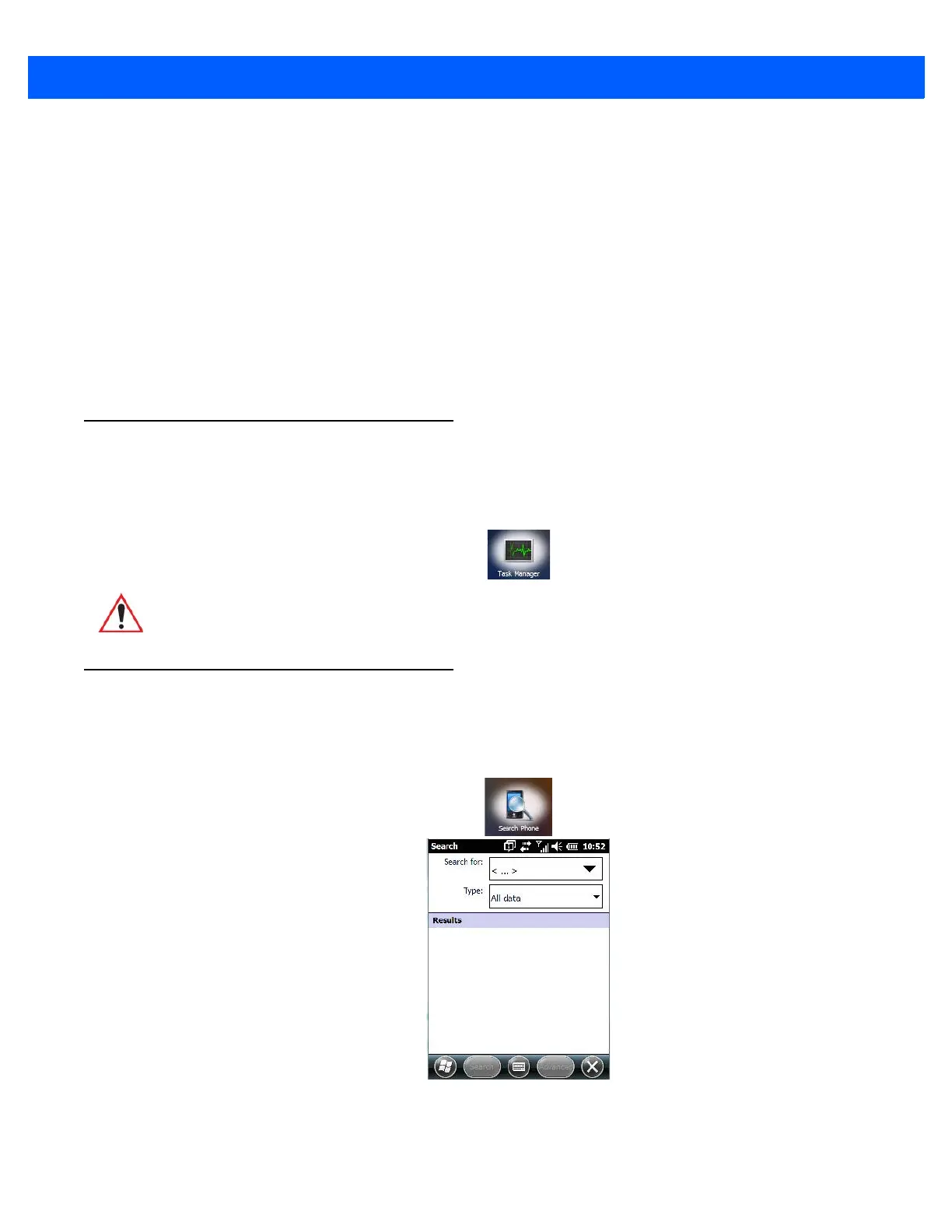
Search Phone
This feature allows you to conduct a search through the data stored on your phone.
•Tap on Start>Search Phone icon.
•Tap in the Search For field, and type the information or a fragment of the information for which you are
searching.
• In the Type: drop-down menu, choose the location in which you want to conduct the search.
IMPORTANT For details about using the Task Manager, refer to “Task Manager”
on page 4-68.


 To Next Page