31
7. FAQ - Rectifying faults
WhyarethedevicedriversfortheSnooper+notinstalledautomaticallywhenaUSBcableisconnected?
IncombinationwiththeWOW!softwarethereareinstancesincertainWindowsversionswhereWindowstriestondthe
devicedriversautomaticallybutfails.Thedriversmustthenbeinstalledmanually.See„7.1InstallingSnooper+device
driver.“Site31.
WhatshouldbedoneifcommunicationusingBluetoothdoesnotworkafterithasbeenconguredintheWOW!
software?
Inthiscase,theSnooperdevicemustbeconguredintheWindowsBluetoothenvironmentaswell.
See„7.2ConguringSnooper+BTforWindowsBluetoothenvironment“Site33
7.1 InstallingSnooper+devicedriver.
ThedevicedriversarerequirediftheSnooper+isconnectedtothecomputerwithaUSBcable.
Generally,thedriversareinstalledautomaticallywhentheSnooper+deviceisconnectedtothecomputer.
Should this not be the case with some Windows versions in connection with certain WOW! software versions, the installa-
tionmustbeperformedmanually.
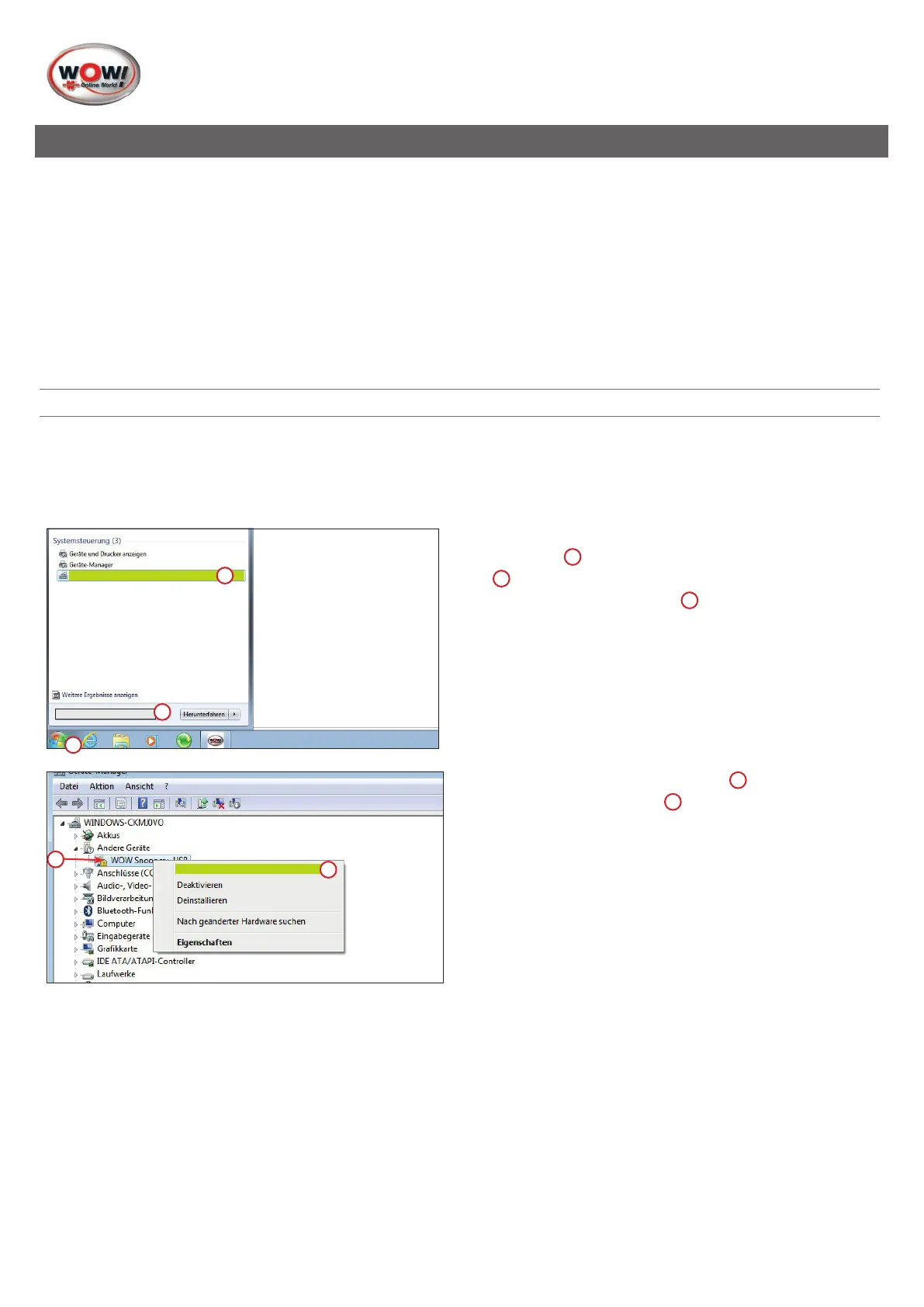
Updatedevicedriver
Devicemanager
3
2
1
1. Open the device manager.
Click
Start
1
.Enter"Devicemanager"intheinputeld
2
.
2. Click on
Update device driver
3
.
Updatedevicedriver
2
1
3. Right click on
"WOW! Snooper USB"
1
and in the context
of
"Update driver software"
2
.


 To Next Page
 Loading...