EasyManua.ls Logo

Xerox Phaser 4510 - User Manual

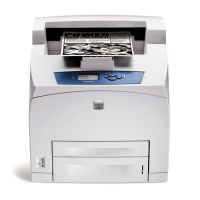
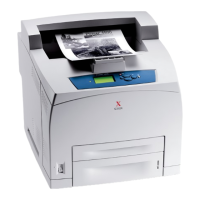
Xerox Phaser 4510
145 pages
Print Icon
To Next Page IconTo Next Page
Loading...
ǼȖȤİȚȡȓįȚȠȤȡȒıIJȘ
Betjeningsvejledning
Användarhandbok
Gebruikershandleiding
Guia do Usuário
Guía del usuario
Benutzerhandbuch
Guida dell'utente
Guide d’utilisation
User Guide
www.xerox.com/support
Phaser
®
4510
laser printer

Table of Contents

Other manuals for Xerox Phaser 4510

Questions and Answers

  • J
    Julie FordAug 15, 2025
    How to fix a Xerox Phaser 4510 jam at the top cover?
    • L
      Lisa Allen DDSAug 16, 2025
      If your Xerox Printer has a jam at the top cover, follow these steps: If you have a stacker, remove the paper and raise the stacker tray. Remove the print cartridge. Turn the green roller to move the jammed paper out of the rollers, and gently pull it out. If you cannot move the paper, pull Trays 1 and 2 out, turn the green roller, and remove the jammed paper. Replace the trays and reinsert the print cartridge. Close the top cover, and lower the stacker tray if applicable.
  • H
    hernandezpatrickAug 19, 2025
    What to do if my Xerox Phaser 4510 says 'Jam at the Exit - Open Top Cover to Clear'?
    • M
      Mr. Garrett Phillips DVMAug 19, 2025
      To clear a jam at the exit of your Xerox Printer, where you need to open the top cover, do the following: If you have a stacker, remove the paper and lift it. Remove any jammed paper from the exit, ensuring all fragments are removed. Open, then close the top cover. Finally, lower the stacker if you have one.
  • T
    Tiffany LambertAug 21, 2025
    How to clear a Xerox Phaser 4510 jam at the exit and rear with duplex unit?
    • M
      Michael PottsAug 21, 2025
      If your Xerox Printer is experiencing a jam at both the exit and rear, especially with a duplex unit, follow these steps: Open the duplex unit cover and remove any jammed paper, ensuring all fragments are removed. If no paper is found there, open the fuser exit cover and pull the jammed paper out. Close the rear cover, and then close the duplex unit cover.
  • G
    gpatelAug 25, 2025
    How to clear a Xerox Phaser 4510 jam at the exit and the rear?
    • J
      Julie GriffinAug 25, 2025
      To resolve a jam at both the exit and rear of your Xerox Printer, you should: Open the rear cover. Remove the jammed paper, making sure to remove all paper fragments. If you don't find any jammed paper, open the fuser exit cover and pull the jammed paper completely out of the printer. Close the rear cover.
  • E
    erictaylorAug 28, 2025
    How to fix Xerox Phaser 4510 Printer jam at the Exit and Rear?
    • C
      Cassandra MirandaAug 28, 2025
      If your Xerox Printer has a jam at the exit and rear, begin by opening the rear cover. Then, carefully remove any jammed paper, making sure to remove all fragments. If you don't find any paper there, open the fuser exit cover and pull the jammed paper completely out of the printer. Finally, close the rear cover.
  • K
    Kirk HallAug 30, 2025
    What to do if there is a Jam at the Duplex Unit in my Xerox Printer?
    • M
      Misty BlankenshipAug 30, 2025
      To clear a jam at the duplex unit of your Xerox Printer, open the duplex unit cover. Remove any jammed paper, ensuring all paper fragments are removed. Then, close the duplex unit cover.
  • N
    Nathaniel WalkerSep 2, 2025
    How to clear a Xerox Printer jam at the duplex unit?
    • H
      hamptonadamSep 3, 2025
      To clear a paper jam in the duplex unit of your Xerox Printer: Open the duplex unit cover. Remove the jammed paper, ensuring all paper fragments are removed. Close the duplex unit.
  • J
    Joy WarnerSep 5, 2025
    What to do if my Xerox Phaser 4510 Printer has a jam at the stacker?
    • K
      kyleriveraSep 5, 2025
      To clear a jam at the stacker of your Xerox Printer: Open the rear stacker cover. Remove the jammed paper, making sure to remove all paper fragments. Close the rear stacker cover.
  • E
    emckinneySep 8, 2025
    What to do if my Xerox Phaser 4510 Printer says 'Paper Size Jam'?
    • T
      Tracy MillerSep 9, 2025
      If your Xerox Printer displays a 'Paper Size Jam' error, try the following: First, pull the tray completely out and re-insert it, pushing it fully to the back. If the control panel prompts you about the paper type, confirm if you've changed it by pressing OK or scrolling to the correct type. Also, check the duplex unit and rear cover for any jammed paper, removing all fragments before closing them again.
  • K
    Kelsey HopkinsSep 12, 2025
    What to do if my Xerox Printer says Paper Size Jam?
    • S
      Samantha AcostaSep 12, 2025
      To resolve a paper size jam in your Xerox Printer, first, pull the tray completely out of the printer. Ensure the paper tray guides are firmly pressed against the paper. Reinsert the tray fully into the printer. If prompted on the control panel, press OK if you haven't changed the paper type; otherwise, select the correct paper type and press OK. If you have a duplex unit, open its cover and also open the rear cover. Remove any jammed paper, ensuring all fragments are cleared, then close both the rear cover and the duplex unit cover.

Summary

Printer Features

Parts of the Printer

Identifies and illustrates the physical components of the printer.

Front-Right View

Details the components visible from the front-right side.

Rear-Left View

Details the components visible from the rear-left side.

Internal Components

Shows and lists the internal parts of the printer.

Printer Configurations

Describes the available standard configurations and their features.

Control Panel

Explains the features, layout, and functions of the printer's control panel.

More Information

Lists resources for obtaining additional information about the printer.

Network Basics

Choosing a Connection Method

Outlines the options for connecting the printer to a computer or network.

Configuring the Network Address

Guides on setting up TCP/IP, DHCP, AutoIP, and manual IP addresses.

Installing the Printer Drivers

Provides instructions for installing printer drivers on various operating systems.

IPv6

Details on enabling and configuring IPv6 settings for network connectivity.

Printing Basics

Supported Paper and Media

Information on compatible paper types, sizes, weights, and usage guidelines.

Loading Paper

Step-by-step instructions for loading paper into various printer trays.

Selecting Printing Options

How to choose print settings, preferences, and options for individual jobs.

Printing on Specialty Media

Specific procedures for printing transparencies, envelopes, labels, and index cards.

Print Quality

Controlling the Quality of Your Prints

Explains print-quality modes and how to adjust them for optimal output.

Solving Print-Quality Problems

Diagnoses and provides solutions for common print quality issues.

Maintenance

Cleaning the Printer

Procedures for cleaning the printer's exterior and feed rollers.

Ordering Supplies

Information on consumables, routine maintenance items, and how to order them.

Moving and Repacking the Printer

Guidelines and precautions for safely moving and shipping the printer.

Troubleshooting

Clearing Paper Jams

Detailed steps to remove paper jams from various locations within the printer.

Getting Help

Describes how to use control panel messages, alerts, and support resources.

User Safety

Electrical Safety

Essential safety precautions related to the printer's electrical connections and usage.

Operational Safety

Guidelines for safe printer operation, including location and clearance requirements.

Moving the Printer

Safety instructions for physically moving the printer to prevent injury or damage.

Xerox Phaser 4510 Specifications

General IconGeneral
ColorYes
Print technologyLaser
Maximum resolution1200 x 1200 DPI
Time to first page (black, normal)8 s
Print speed (black, normal quality, A4/US Letter)43 ppm
Maximum internal memory512 MB
Sound power level (standby)28 dB
Sound pressure level (printing)56.1 dB
Total input capacity1350 sheets
Total output capacity500 sheets
Maximum input capacity1800 sheets
Maximum number of input trays2
Multi-Purpose tray input capacity150 sheets
I/O portsParallel (IEEE 1284), USB 2.0
Power supply type220 V
Weight (imperial)45.2 lbs
Power consumption (active)675 W
Acoustic power emissions (active, print, copy or scan)71.9 dB
Envelopes sizesB5, C5, DL
Custom media width76 - 216 mm
Maximum print size216 x 356 mm
Custom media length127 - 356 mm
Paper tray media typesBond paper, Coated paper, Envelopes, Labels, Plain paper, Recycled paper, Transparencies
Paper tray media weight64 - 216 g/m²
Non-ISO print media sizesExecutive (184 x 267mm), Folio (media size), index card, Letter (media size), Statement (140 x 216mm)
ISO A-series sizes (A0...A9)A4, A5, A6
ISO B-series sizes (B0...B9)B5
Maximum ISO A-series paper sizeA4
Wi-FiNo
Supported network protocols (IPv4)USB/Parallel, 10/100 Base-TX Ethernet
PCL fonts81
Printer fontsPCL, PostScript
Maximum duty cycle250000 pages per month
Recommended duty cycle25000 pages per month
Number of PostScript fonts139
Number of print cartridges1
DisplayLCD
CertificationEMC Directive 89/336/EEC, FCC Part 15, Class B, Low Voltage Directive 73/23/EEC, RoHS 2002/95/EC
Operating temperature (T-T)41 - 95 °F
Operating relative humidity (H-H)15 - 85 %
Power consumption (standby)80 W
Power consumption (PowerSave)18 W
Package weight49896 g
Standard interfacesEthernet, Parallel, USB 2.0
USB 2.0 ports quantityUSB 2.0 ports have a data transmission speed of 480 Mbps, and are backwards compatible with USB 1.1 ports. You can connect all kinds of peripheral devices to them.
Weight and Dimensions IconWeight and Dimensions
Dimensions (WxDxH)630 x 630 x 1194 mm

Related product manuals