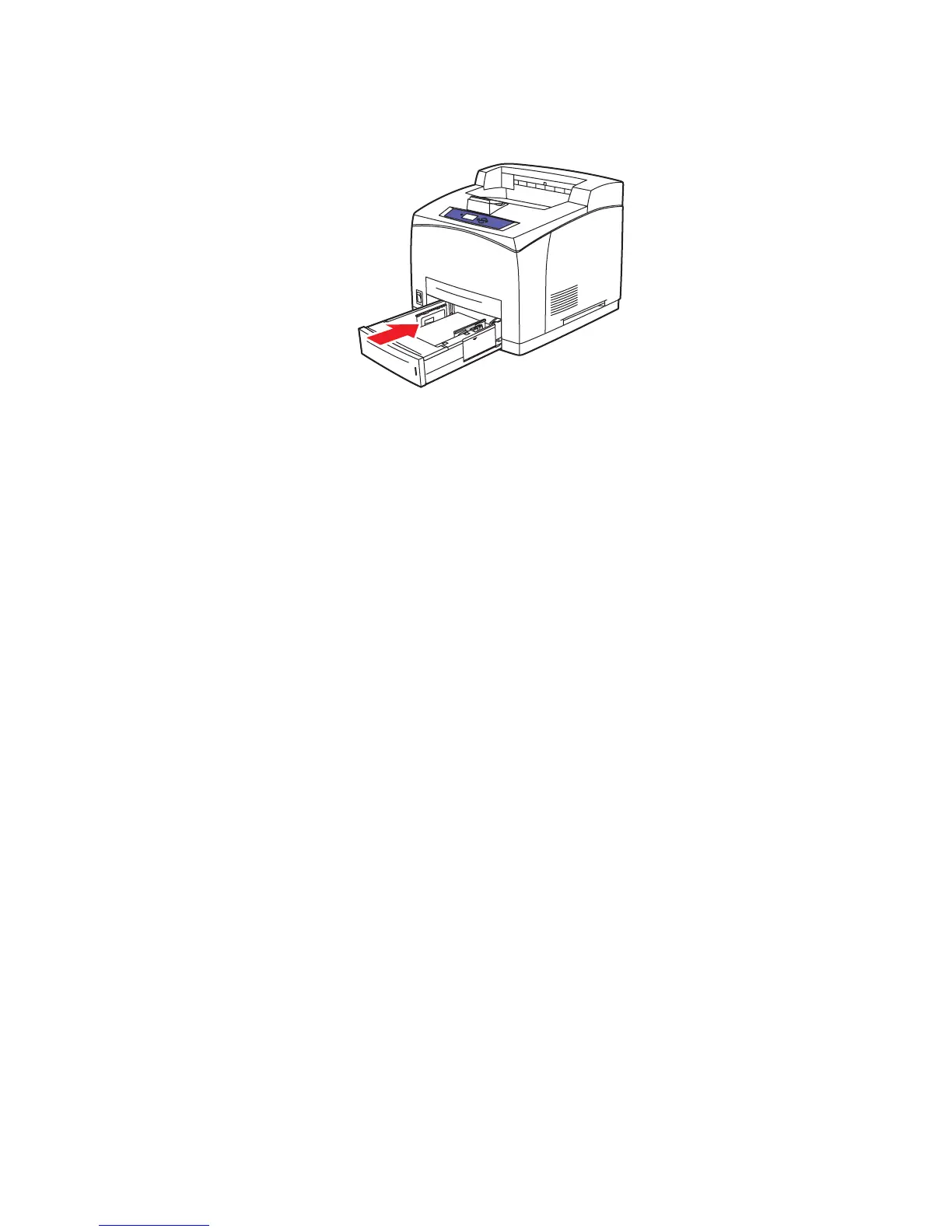
Loading Paper
Phaser® 4510 Laser Printer
3-16
8. Insert the tray into the tray slot, and push the tray completely into the printer.
9. To use the current tray setup, press the OK button on the control panel. If you load a new
type of paper in the tray:
a. Select
Paper Tray Setup, and then press the OK button.
b. Select
Tray 2 Paper, Tray 3 Paper, or Tray 4 Paper, and then press the OK button.
c. Select
Use current setup if the correct paper type and size is displayed as the current
setup, or change the paper type:
■ Select Change setup, and then press the OK button.
■ Select the paper type from the list displayed, and then press the OK button.
■ Select the paper size, and then press the OK button.
See also:
Tray 1 Mode and Tray 2-N Mode on page 3-17
Printing on Specialty Media on page 3-25
Printing Custom Size Paper on page 3-43
4510-079





 To Next Page