VESDA VLI Product Guide VESDA by Xtralis
36 www.xtralis.com
5.1.1 Creating a USB Connection
1. Open the VLI detector and connect the USBcable from the USB socket on the main board
inside to a PCor laptop located near the detector with the Xtralis VSCsoftware installed.
Refer to Chapter 7 for further information on opening the detector.
2. Follow the steps in section 5.1.
3. Select BACnet from the Add Connection dialog box (Figure 5-2).
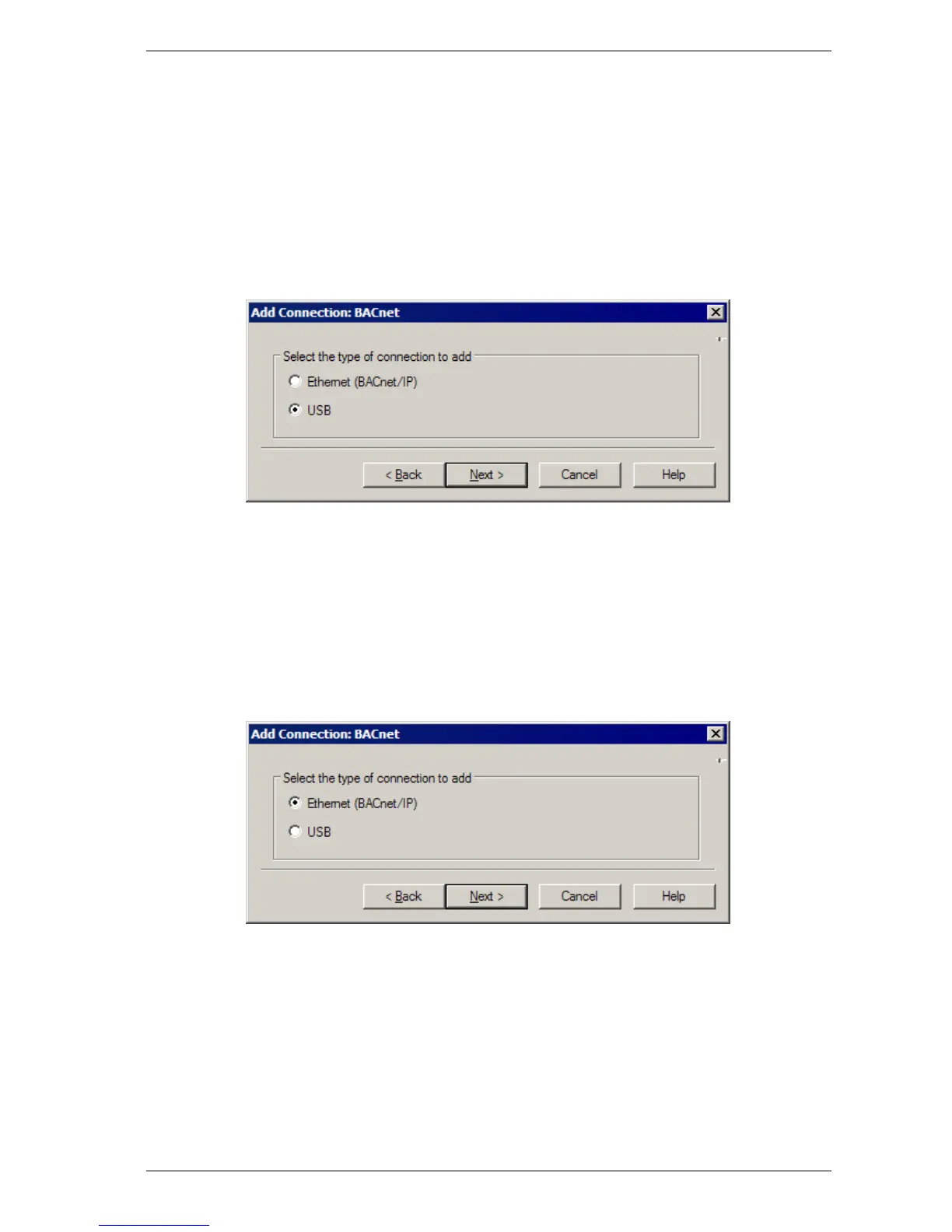
4. Select USB, then select Next (Figure 5-3).
5. Select the detector type from the list of available detectors, then select Next.
6. Enter a unique BACnet Device ID, then select Next.
7. Enter a unique name for the device, then select Finish.
Figure 5-3: Select USB
5.1.2 Creating an Ethernet (BACnet/IP) Connection
1. Follow the steps in section 5.1.
2. Select BACnet from the Add Connection dialog box (Figure 5-2).
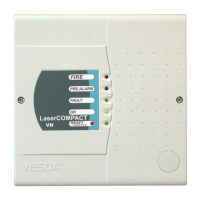
3. Select Ethernet (BACnet/IP), then select Next (Figure 5-4).
4. Enter a unique IPaddress, then select Next. If the detector is being connected to a corporate
network, this address may need to be provided by the network administrator.
5. Enter a unique BACnet Device ID, then select Next.
6. Enter a unique name for the device, then select Finish.
Figure 5-4: Select Ethernet (BACnet/IP)
Note: For specific information relating to network configuration, refer to the VESDA
Communications Guide.



 To Next Page