EasyManua.ls Logo

Yale nexTouch - User Manual

Yale nexTouch
30 pages
Print Icon
To Next Page IconTo Next Page
Loading...
1
P/N 80-9150-0080-010 (10-17)
Retrofitting or modifying this product may impact fire rating, safety features and warranty.
Consult with code specifications to ensure compliance with all codes and ratings.
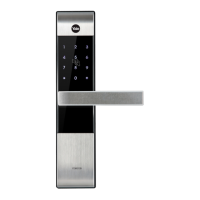
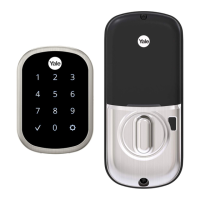
nexTouch
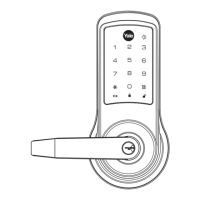
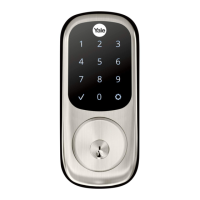
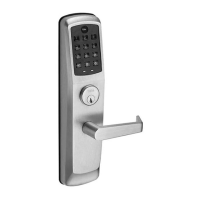
Touchscreen and Push Button Access Cylindrical Lock
Installation and Programming Instructions
3/32"
AA
AA
AA
AA
Optional
Optional

Questions and Answers

  • K
    Kathryn JordanSep 9, 2025
    Why won't my User/Passage PIN codes register on my Yale lock?
    • S
      Sarah SimpsonSep 9, 2025
      If your User or Passage PIN codes won't register on your Yale lock, consider the following: * The Master user is responsible for creating and managing User and Passage PIN codes. * PIN codes must be between 4 and 8 digits long to register. * The PIN code may already be registered. * If a yellow Accentra Key module is installed, PIN codes are disabled. * PIN codes must be entered within 20 seconds while the keypad is active, or the process will need to be restarted. * Check or gear cannot be used as part of the PIN code.
  • T
    Teresa WallaceSep 8, 2025
    Why doesn't my Yale lock automatically re-lock?
    • B
      Bonnie NorrisSep 8, 2025
      If your Yale lock isn't automatically re-locking, here are a few things to check: * Ensure that the Auto Re-lock Mode is enabled by the Master user. * Try replacing the batteries. * Verify that a Passage PIN code was not used for access.
  • A
    Ashley BradleySep 7, 2025
    What to do if my Yale lock chimes an error after entering the PIN code?
    • D
      Destiny HillSep 7, 2025
      If your Yale lock chimes an error or times out after entering your PIN code, consider the following: * Ensure All Code Lockout Mode is disabled by the Master user. A red padlock will appear on the Touchscreen if this mode is active. * Make sure you are entering the correct and complete 4-8 digit PIN followed by the check key. * The Master user may have deleted the PIN code. * The PIN code may have expired. * If a yellow Accentra Key module is installed, PIN codes are disabled. * Ensure PIN codes are entered within 20 seconds while the keypad is active to avoid a restart.
  • P
    Penny MedinaAug 22, 2025
    What to do if my Yale lock displays 'Low Battery' or the Yale logo flashes red?
    • R
      Richard BurnettAug 22, 2025
      This alert indicates that you should replace all four batteries in your Yale lock with new AA Alkaline batteries.
  • W
    William KaiserSep 5, 2025
    What to do if Yale Door locks chime but the door won't open?
    • L
      Lisa MckenzieSep 5, 2025
      If your Yale Door lock chimes to indicate code acceptance, but the door won't open, check these: * Check for another locking device on the door (like a deadbolt). * Inspect the door gaps for any obstructions between the door and frame. * Ensure the motor cable is firmly connected to the PC board marked "MOTOR" inside the lock. * Verify that the locking slide moves freely and there's no foreign material in the mortise pocket.
  • T
    Timothy FisherSep 3, 2025
    Why does my Yale lock show a red padlock icon?
    • A
      Amanda GarciaSep 4, 2025
      If, upon entering a PIN code and pressing the key, the red padlock icon appears and there are different tones on your Yale lock: * Check to see if All Code Lockout Mode is enabled. * Only the Master can enable/disable Lockout Mode. Contact the Master user.
  • J
    Jesus BurnettSep 2, 2025
    Why does my Yale lock say 'Wrong number of digits'?
    • T
      tanner46Sep 2, 2025
      If, upon entering a PIN code and pressing the key, your Yale lock responds 'Wrong number of digits', it means that the digits entered were incorrect or incomplete. Re-enter the 4-8 digits followed by the check key.
  • E
    Erin SilvaSep 1, 2025
    What to do if my Yale lock is inaccessible and doesn't respond?
    • J
      Joshua SheltonSep 1, 2025
      If your Yale lock does not respond when the door is locked and inaccessible, the batteries may be completely discharged. Apply a 9V battery to the terminals on the touchscreen for an emergency power jump.
  • A
    Andrew KimAug 31, 2025
    Why does my Yale lock dim and then not respond?
    • L
      Lisa WilliamsAug 31, 2025
      If your Yale lock unit is on for a while and then shows no reaction and the lights dim, the batteries probably don't have enough power. Replace them.
  • J
    Joel GomezAug 29, 2025
    What to do if Yale lock wakes up but doesn't respond and lights dim?
    • A
      Amy GarrettAug 30, 2025
      If your Yale lock wakes up but doesn't respond and the lights are dim, the batteries may not have enough power. Replace the batteries to resolve this issue.

Summary

Determining Door Handing

Preparing the Door for Installation

Preparing the Door Frame

Preparing the Inside Escutcheon

Installing the Latchbolt

Removing the Battery Cover

Installing the Outside Assembly

Installing the Inside Support Assembly

Attaching Internal Cables

Installing the Inside Escutcheon

Testing Inside Lever Operation

Installing Batteries and Battery Cover

Installation Options

Adjusting for Door Thickness

Instructions for fitting the lock to different door thicknesses.

Privacy Door Position Switch

How to install and utilize the optional Door Position Switch for privacy.

Network Module Installation

Information on installing optional network communication modules.

Programming Instructions Overview

Lock Activation for Programming

Procedure to activate the lock for programming or operation.

Creating the Master PIN Code

Creating User PIN Codes

Creating User PIN Codes (Continued)

Adding More User Codes

Steps to register additional user PIN codes after the first.

Ending the Programming Session

How to correctly exit the programming mode.

Locking and Unlocking with PIN Code

Testing Outside Lever Operation

Locking Door with Privacy Button

Resetting Lock to Factory Default

Glossary of Terms

Menu Mode Feature Programming

Programming Troubleshooting Guide

Hardware Troubleshooting

Default Factory Settings

Installing the Z-Wave Plus Module

Z-Wave Module Enrollment

Steps for adding the Z-Wave module to a network.

Installing the ZigBee Module

ZigBee Module Enrollment

Steps for adding the ZigBee module to a network.

Installing the Yale iM1 Network Module

iM1 Network Module Enrollment

Procedure to enroll the Yale iM1 Network Module into the lock.

Connecting the Yale Secure App

Accessory Setup Code for App

Using the accessory setup code to connect the Yale Secure app.

Yale nexTouch Specifications

General IconGeneral
Power Source4 AA Batteries
Keypad TypeTouchscreen
Auto-LockYes
Backup KeyYes
Finish OptionsSatin Nickel, Oil Rubbed Bronze
Door Thickness1-3/8" to 2-1/4"
Backset2-3/8" or 2-3/4"
ConnectivityNone (standalone)
User CodesUp to 500 (with Z-Wave), 25 (Standalone)

Related product manuals