EasyManua.ls Logo

Yale nexTouch - User Manual

Yale nexTouch
30 pages
Print Icon
To Next Page IconTo Next Page
Loading...
1
P/N 80-9150-0080-010 (10-17)
Retrofitting or modifying this product may impact fire rating, safety features and warranty.
Consult with code specifications to ensure compliance with all codes and ratings.
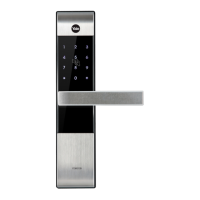
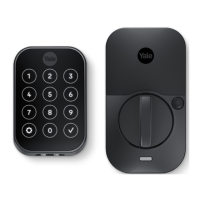
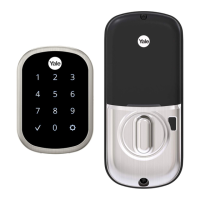
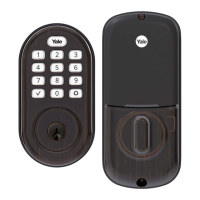
nexTouch
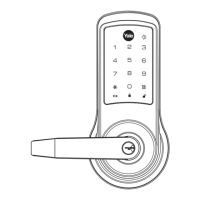
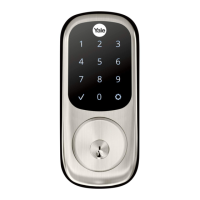
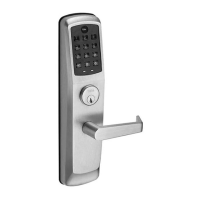
Touchscreen and Push Button Access Cylindrical Lock
Installation and Programming Instructions
3/32"
AA
AA
AA
AA
Optional
Optional

Questions and Answers

  • R
    Robert FernandezAug 28, 2025
    Why Yale Door locks display 'Low Battery'?
    • M
      Michael ColemanAug 28, 2025
      If your Yale Door lock displays 'Low Battery' on the keypad (TS lock) or the Yale logo flashes red (PB lock), this indicates that the batteries need to be replaced. Replace all four (4) batteries with new AA Alkaline batteries.
  • L
    Luis MosesAug 27, 2025
    How to fix Yale Door locks that won't automatically re-lock?
    • R
      Renee ChambersAug 27, 2025
      If your Yale Door lock allows access but doesn't automatically re-lock, try the following: * Ensure 'Auto Re-lock Mode' is enabled by the Master user. * Replace the batteries. * Make sure that 'Escape Return Mode' and 'Passage Mode' are disabled.
  • V
    Victoria MartinAug 27, 2025
    What to do if Yale Door locks do not respond?
    • M
      Michael HansenAug 27, 2025
      If your Yale Door lock isn't responding, with no lights, chimes, or latchbolt movement, try these steps: * For Touchscreen models: activate by pressing the Yale logo or key, or touch the keypad with your whole hand. * For Push Button models: activate by pressing any key. * Check that the batteries are correctly installed (check polarity). * Replace the batteries. * Ensure all cables are fully connected inside the lock and are not crimped. * As an emergency measure, apply a 9V battery to the terminals on the keypad.
  • M
    melissa77Aug 25, 2025
    What to do if my Yale lock says 'Low Battery'?
    • C
      Christina MejiaAug 26, 2025
      If your Yale lock displays 'Low Battery', replace all four batteries with new AA alkaline batteries.
  • R
    Robert MorrisonAug 25, 2025
    How to fix a Yale lock that is not responding?
    • C
      crobinsonAug 25, 2025
      If your Yale lock isn't responding, and there are no lights, chimes, or mechanical sounds, try the following: * For touchscreen models, activate the lock by pressing the Yale logo. * For push-button models, activate it by pressing the key. * Check that the batteries are correctly installed (check polarity). * Replace the batteries. * Ensure the cables are fully connected inside the lock and are not crimped. * As an emergency measure, apply a 9V battery to the terminals on the keypad.

Summary

Determining Door Handing

Preparing the Door for Installation

Preparing the Door Frame

Preparing the Inside Escutcheon

Installing the Latchbolt

Removing the Battery Cover

Installing the Outside Assembly

Installing the Inside Support Assembly

Attaching Internal Cables

Installing the Inside Escutcheon

Testing Inside Lever Operation

Installing Batteries and Battery Cover

Installation Options

Adjusting for Door Thickness

Instructions for fitting the lock to different door thicknesses.

Privacy Door Position Switch

How to install and utilize the optional Door Position Switch for privacy.

Network Module Installation

Information on installing optional network communication modules.

Programming Instructions Overview

Lock Activation for Programming

Procedure to activate the lock for programming or operation.

Creating the Master PIN Code

Creating User PIN Codes

Creating User PIN Codes (Continued)

Adding More User Codes

Steps to register additional user PIN codes after the first.

Ending the Programming Session

How to correctly exit the programming mode.

Locking and Unlocking with PIN Code

Testing Outside Lever Operation

Locking Door with Privacy Button

Resetting Lock to Factory Default

Glossary of Terms

Menu Mode Feature Programming

Programming Troubleshooting Guide

Hardware Troubleshooting

Default Factory Settings

Installing the Z-Wave Plus Module

Z-Wave Module Enrollment

Steps for adding the Z-Wave module to a network.

Installing the ZigBee Module

ZigBee Module Enrollment

Steps for adding the ZigBee module to a network.

Installing the Yale iM1 Network Module

iM1 Network Module Enrollment

Procedure to enroll the Yale iM1 Network Module into the lock.

Connecting the Yale Secure App

Accessory Setup Code for App

Using the accessory setup code to connect the Yale Secure app.

Yale nexTouch Specifications

General IconGeneral
Power Source4 AA Batteries
Keypad TypeTouchscreen
Auto-LockYes
Backup KeyYes
Finish OptionsSatin Nickel, Oil Rubbed Bronze
Door Thickness1-3/8" to 2-1/4"
Backset2-3/8" or 2-3/4"
ConnectivityNone (standalone)
User CodesUp to 500 (with Z-Wave), 25 (Standalone)

Related product manuals