File Mode [FILE]
Reference
DTX900 Owner’s Manual
119
Drum Kit mode
Reference
Song modeClick modeTr igger modeFile modeUtility modeChain modeSampling mode
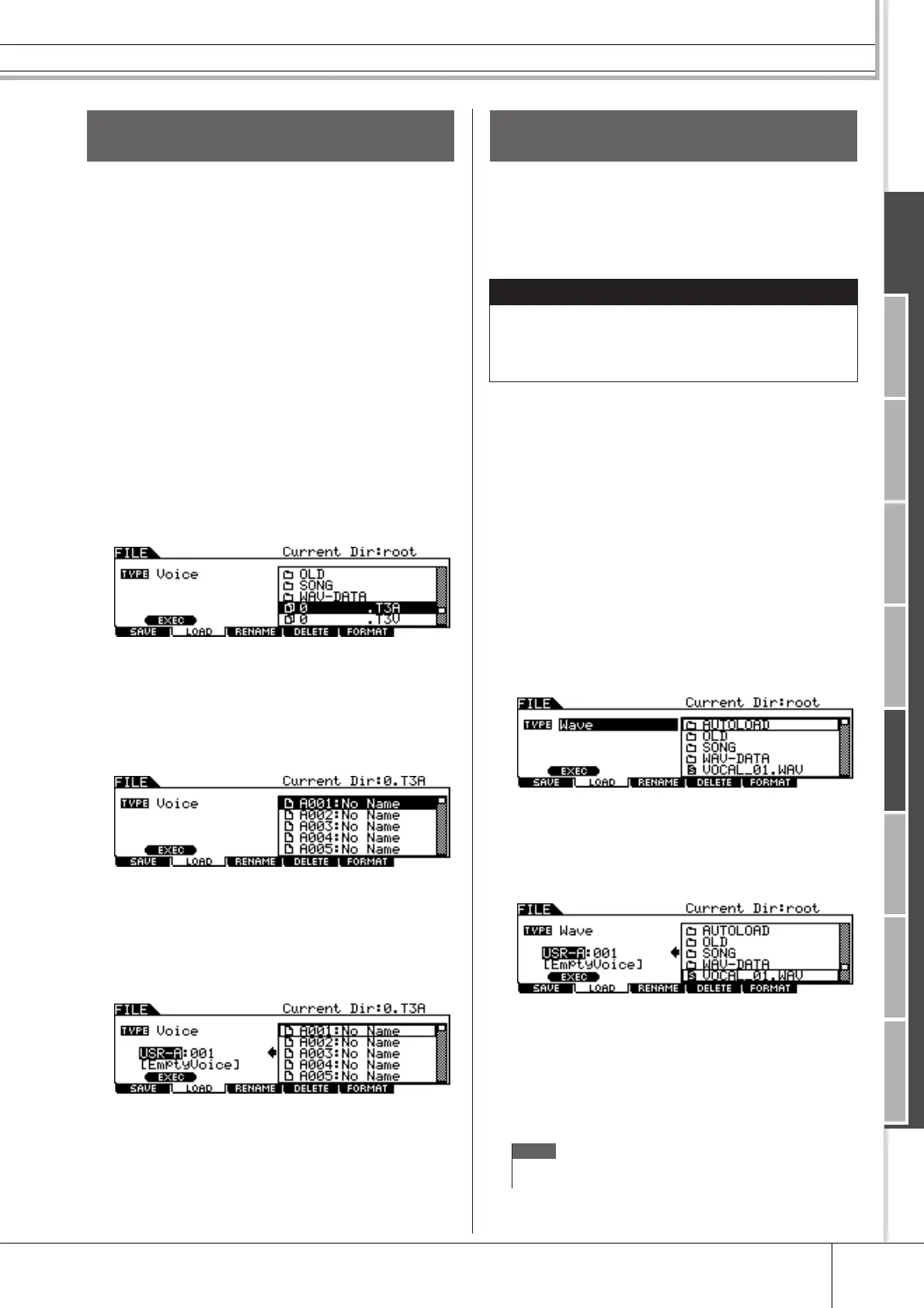
You can also load a single, specific Voice from the file (File
extension: .T3A or .T3V) to the desired User Voice num-
ber.
1
Press the [FILE] button to enter the File
mode, then press the [F2] LOAD button to
call up the Load display.
2
Move the cursor to TYPE, then set the File
type to “Voice.”
Only available files according to the Type are listed in the
Directory/File list box on the display.
3
Move the cursor to the Directory/File list
box, then select the file to be loaded.
You can select any of the files listed in the Directory/File list
box on the display.
4
Press the [ENTER/STORE] button so that
the Voices included in the selected file are
shown in the Directory/File list box.
Empty Voices (having no audio signal) are not listed in the
Directory/File list box.
5
Move the cursor to the desired Voice as
Load source then press the [SF1] EXEC
button.
The Voice number and name for the Load destination appear
on the left half of the display.
6
Select the User Voice bank and number for
the Load destination.
7
Press the [SF1] EXEC button again to exe-
cute the Load operation.
Any audio data created and edited on a computer and saved
in the WAV or AIFF format can also be used as material for
a User Voice on the DTX900. After connect a USB storage
device containing the desired WAV/AIFF audio files then
follow the instructions below.
1
Press the [FILE] button to enter the File
mode, then press the [F2] LOAD button to
call up the Load display.
2
Move the cursor to TYPE, then set the File
type to “Wave.”
Only available files according to the Type are listed in the
Directory/File list box on the display.
3
Move the cursor to the Directory/File list
box, then select the file to be loaded.
You can select any of the files listed in the Directory/File list
box on the display.
4
After selecting the file, press the [SF1]
EXEC button.
The User Voice bank, number and name as Load destination
appear on the left half of the display.
5
Select the User Voice bank and number as
Load destination.
6
Press the [SF1] EXEC button again to exe-
cute the Load operation.
Loading a Specific Voice From an
“All Data” or “All Voice” File
Loading WAV or AIFF Audio Files
to Create a User Voice
IMPORTANT
If you are loading audio WAV/AIFF files, make sure
that DIMM modules must be installed to the instru-
ment. For details on installing DIMMs, see pages 76
and 147.
NOTE
• The WAV/AIFF file can be loaded is only 16bit (sample size).
• An error message appears when you try to load an unavailable file.


 To Next Page