User Level settings
M7CL Owner’s Manual
User settings (Security)
18
209
Here’s how to create a user authentication key and save it
on a USB storage device. A user authentication key can be
created only by an Administrator or Power User. The user
level can be specified when the authentication key is cre-
ated, but the user-defined key settings and preference set-
tings will be carried over from the user who is currently
logged-in.
1
Connect a USB storage device to the USB
connector.
2
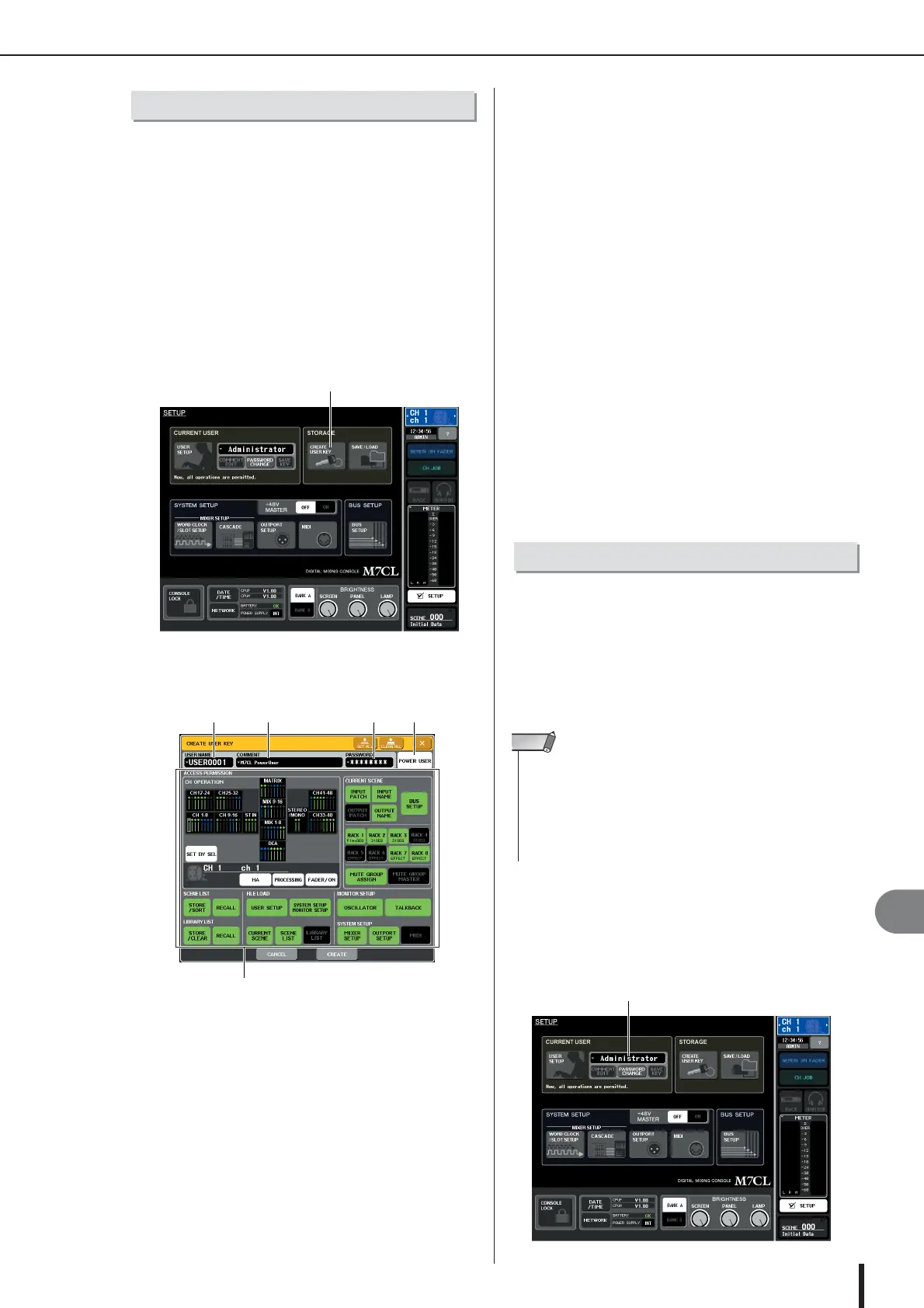
In the function access area, press the
SETUP button to access the SETUP screen.
3
Press the CREATE USER KEY button.
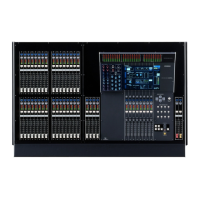
The CREATE USER KEY popup window will appear.
1
USER NAME
Here you can specify or view a user name of up to
eight characters. Press this to access a keyboard win-
dow where you can enter the user name.
B
COMMENT
Here you can specify or view a comment of up to
thirty-two characters about the user. Press this to
access a keyboard window where you can enter the
comment.
C
PASSWORD
Specify a password of up to eight characters. Press this
to access a keyboard window where you can enter the
password.
D
POWER USER
Specifies whether Power User privileges will be
granted to this user.
E
ACCESS PERMISSION
These settings specify the range of operations that the
user can perform. For details on each item, refer to
p. 212.
4
When you have specified the user name,
comment, password, power user privileges
on/off, and user rights, press the CREATE
button.
If you are logged-in as the Administrator, the user
authentication key will be saved on the USB storage
device.
If you are logged-in as a Power User, a dialog box will
ask you to confirm the store-destination USB storage
device. If you want to save the user authentication key
on a different USB storage device, connect the desired
USB storage device and then press [OK]. The user
authentication key will be saved, and the logged-in
user will automatically switch to the newly created
user.
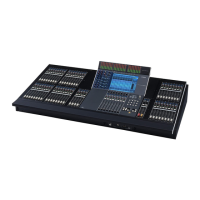
In order to operate the M7CL, you must log in as the
Administrator, Guest, or a User.
User settings for the Administrator and Guest are saved in
the console itself, but in order to log in as a User you must
connect a USB storage device on which a user authentica-
tion key has been saved. If you disconnect the USB stor-
age device after logging-in, your access privileges will
forcibly revert to Guest.
●
Logging-in as Administrator
1
In the function access area, press the
SETUP button to access the SETUP screen.
Creating a user authentication key
CREATE USER KEY button
5
1 2
3
4
• If the M7CL’S power is turned off and then on again, it will gener-
ally start up in the log-in state in which the power was turned off. If
a user password has been assigned, you will need to enter the
password. However if you cancel the input, you will be forcibly
logged-in as Guest. Similarly, you will also be forcibly logged-in as
Guest if you had been logged-in as a user requiring a user authen-
tication key, but the USB storage device is no longer connected.
NOTE



 To Next Page