Using the tool buttons
39
M7CL Owner’s Manual
Basic operation of the M7CL
3
● Erasing settings from a library
1
Open a popup window that provides the
tool buttons.
2
In the upper part of the popup window,
press the LIBRARY button to access the
library.
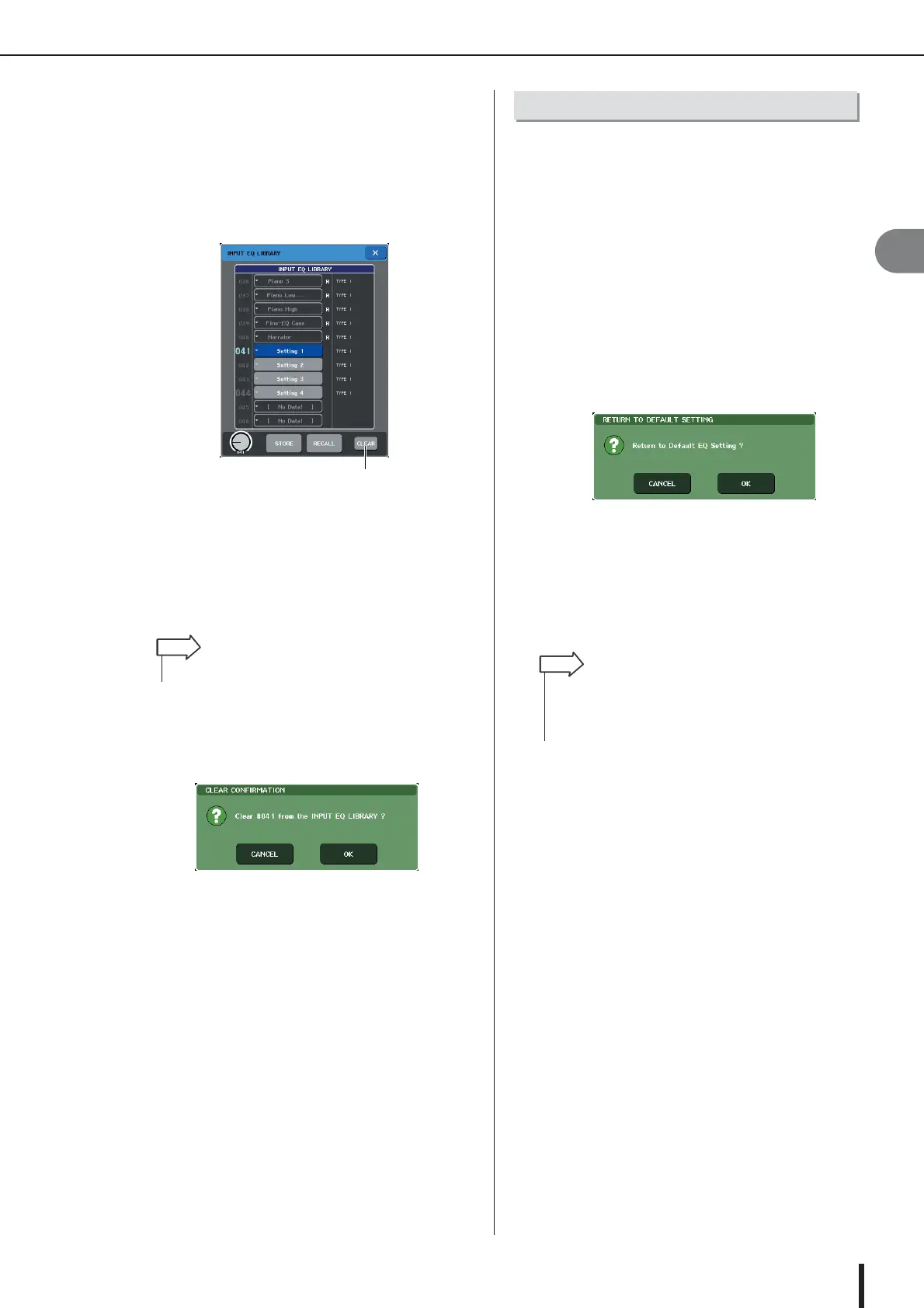
1 CLEAR button
This clears (erases) the settings that are selected in the
list.
3
Turn one of the multifunction encoders to
select the library item that you want to
clear.
4
Press the CLEAR button.
A dialog box will ask you to confirm the Clear opera-
tion.
5
To execute the Clear operation, press the
OK button.
The data you selected in step 3 will be cleared. If you
decide to cancel the Clear operation, press the CAN-
CEL button instead of the OK button.
Heres how you can return the EQ/dynamics settings of the
currently selected channel or the effect settings of a rack
to their default state. A GEQ can be initialized by the
FLAT button in the screen.
1
Open a popup window that provides the
tool buttons.
2
Select the channel (EQ/dynamics) or rack
(effect) whose settings you want to initial-
ize.
3
Press the DEFAULT button.
A dialog box will ask you to confirm the initialization
operation.
4
To execute the initialization, press the OK
button.
The EQ/dynamics of the channel or the effect settings
of the rack you selected in step 2 will be initialized. If
you decide to cancel the initialization, press the CAN-
CEL button instead of the OK button.
1
•You cannot clear read-only data (indicated by an R symbol).
HINT
• In the case of EQ/dynamics, you can use the channel num-
ber / channel name buttons in the 8 ch/ALL popup window to
select a range of channels and initialize them in a single
operation.
HINT




 To Next Page