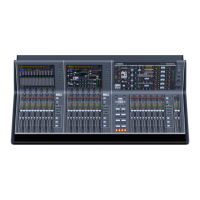
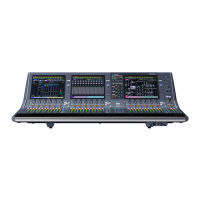
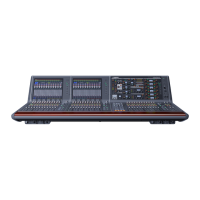
OVERVIEW screen
Reference Manual
-
41
-
OVERVIEW screen
Displays information about the channel strips.
You can display the OVERVIEW screen by pressing the Home key ( ).
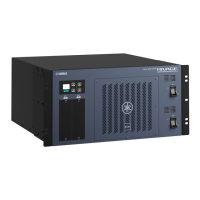
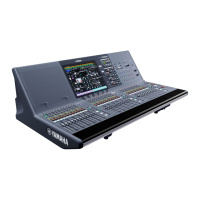
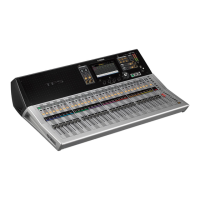
For the TF5/TF3/TF1, the CH STRIP section is displayed as the home screen; for the
TF-RACK, the FADER section is displayed. Additionally, for the TF-RACK, you can switch
between the CH STRIP section and FADER section by pressing the Home key.
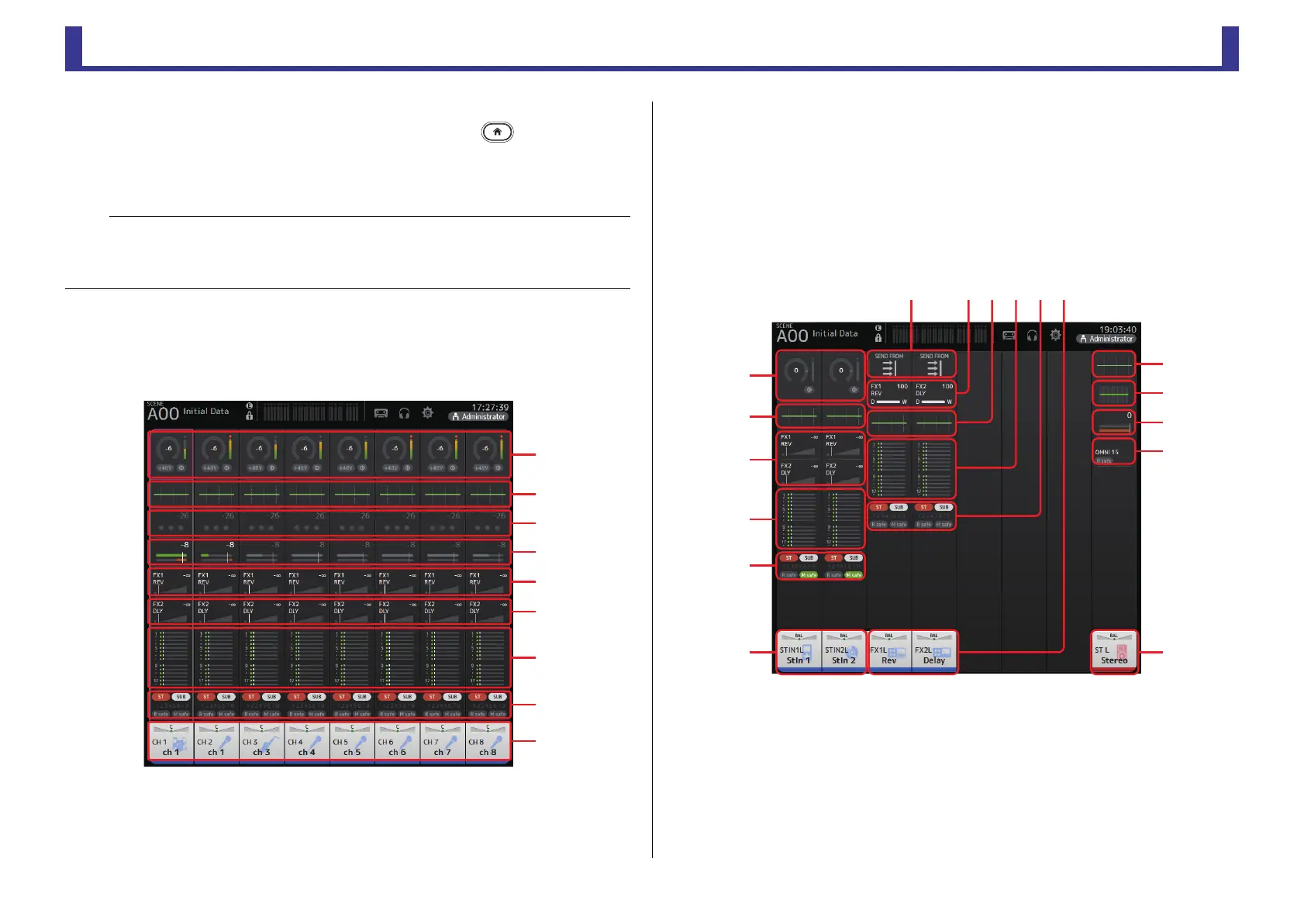
CH STRIP section
Input channels
1 Displays the INPUT screen. (page 46)
2 Displays the EQ screen. (page 48)
3 Displays the GATE screen. (page 52)
4 Displays the COMP screen. (page 54)
5 Displays the FX1 screen. (page 56)
6 Displays the FX2 screen. (page 56)
7 Displays the SEND TO AUX screen. (page 61)
8 Displays the ASSIGN screen. (page 62)
9 Displays the CH VIEW screen. (page 63)
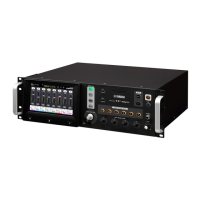
Stereo channels
1 Displays the INPUT screen. (page 46)
2 Displays the EQ screen. (page 48)
3 Displays the FX1/FX2 screen. (page 56)
4 Displays the SEND TO AUX screen. (page 61)
5 Displays the ASSIGN screen. (page 62)
6 Displays the CH VIEW screen. (page 63)
7 Displays the GEQ screen. (page 71)
8 Displays the COMP screen. (page 54)
NOTE
For the TF5/TF3/TF1, the FADER section is displayed on the OVERVIEW screen when
SETUPPREFERENCEOther[HOME] key is set to "Both". In this case, you can switch between the
CH STRIP section and FADER section by pressing the Home key while the OVERVIEW screen is
displayed.
ձ
ղ
ճ
մ
յ
ն
շ
ո
չ


 To Next Page