Overview
Reference Manual
-
5
-
Configuration screens
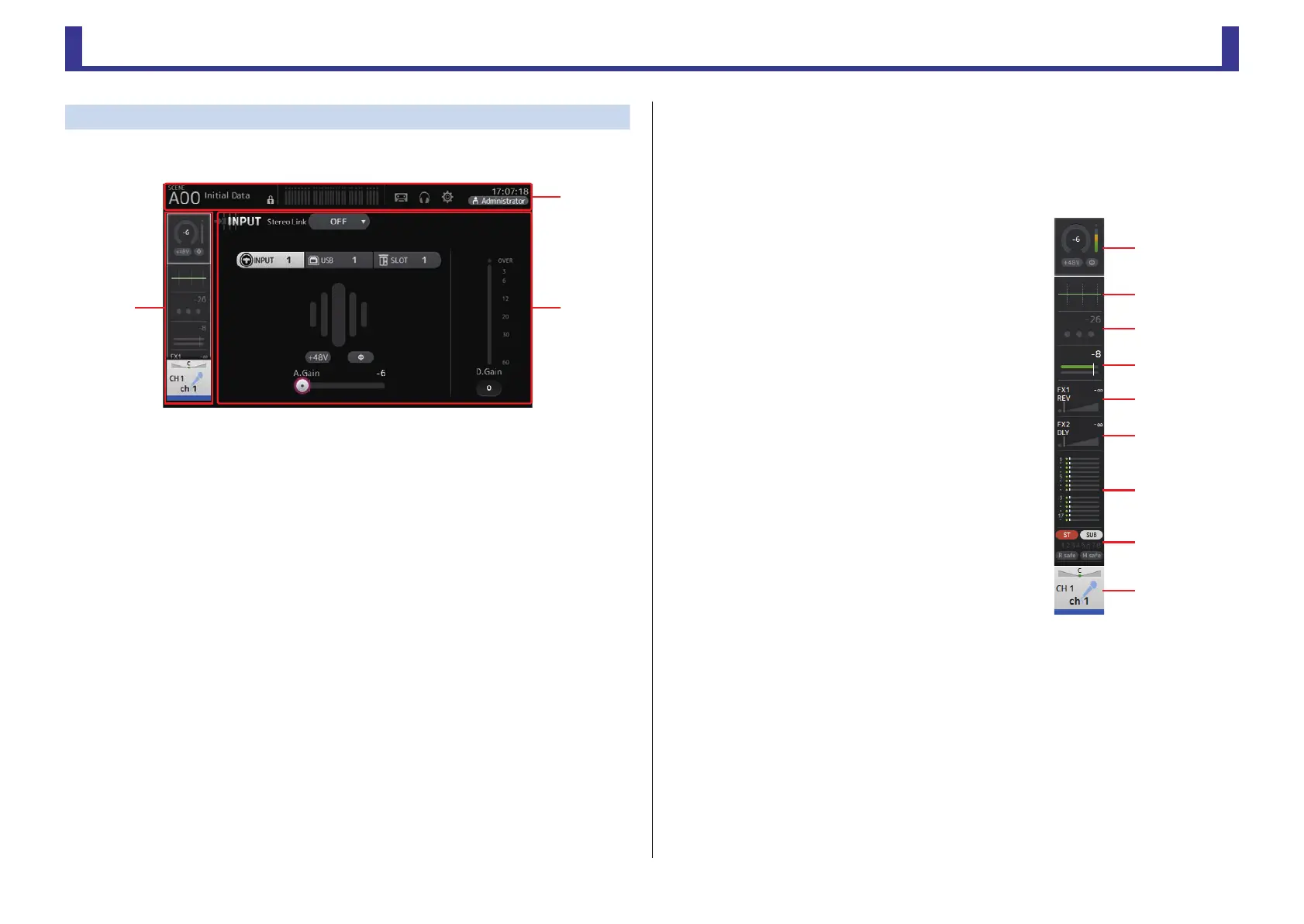
You can touch an area of the OVERVIEW screen to display the configuration screen for the
corresponding area.
1 Toolbar (page 11)
Displays buttons for frequently used features. When you touch a button, the
corresponding configuration screen in the main area of the display.
2 Navigation area
Allows you to select which screen is displayed in the main area of the display.
3 Main area (page 46)
Displays the screen that you select using the toolbar or navigation area.
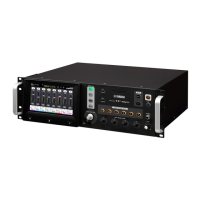
I Navigation area
Displays the features of the currently selected channel.
You can drag the screen up and down to display other features.
CH1–CH32
1 Displays the INPUT screen. (page 46)
2 Displays the EQ screen. (page 48)
3 Displays the GATE screen. (page 52)
4 Displays the COMP screen. (page 54)
5 Displays the FX1 screen. (page 56)
6 Displays the FX2 screen. (page 56)
7 Displays the SEND TO AUX screen. (page 61)
8 Displays the ASSIGN screen. (page 62)
9 Displays the CH VIEW screen. (page 63)
ձ
ճ
ղ


 To Next Page