Configuration screens
Reference Manual
-
68
-
1 Channel name
Touch to display the CH NAME screen.
Touch to display information for a different channel.
2 Recall Safe button
Turns recall safe on and off for the corresponding channel.
You can display the RECALL SAFE screen (page 24) by touching the jump button in
the right corner of the Recall Safe button.
3 Boxes
Touch to display the configuration screen for the corresponding feature.
You can touch the EQ and COMP buttons displayed here to turn the corresponding
feature on and off.
FROM box: Displays the SEND FROM screen. (page 74)
EQ box: Displays the EQ screen. (page 48)
COMP box: Displays the COMP screen. (page 54)
InsFX box: Displays the FX screen. (page 56)
4 Channel on/off button
Turns the selected channel on and off.
5 OUTPUT box
Displays the OUTPUT screen. (page 73)
6 Channel output level slider
Adjusts the fader level for the selected channel.
7 Channel output level meter
Displays the channel's output signal level.
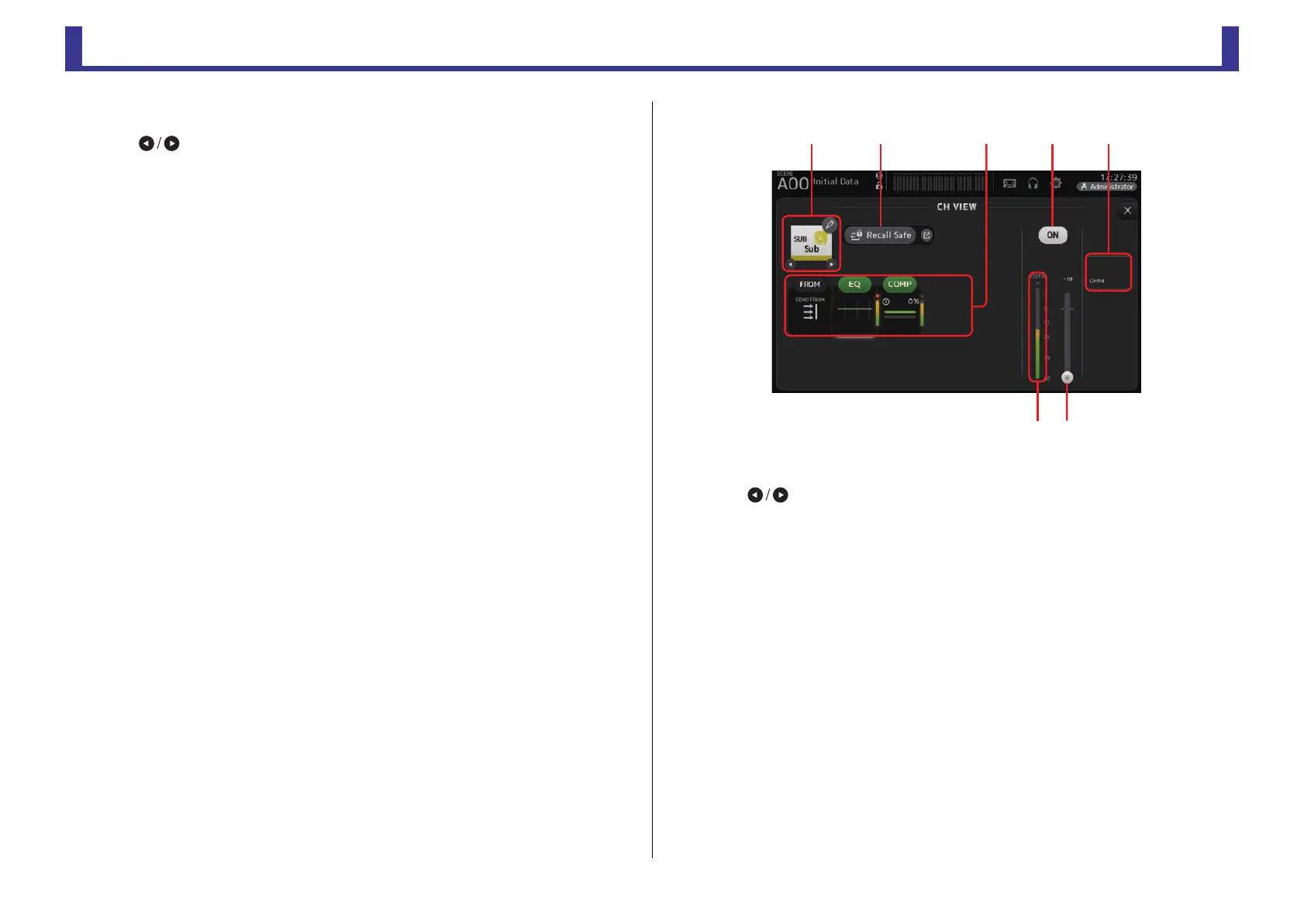
SUB
1 Channel name
Touch to display the CH NAME screen.
Touch to display information for a different channel.
2 Recall Safe button
Turns recall safe on and off for the corresponding channel.
You can display the RECALL SAFE screen (page 24) by touching the jump button in
the right corner of the Recall Safe button.
3 Boxes
Touch to display the configuration screen for the corresponding feature.
You can touch the EQ and COMP buttons displayed here to turn the corresponding
feature on and off.
FROM box: Displays the SEND FROM screen. (page 74)
EQ box: Displays the EQ screen. (page 48)
COMP box: Displays the COMP screen. (page 54)
4 Channel on/off button
Turns the selected channel on and off.
5 OUTPUT box
Displays the OUTPUT screen. (page 73)
6 Channel output level slider
Adjusts the fader level for the selected channel.


 To Next Page