PC GENIUS DIAGNOSTIC SYSTEM (YUM2E)
9-9
System performance is continually monitored
and fault codes identified for troubleshooting
purposes. The fault codes identify the problem
area and any necessary corrective action.
Put the TOW switch in the RUN position and the
main switch in the ON position.
PC operation procedures
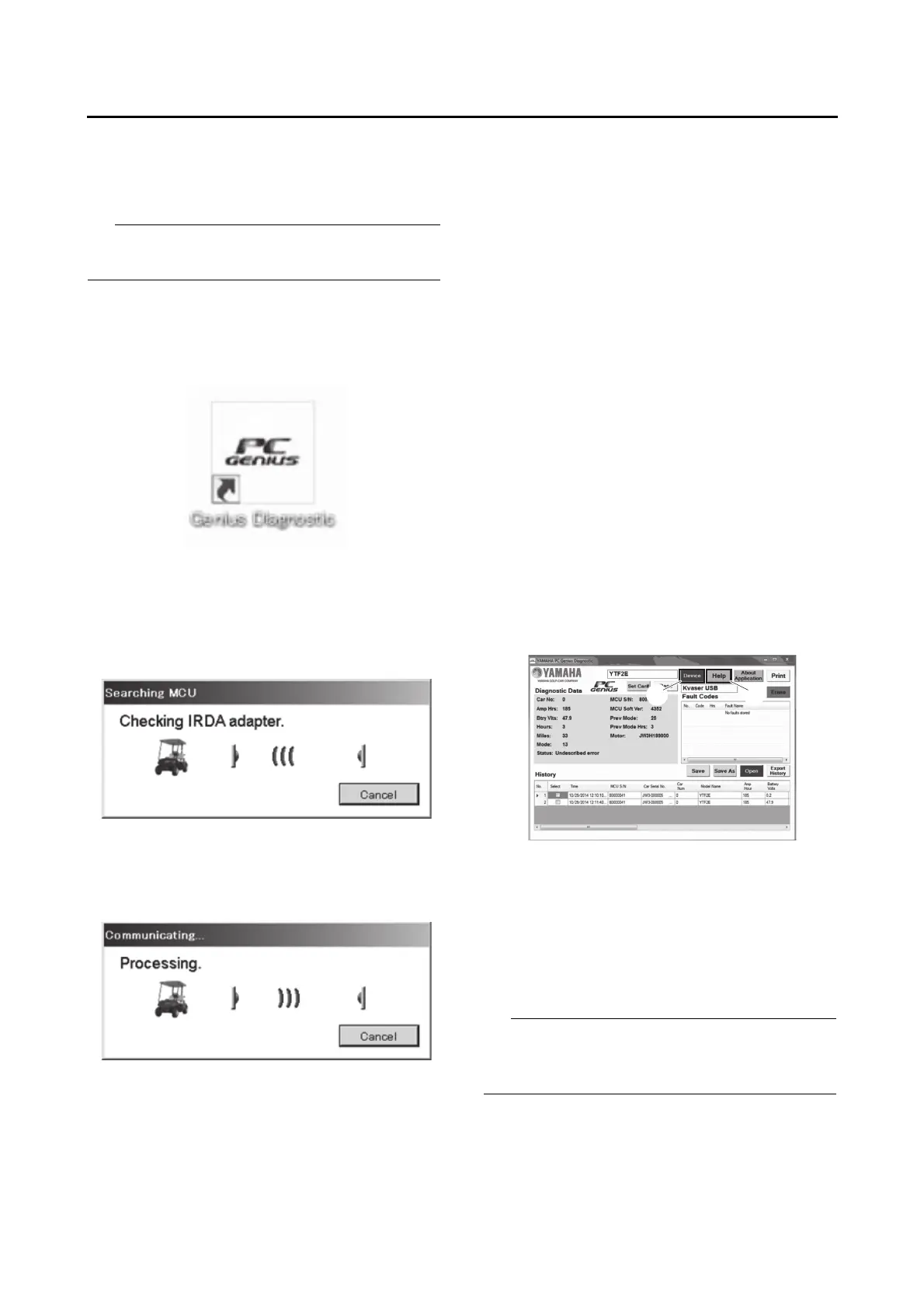
1. Select the PC genius diagnostic icon on your
computer.
2. The checking screen will appear automatical-
ly. PC genius is automatically determined AC
or DC by the connected device to the com-
puter.
3. When the connection is completed, a window
will display communicating and processing.
4. The PC genius diagnostic screen will appear.
Help button
The Help screen will appear with the following
13 topics. When open the help screen, click the
“Help” button “1”.
Topics:
• Check adapter before connection
• Communicating dialog
• “Read” button
• Fault code description
• “Print” button
• “Set Car#” button
• “Erase” button
•History
• “Open” button
• “Save” button
• “Save As” button
• “Export History” button
• “Device” button
“Device” button
When you clicked device button “2”, can choose
IrDA or CAN as a communication method with
MCU.
“Read” button
When clicked “Read” button “1”, PC genius start
to communicate to the MCU.
When communication is successful, diagnostic
data “2” and fault codes “3” are displayed on the
screen. In addition, the data are listed in the his-
tory “4”.
If the main switch is in the “OFF” position, the
battery voltage will not display. This is displayed
in the history information on record No.1 “5”.






 To Next Page