| How to Use | 36
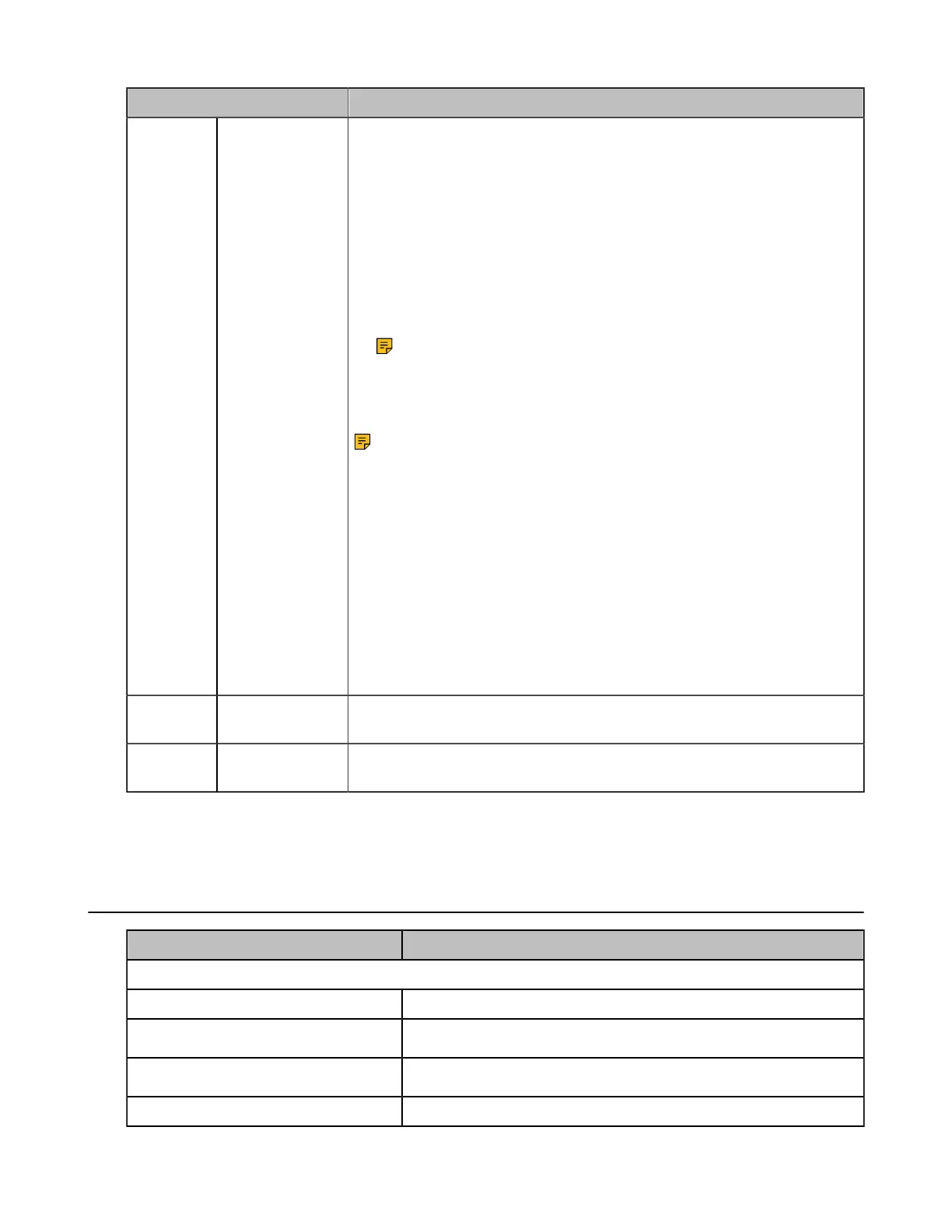
Name Description
6
Call Control
Button
Use to power the headset on and off.
• Hold for 3 seconds to power the headset on.
• Hold for 3 seconds to power the headset off.
Incoming and active call management depends upon if you have one call
or multiple calls.
One call:
• Press once to answer an incoming call.
• Double-press to reject an incoming call.
Note: It is not applicable for Teams software temporarily
because of the Teams issue.
• Press once to end a call.
Multiple calls:
Note: It is not applicable for Teams software temporarily
because of the Teams issue.
• Hold for 2 seconds to answer an incoming call and put the active call
on hold.
• Hold for 2 seconds to switch between held call and active call.
• Press once to end the current call and answer the incoming call.
• Double-press to stay on a current call, and to reject a second
incoming call.
Teams-related features:
• Hold for 2 seconds to activate Cortana integrated in Teams (this
requires Microsoft's support).
• Press once to invoke the Teams client in the idle state.
7 Volume Control
Panel
Adjust the volume on your headset.
8
Status and
Busylight LED
Indicates the charging, Teams, or call status.
Related concepts
Status and Busylight LED
WH62/WH63 Base Status LEDs
LED Base State
PC/desk phone button
Off PC/desk phone device is not connected
Glows white
PC/desk phone device is connected and in the idle status
Glows green
In the call
Fast flashes green Ringing



 To Next Page
 Loading...