Using the Tablet
39
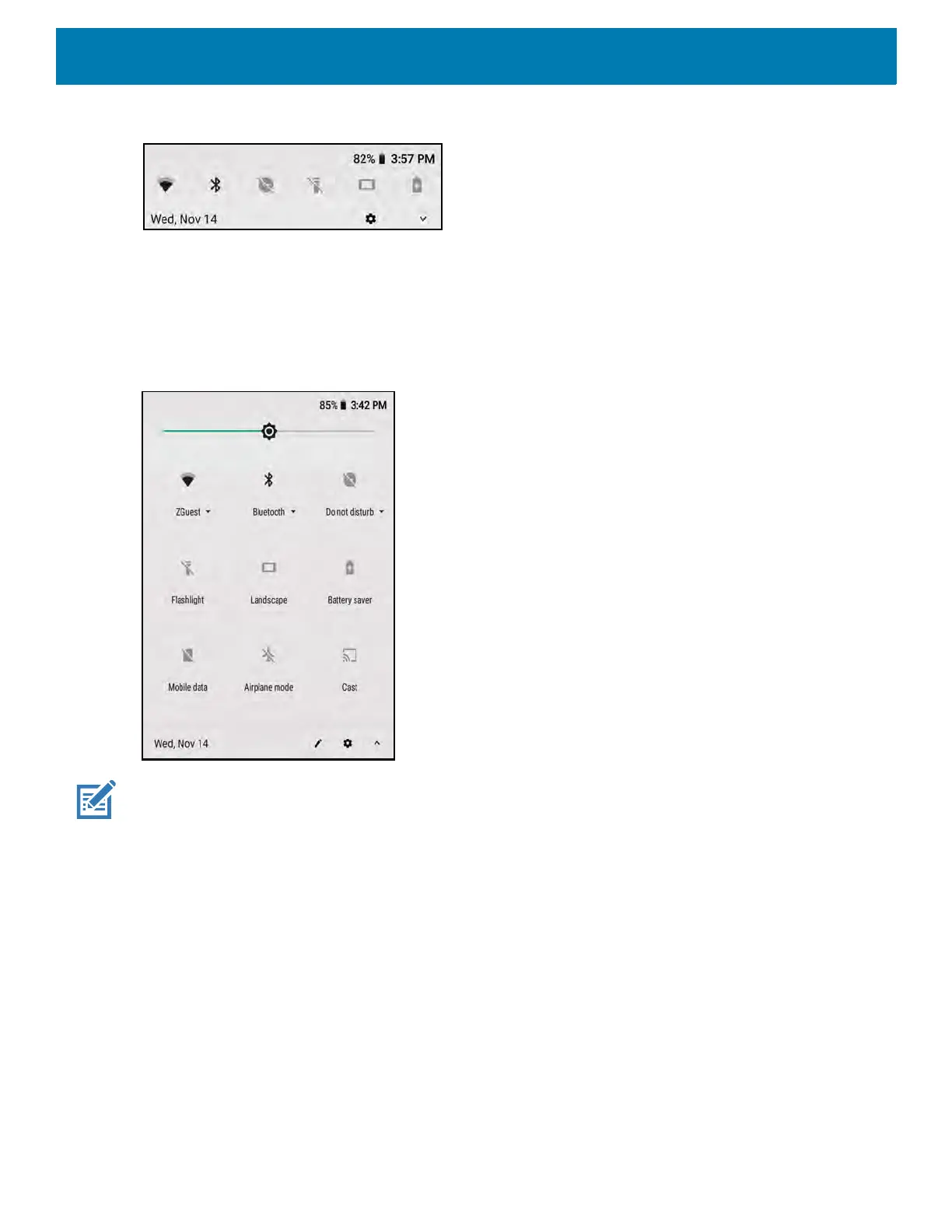
Figure 22 Quick Settings Bar
To see the full Quick Access panel:
• If the device is locked, swipe down once.
• If the device is unlocked, swipe down once with two fingers, or twice with one finger.
• If the Quick Settings bar is open, touch the Down arrow.
Figure 23 Quick Access Panel
NOTE: Not all icons are pictured. Icons may vary.
To change a setting, touch the icon:
• Display brightness - Use the slider to decrease or increase the brightness of the screen.
• Wi-Fi network - Turn Wi-Fi on or off. To open Wi-Fi settings, touch the Wi-Fi network name.
• Bluetooth settings - Turn Bluetooth on or off. To open Bluetooth settings, touch Bluetooth.
• Battery saver - Turn Battery saver mode on or off. When Battery saver mode is on the performance of the
device is reduced to preserve battery power.
• Invert colors - Invert the display colors.
• Do not disturb - Control how and when to receive notifications.
• Mobile data - Turns cellular radio on or off. To open Mobile data settings, touch and hold (ET56 only).
• Airplane mode - Turn Airplane mode on or off. When Airplane mode is on the device does not connect to
Wi-Fi or Bluetooth.
• Auto-rotate - Lock the device’s orientation in portrait or landscape mode or set to automatically rotate.
• Flashlight - Turn flashlight on or off. Turn camera flash on or off.



 To Next Page