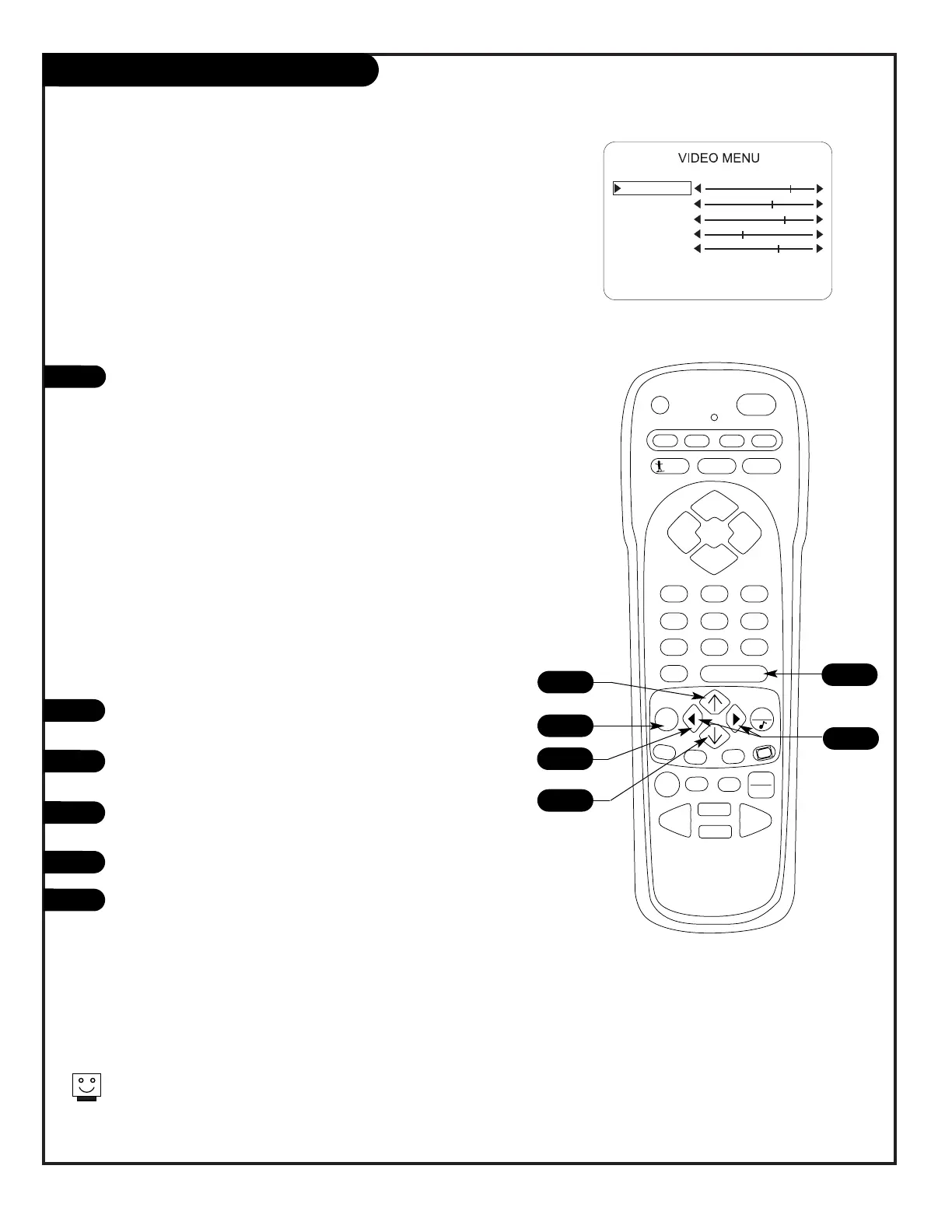
Video Menu
Press the MENU key repeatedly until the Video menu appears. Your
options are:
• Contrast: Adjusts the level of difference between white and
black in the TV picture. The more contrast, the brighter the pic-
ture appears.
• Brightness: Increases or decreases amount of white in the TV
picture.
• Color: Adjusts levels of all colors in the TV picture.
• Tint: Adjust the relative amounts of the color red and green in
your picture.
• Sharpness: Raise or lower the definition of the picture. The
lower the level, the softer the image will appear..
• Picture Preference: Choose either Custom or Preset. Custom
allows you to set the picture the way you want. Preset moves
all the above options back to their original, factory-set levels.
Using the Up/Down arrow on the remote control, choose Contrast
on your screen.
Using the Left/Right arrow, change the contrast level to your
preference.
Press ENTER, to return to TV viewing, or repeat from Step 2 to set
the other menu options.
Use the Up/Down arrow to choose Picture Preference onscreen.
Use the Left/Right arrow, to choose either the original settings
with Preset, or use your own settings with Custom.
1
2
3
4
5
Choose the Preset option in Picture Preference to quickly reset the video
menu settings to their original values.
Use the TV Video Menu to customize the picture to your preference
1
4
3/6
6
2/5
3/6
2/5
Menu Operation/Front Control Panel
The menus can also be operated by using the TV front control
panel buttons. See page 22 for menu operation instructions.
If you need to key-in numbers, use the remote control.



 To Next Page