36
12.3 REMOTE PHOTO/RECORD VIA THE APP
If you wish to use the App to Remotely Record a Photo or Video,
follow the steps on the next page:
1. Launch the ZX-20 App on your smartphone.
2. The App will open directly to the remote shooting screen. If it does
not, press the ‘Capture’ icon on the bottom left corner on App.
3. You can choose between video, camera and slow motion by clicking
on the matching icons. Each icon will have different options. Select
your preferred option.
4. Press the same icon for the mode you have chosen again to either
take the photo or begin recording.
12.4 ADJUSTING SETTINGS VIA THE APP
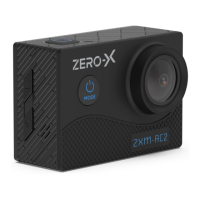
If you prefer to change the Settings of the ZXM-AC2 via the App you
can do this through the Settings tab. Follow the below steps:
1. Press the ‘Settings’ icon on the bottom right of the App screen.
All the Settings are listed on this screen under each category. To
either change them or turn them on, press on the required tab and
select the option you prefer.


 To Next Page