The System Information Page
You can use the System Information page to view information about your router, and to
view download, and delete system logs.
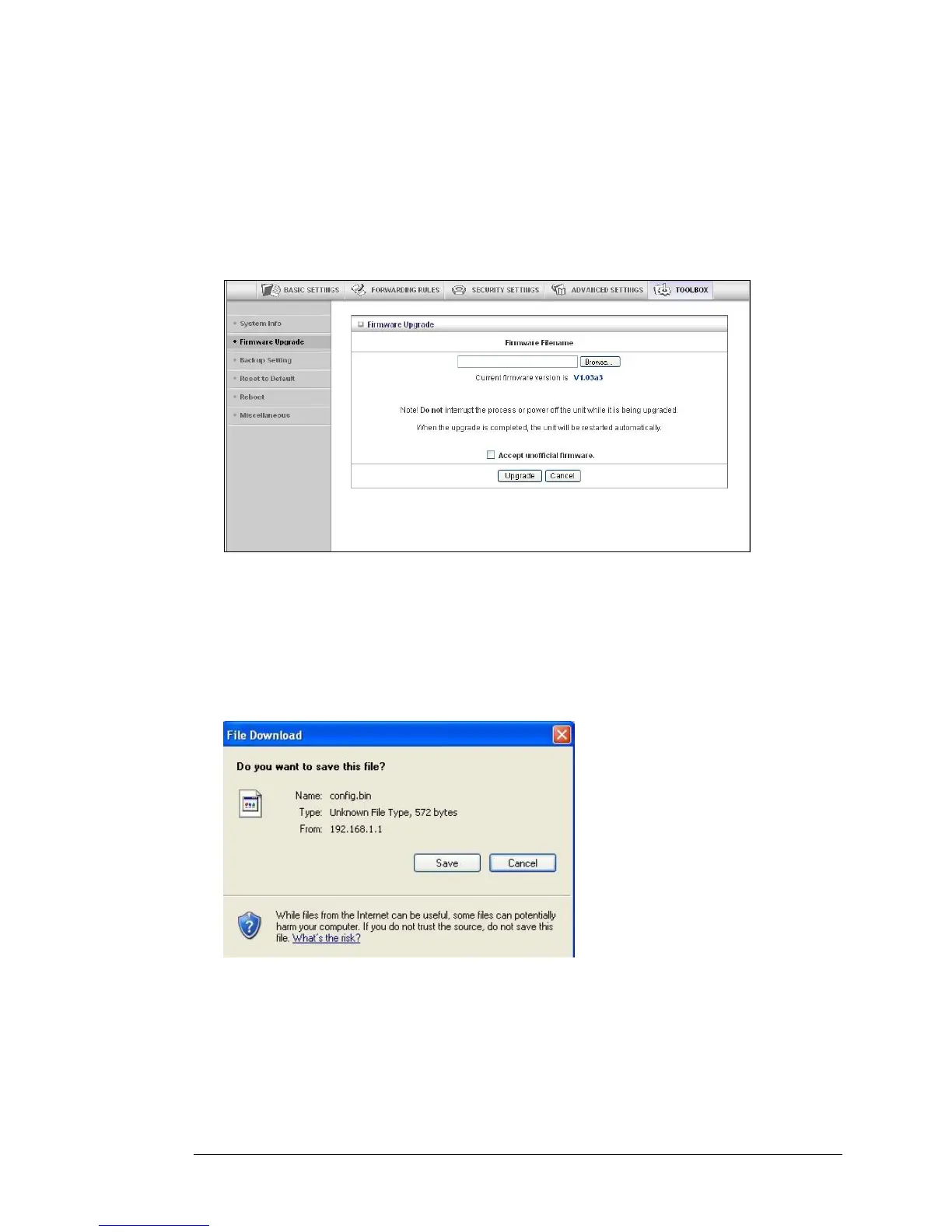
The Firmware Upgrade Page
You can use the Firmware Upgrade page to get the most recent version of the router
firmware, if available.
1 Click Browse to open the location where you saved the Firmware Update file that you
downloaded from the Zoom web site or received via email.
2 Click Upgrade.
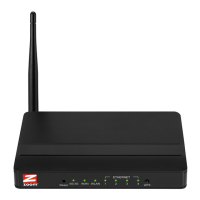
The Backup Setting Dialog
You can back up your router settings by clicking the Backup Setting item from the left
pane of the Toolbox menu. The following dialog opens.
1 Click Save to write and save your router settings as a binary file.
The Reset to Default Dialog
You can reset the router to its factory settings by clicking the Reset to Default item from
the left pane of the Toolbox menu. The following dialog opens.
58 Travel Router with Wireless-N User Manual


 To Next Page