If you selected ASCII format, and you chose a 128-bit key length, 13 ASCII
characters are required. Write the 13-ASCII-character key in the space
below for future reference, and then enter it in the Key 1 box.
— — — — — — — — — — — — —
If you selected ASCII format, and you chose a 64-bit key length, 5 ASCII
characters are required. Write the 5-ASCII-character key in the space below
for future reference, and then enter it in the Key 1 box.
— — — — —
Click WPS Setup to launch the WiFi Protected Setup (WPS) Setup program. For
instructions, please refer to
WPS Configuration on page 27.
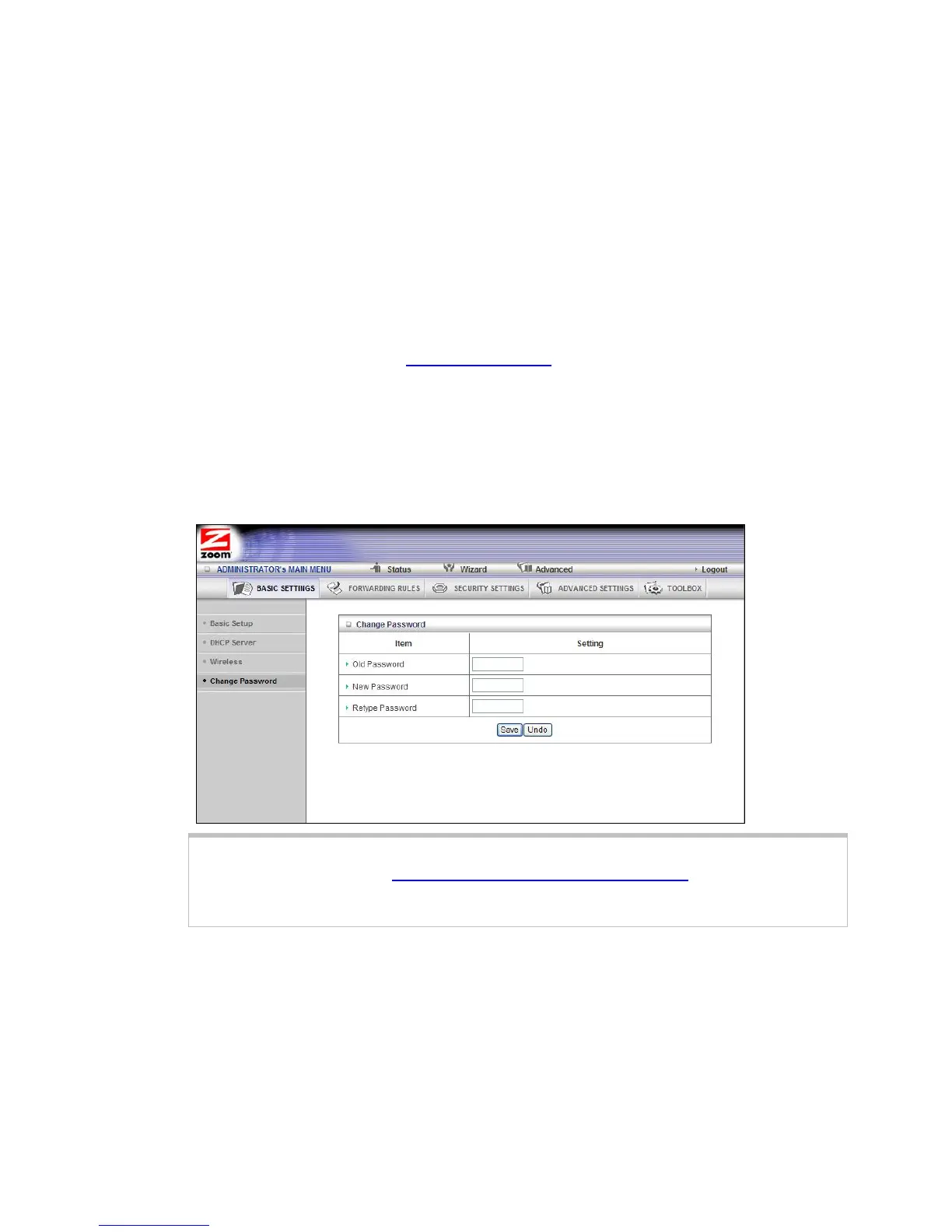
The Change Password Page
You can use this page to change your login password. To view or change
configuration settings, you must enter a password. Your router has a default
password (admin) that was set by the factory and that you used to access the
Configuration Manager initially. To safeguard your configuration, particularly if you make
changes, we recommend that you change the login password.
Note: If you forget the new password, you won't have access to the Configuration
Manager and will need to restore the device to its factory settings thus losing any
changes you made to your router's configuration. To avoid this problem, we
recommend that you write the new password and save it in a convenient location.
Configuring Forwarding Rules
Many applications, such as online games, require you to allow access through your
firewall to the computers or gaming devices behind your router by opening ports in
order to play the online game.
The Forwarding Rules page provides different methods for allowing access to devices
behind your router.
41


 To Next Page