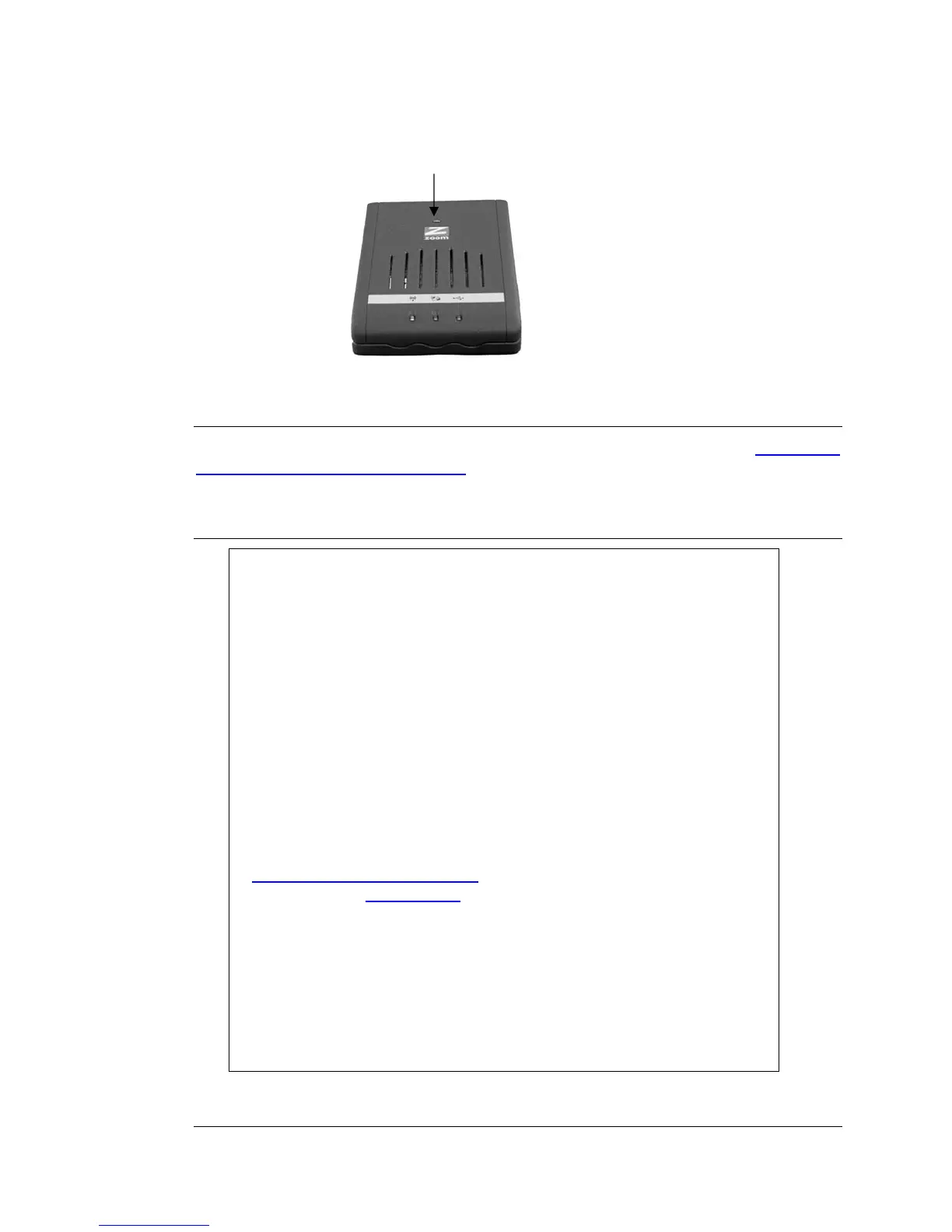
Power LED
Connecting a Modem or Smartphone to Your Router
If you wish to use the router with a DSL or Cable connection, please go to Chapter 2:
Using the Configuration Manager. If you wish to use the router with a mobile
broadband modem or tethered phone, please continue below.
Connecting a Mobile Broadband Modem or Tethered Phone
If you are considering using the router with a tethered phone,
please consider the following:
¾ Many service providers do not allow you to connect your mobile
phone to a computer or router unless you have signed up for a data
plan that allows data tethering. These plans are commonly called
Data Tethering, Mobile Broadband Connect, 3G Mobile Hotspot,
Phone as a Modem, or Laptop Connect.
¾ Your router only supports tethering with the USB cable. It does not
support tethering over WiFi
®
or Bluetooth
®
.
¾ When using your Phone as a modem you should turn off WiFi
®
and
Bluetooth
®
to conserve the phone’s battery.
¾ You may need to change the settings of the USB port on your phone
that’s being used with tethering. Refer to your phone’s
documentation on how to do this or go to
www.zoomtel.com/tethering for some information for common
phones or see Appendix B for instructions on Tethering on the
iPhone
®
.
¾ If you have difficulty connecting to the Internet through your phone,
verify that you can browse the internet with your phone directly
connected to a PC. If you can’t browse with the phone connected
directly to a PC, contact your wireless service provider for help. If
you can connect through your PC but not when attached to the
Travel Router, please contact Zoom Support. See Registering your
Product and Getting Help at the end of this Quick Start.
Chapter 1. Installing the Travel Router with Wireless-N 7


 To Next Page