Home Network Tab
31
Setting Up a Bridge Network
The Bridge Network pane allows you to create a local network that has broadband-accessible IP addresses.
Bridge Network is a public network in which the local network is an extension of the broadband network and
does not require any special routing. Computers that are assigned Bridge Network IP addresses operate
without Network Address Translation (NAT). This feature is typically used in conjunction with broadband
service that provides a range of IP addresses. Once enabled, the bridge network IP addresses can be
assigned to local computers.
To set up a bridge network:
1. Check the Enable checkbox.
2. In the Subnet Mask field, enter the subnet mask (this is typically provided by your service provider, and
defines how large your IP pool is).
3. Click SAVE.
Showing a Device as Inactive
To show a device as Inactive:
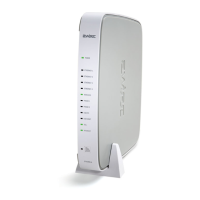
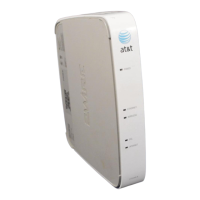
1. Open a Web browser and access the 2Wire gateway user interface.
2. Click the Home Network tab.
3. Click the Advanced Settings link under the tab.
4. In the Settings pane, select the Show inactive devices in network list checkbox.
5. Click SAVE.



 To Next Page