Firewall Tab
36
Viewing Your Firewall Summary
The Firewall Summary page provides summary information and links to the most commonly used security-
related features of your system.
To access the Firewall Summary page:
• Open a Web browser and access the gateway user interface by entering
http://2Wire.gateway.net.
• Click the
Firewall tab to open the View Firewall Summary page.
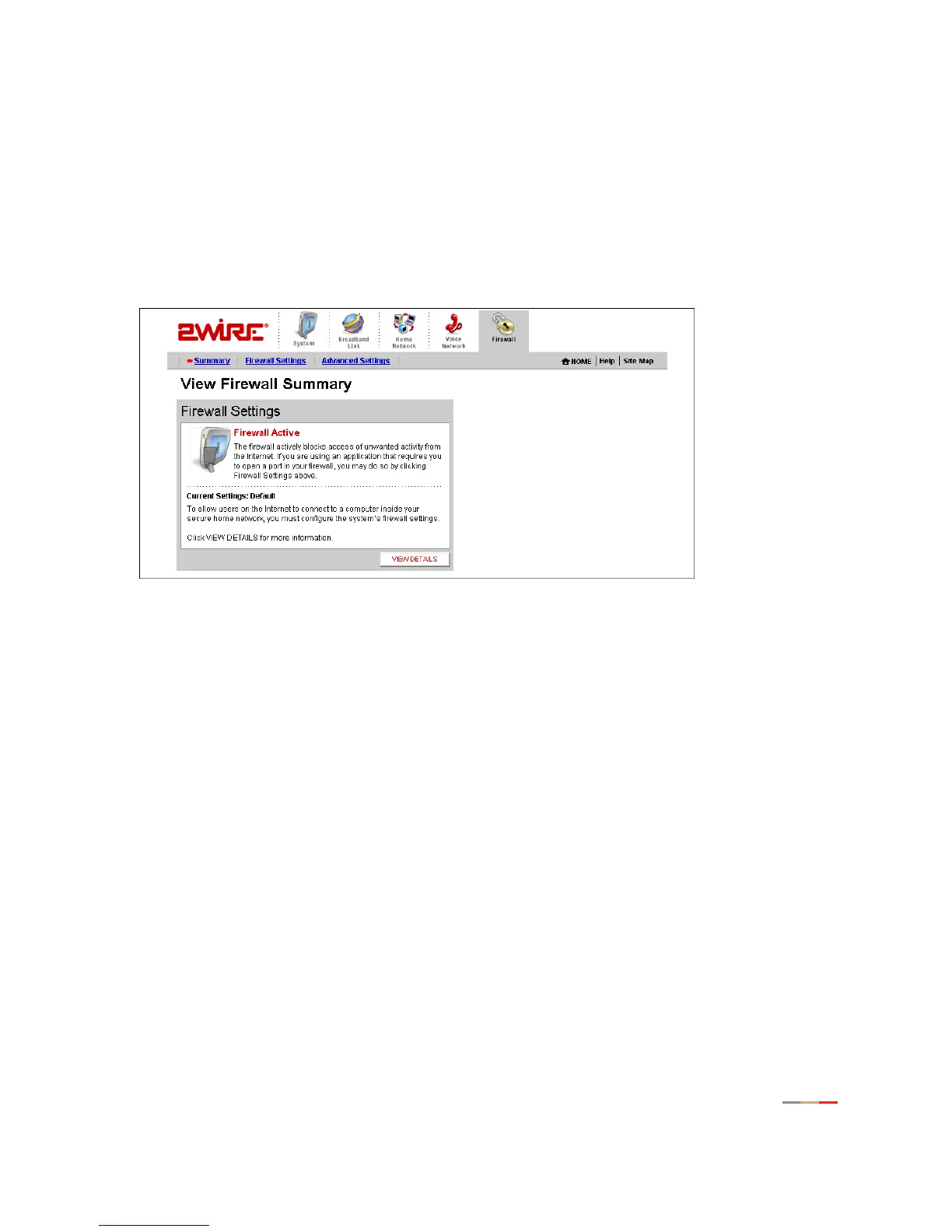
Figure 15. View Firewall Summary Page
The Firewall Settings panel displays the Current Settings for your firewall.
• Default. Unsolicited inbound traffic is not allowed to pass through the firewall.
• Custom. Applications are associated with computers on your network.
An access list shows the computers (Devices) on your network and the names of the Allowed Applications
for each computer. When you allow application traffic, external users on the Internet can have limited
access to your home network. This access might be required to allow some programs (such as game
servers or instant messaging software) to operate properly.
For example, a remote game player on the Internet might need to contact the game server program that you
have installed on your home network in order to play against you. Normally, the firewall blocks this
communication. By changing the firewall settings, this communication is permitted to pass through a
“pinhole” in the firewall. This function may be referred to as “port-mapping” or “port-forwarding” in your
software program documentation.



 To Next Page