Logging in to the Switch 31
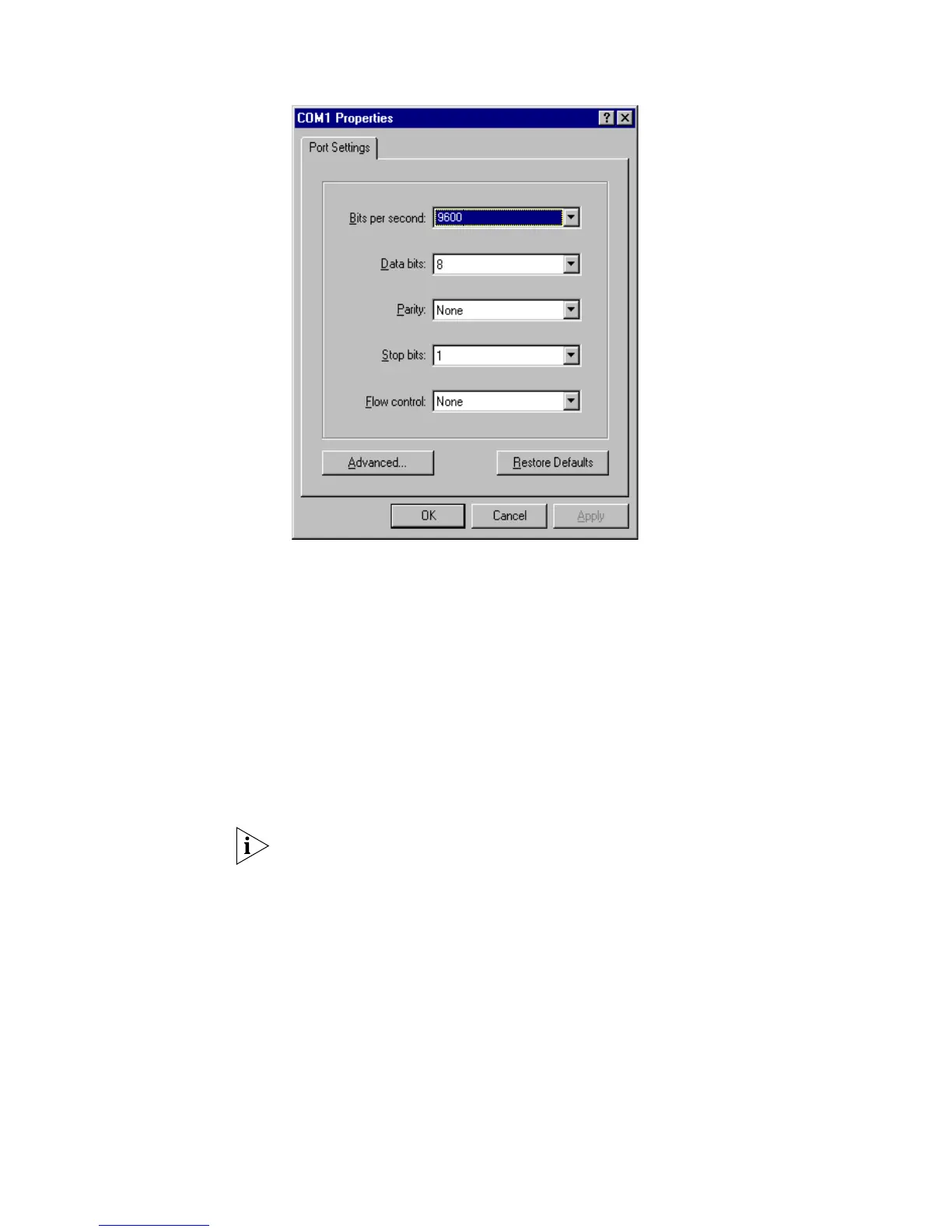
Figure 5 Setting Communication Parameters
3 The Switch is powered on and it displays self-test information. Press < Enter> to show
the command line prompt such as
<SW5500>.
4 Enter a command to configure the Switch or view the operation state. Enter a
? to
view online help. For details of specific commands, refer to the following sections.
Setting up
Configuration
Environment through
Telne t
Connecting a PC to the Switch through Telnet
After you have correctly configured the IP address of a VLAN interface for the Switch
through the console port (using the
ip address command in VLAN Interface View),
and added the port (that connects to a terminal) to this VLAN (using the
port
command in VLAN View), you can Telnet this Switch and configure it.
1 Authenticate the Telnet user through the console port before the user logs in by
Teln et.
By default, the password is required for authenticating the Telnet user to log in to the
Switch. If a user logs in through the Telnet without password, he will see the prompt
Login password has not been set!
<SW5500>system-view
[SW5500]user-interface vty 0
[SW5500-ui-vty0]set authentication password simple xxxx (xxxx is the
preset login password of the Telnet user)
2 To set up the configuration environment, connect the network port of the PC to a
port on the Switch through the LAN.



 To Next Page