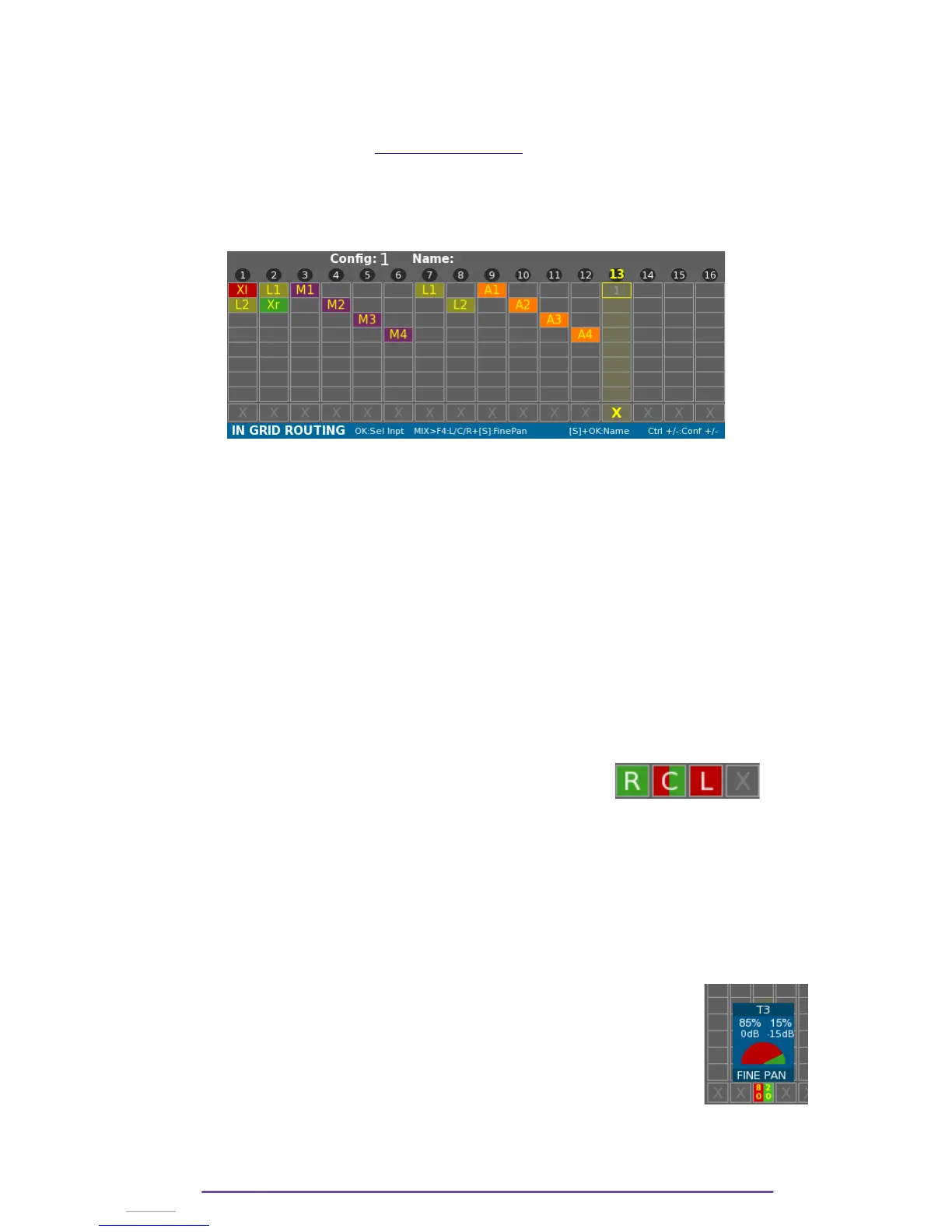
• For input number superior to 8: PostFade an arrow is displayed, select the item and
press Right/Left button to adjust the input number.
• PostFade N is the output of the track N through the attenuation applied to this track.
Note that the PostFade has a delay of 1 sample.
• Refer to Annex to see the Cantar Audio Chain.
ii. Declare input as Mixdown
In order to have an external source declared as Mixdown track, it is possible to add an input to
a track with a Mix-Left or a Mix-Right already routed.
In this example, the external Mixdown is sent to the Cantar using the Line inputs 1 & 2.
iii. Remove input
Use the direction buttons to move the yellow selection box and select the appropriate Track and
the input number.
• Press the OK button to display the Input choice panel and choose “Remove”.
Or • Double press the ESC button.
Or • Press the Solo button of the appropriate input.
NB: All inputs routed to a Track can be removed by holding the ESC button.
4. Pan-Pot to Mixdown
Each Track can contribute to the Mixdown through the PanPot.
Pan-pot is represented on the last row and indicates each Track contribution to the Mixdown Left
and Right.
• L means the Track is sent to Mix-Left.
• R means the Track is sent to Mix-Right.
• C means the Track is sent to both Mix-Left and Mix-Right.
• X means the Track is not sent to the Mixdown.
The F4 button cycles through the L, R, C, X options.
It is not possible to send Mixdown Tracks or Postfade Tracks to Mixdown for obvious reasons.
Example: on Pict. “Tracks.1” : • Track 3 is sent to Midown-Left.
• Tracks 4 to 10 are sent to Mixdown-Right.
• other Tracks are not sent to Mixdown (Track 1 and 2
cannot for obvious reason by sent to Mixdown).
It is also possible to have more precision: Fine Pan.
The Pan-Pot letter is replaced by a percentage representing how the Track is
sent to Mixdown Left and Right.
Access the Fine Pan setting Window by pressing the Shift + F4 buttons.
Balance is set using the Left or Right buttons. Each Track's contribution will
be displayed in percentage and dB.
Cantar X3
23


 To Next Page