Playing Takes
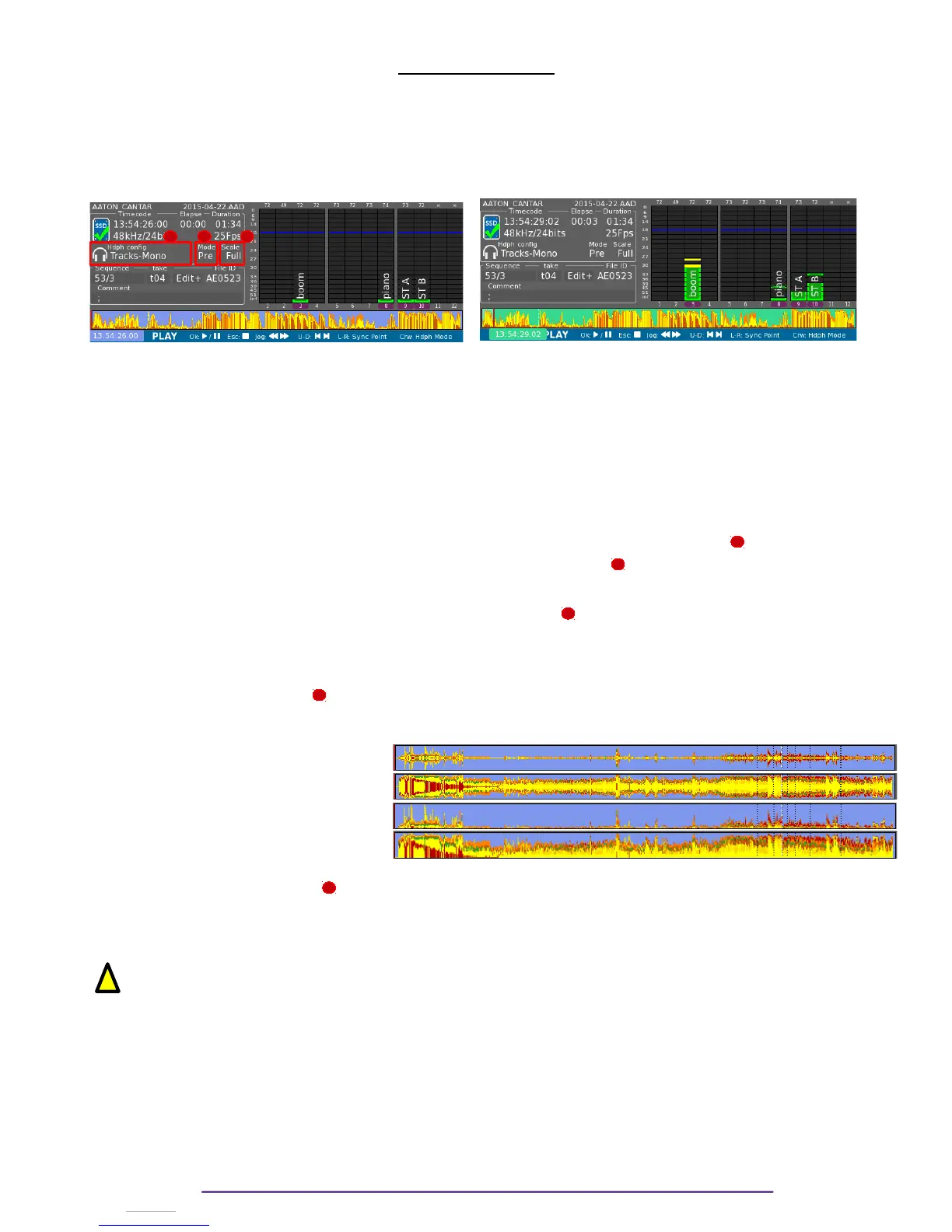
Play Menu is while the Main Selector is in the 8 o'clock position.
This Menu enables to play the audio files contained in the Project and Day Folder chosen into
Browse File Menu.
For Cantar-X3 or Mini files, it displays a waveform (calculated while recording) and the possible
sync points marked.
I. Commands
During Stop or Pause, the background of the timeline is blue and green during play.
• Toggle Play-Pause: press the OK button.
• Stop: press the ESC button.
• Scroll in file: rotate the Jog wheel.
• Next/Previous file: press the Plus(+) or Minus(-) buttons.
• Go to next/previous sync point: press the Left or Right buttons.
• Change Headphone Mode: press the Control + Plus (+)/ Minus (-) buttons .
• Change Waveform Mode: press the Shift + F3 buttons.
• View current Headphone Outmap: press the F2 button.
• Pre / Post fader monitoring: press the Shift + F2 buttons.
• Edit Metadata: press the F4 button.
• View Take's Ingrid: press the F1 button.
II. Waveform Modes ( )
In PLAY position, several waveform vertical scales are available, press Shift+F3 to toggle
between :
• S-lvl: Signed waveform signal.
• S-dB : Signed waveform in dB.
• U-lvl: Unsigned waveform signal.
• U-dB : Unsigned waveform in dB.
III. Monitoring Modes ( )
2 modes are available : Pre or Post fader. Press the Shift + F2 buttons to toggle between modes.
Pre fader : the attenuation set on a track does not affect the monitoring, the level is played as it
was recorded.
Post fader : the attenuation set on a track affects the monitoring.
IV.Headphone Modes
In Play, 3 Headphone Outmap modes are available:
• “Recorded Mixdown”: Mixdown Tracks, Mono.
• “Tracks--Mono”: Non-Mixdown Tracks, Mono.
• User Outmaps “A” to “Z”: Tracks according to User defined Outmap.
Press the Control + Plus (+)/ Minus (-) buttons to change the Headphone Mode.
Cantar X3
38
1
1
2
2
3
3
!
2
3


 To Next Page